

Run every menu from one dashboard.
Build categories and products, set up modifiers and add-ons, add images, set prices, and control availability for every store from the Ordering.co dashboard.
Menu management
What you can do
Categories and products
Organize products into categories and subcategories, and manage descriptions, prices, taxes, fees, and status from a list or spreadsheet view.
Modifiers and add-ons
Add options with conditions, including minimum and maximum selections.
Images and video
Upload product images one at a time or in batch, and add product videos.
Prices and costs
Set product prices and record product cost to measure margin.
Availability by time, order type, and channel
Show items only on certain days and times, and use different menus by order type or ordering channel.
No limit on products
Add as many products, categories, and subcategories as your catalog needs.
Dashboard
Every category and product in one screen.
Categories, subcategories, and products live in the same Dashboard screen, with description, price, product cost, and tax shown in the list, so your team can review and edit a menu without opening each item.
- Organize products into categories and subcategories
- See description, price, product cost, and tax at a glance in the list
- Add a category or a product, or bulk-import them, from the same screen
- Turn a category on or off without deleting it
- A change made here takes effect across your whole project right away
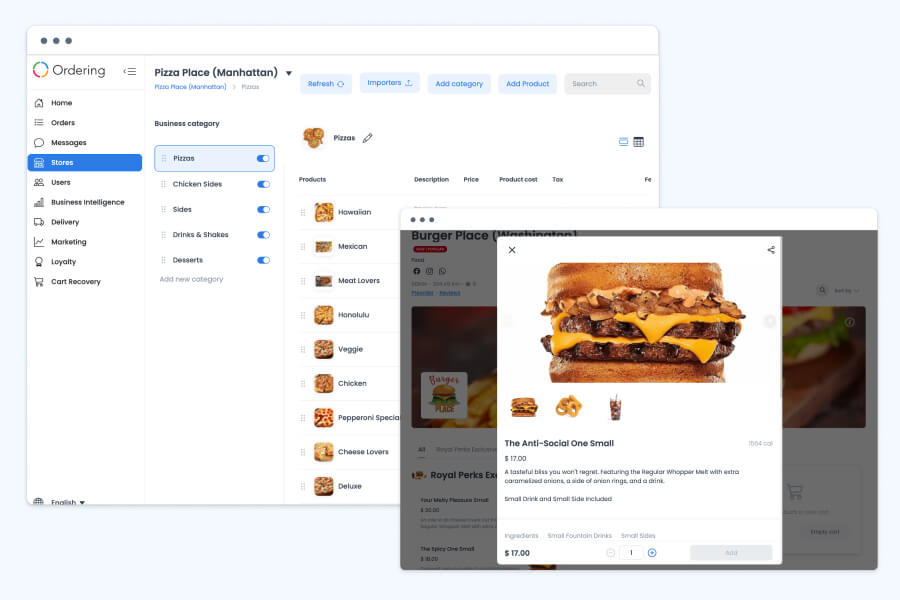
Dashboard and storefront
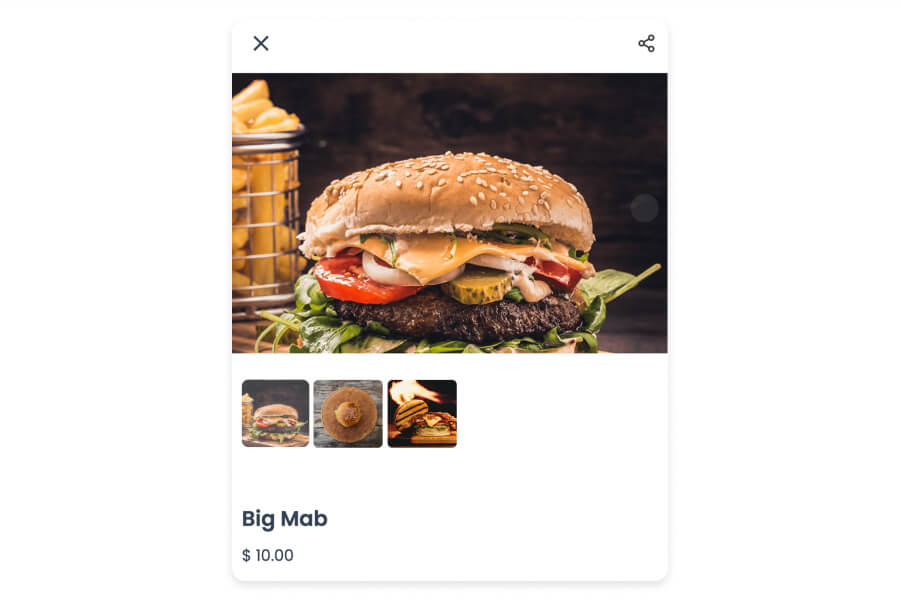
Give every product a gallery, not one photo.
Add more than one image to a product so customers can see it from different angles or in different states before they order. Customers open the gallery from the product card to look closer before adding it to the cart.
- Upload several images per product, plus product video
- Customers browse the image gallery from the product card
- Clear, accurate images reduce the guesswork that leads to a wrong order
- Update images any time; the change reflects on the live menu immediately
How it works
From setup to the next order.
- 01Create the categories
Build categories, and subcategories where they make products easier to find.
- 02Add or edit products
Enter product details, then set options, images, video, and price.
- 03Organize and share menus
Group products into menus and share a menu across stores.
Related
See all featuresSee how it fits your operation.
Start a free trial, or walk through your setup with the Ordering.co team.