

Build your catalog without typing every item.
Import categories, products, and options in bulk from a spreadsheet file, or start from a matching business in the Ordering Network directory.
Menu importers
What you can do
Bulk import from a file
Import categories, products, and product options from a CSV or spreadsheet file in a supported format, matched to each store by external ID.
Import from the Ordering Network
Search the Ordering Network directory for your business and import a starting catalog with products, categories, prices, options, schedule, and descriptions.
Stores and products in bulk
Bring in stores, categories, and products in bulk from the dashboard.
Review before you go live
An import can overwrite existing prices, taxes, and availability, so test a small sample first and review the result.
Dashboard
A separate importer for each kind of data.
Set up dedicated importers for businesses, categories, products, a full menu, users, or orders, and switch each one on only when you need it. Every importer maps the columns in your file to the matching Ordering.co field, with a CSV example to work from.
- Import Businesses, Import Categories, and Import Products as separate, independent importers
- Import Full Menu brings in businesses, categories, products, and product options together
- Import Users and Import Orders bring in customer and order data, not only the catalog
- Each importer has its own on/off toggle, name, and CSV field mapping
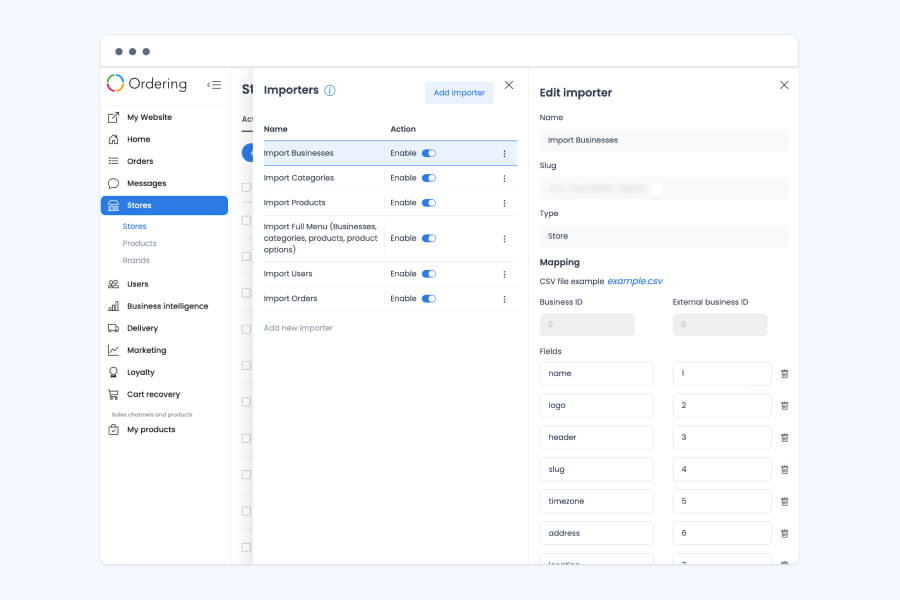
Dashboard, store setup
Start from a catalog that already exists.
Instead of preparing a file, search the Ordering Network directory for a business that matches yours and import its catalog as a starting point for your own store.
- Search the Ordering Network directory for a matching business during store setup
- Import its products, categories, prices, options, schedule, and descriptions as a starting catalog
- A matched catalog is typically ready within a couple of minutes, with a notification when it is done
- Review and adjust the imported catalog before the store goes live
- Product images are not included in an Ordering Network import
- Available for businesses in Canada and the United States
How it works
From setup to the next order.
- 01Prepare the file
Use a supported CSV or spreadsheet format with unique external IDs, matched to the right store.
- 02Upload and review
Upload the file, then review the imported categories, products, and options.
- 03Or search the Ordering Network
From store setup, choose the import option, search for the matching business, and review what was imported.
Good to know
- Product images are not included in an Ordering Network import.
- The Ordering Network directory currently covers businesses in Canada and the United States.
Related
See all featuresSee how it fits your operation.
Start a free trial, or walk through your setup with the Ordering.co team.