
Every order in one queue, from accepted to out the door.
Ordering Merchant gives store teams one operational workspace for incoming orders. The order workflow can move from acceptance through preparation, readiness, and dispatch, while kitchen handoff and store controls stay close to the shift.
- Order #1841NewWebsite · Delivery1 × Green bowl1 × Agua frescaAccept
- Order #1839PreparingApp · Pickup2 × Chipotle bowl
- Order #1836ReadyKiosk · Pickup1 × Street tacos
Ordering Merchant
One app for the work a store actually does.
One queue, every channel
Direct and connected order channels can be handled from one operational queue, so store teams do not have to switch between separate order views.A status the customer can see
A clear sequence—accepted, preparing, ready, and dispatched—gives the store a shared way to manage each order as work progresses.Printing and kitchen display
Route order information to a printer, a kitchen display, or both, according to the store's kitchen workflow.The store, under the store's control
Store teams can work with menu, hours, availability, and store status alongside order handling.What a store needs during the shift.
Accept, reject and set the time
Accept an order with a preparation time, or record a rejection when the store cannot take it.Order statuses end to end
Move an order from accepted to preparing, ready, and dispatched with a visible operating sequence for the team.Ticket printing
Print the ticket when the order is accepted or on demand, at the station the store already uses.Kitchen display
Send accepted orders to a kitchen display so the line reads the queue without paper.Notifications for the store
New orders and status changes can surface notifications across the operational workspace.Handoff to a driver
Continue a ready delivery order into the delivery workflow from the same order record.Order management
Accept, prepare, ready, dispatch.
The queue gives the shift a repeatable sequence. Store teams can set the operating status for each order and route its ticket to the kitchen in the format that fits the location.
Kitchen handoff is configured at the store level, so locations can use the workflow that matches their operations.
- 01AcceptThe store reviews the order details and accepts it with a preparation time, or records a rejection.
- 02PrepareThe order can be routed to a printer, kitchen display, or both while the kitchen prepares it.
- 03ReadyThe store marks the order ready, separating completed kitchen work from the next handoff.
- 04DispatchFor delivery orders, the store moves the order into the configured delivery workflow for assignment or partner handoff.
Inside the app
An order, from the first alert to the last tap.
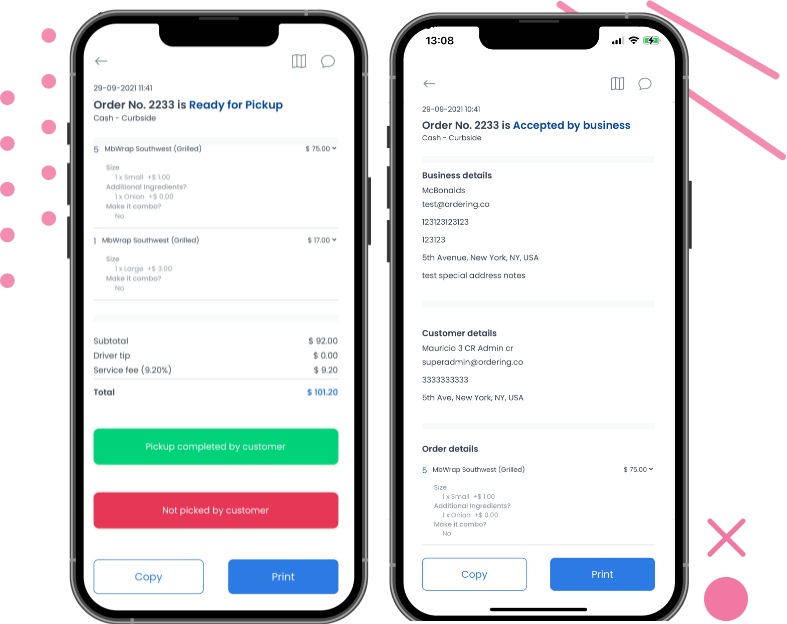
What the store team sees on a tablet at the counter or a phone in a pocket while an order moves through the shift.
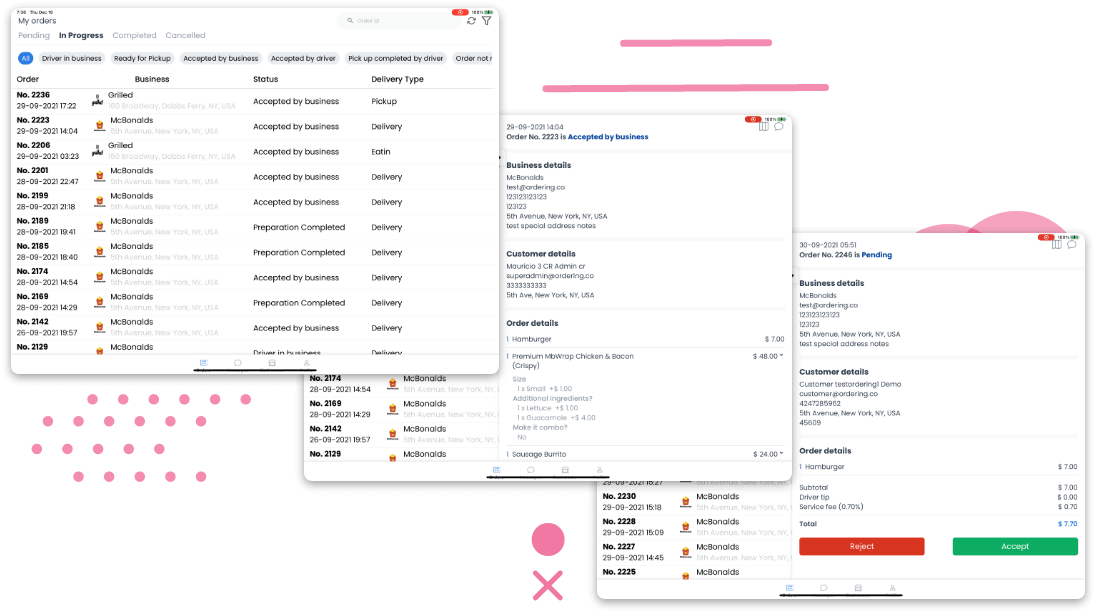
A new order arrives, with a notification
Every order sends a notification as soon as it arrives, which helps the team deliver on time.
On a tablet, the full orders view shows big, readable information, so an owner can follow every incoming order at a glance.
Accept, reject, or assign a driver in a few taps
Every incoming and in-process order sits on one straightforward screen. Change its status, assign a driver, or accept and reject it in just a few taps.
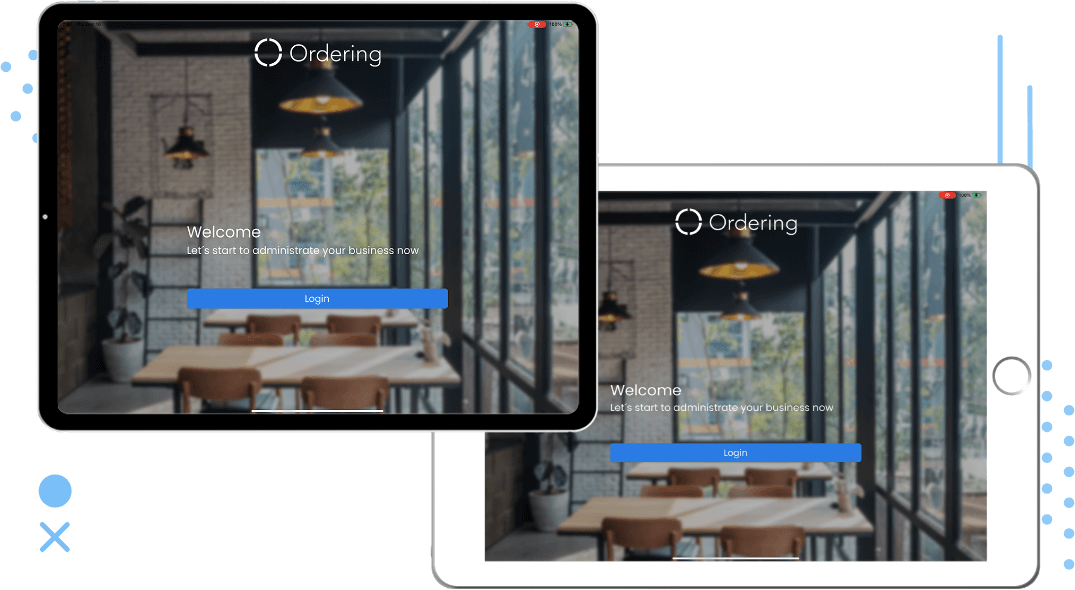
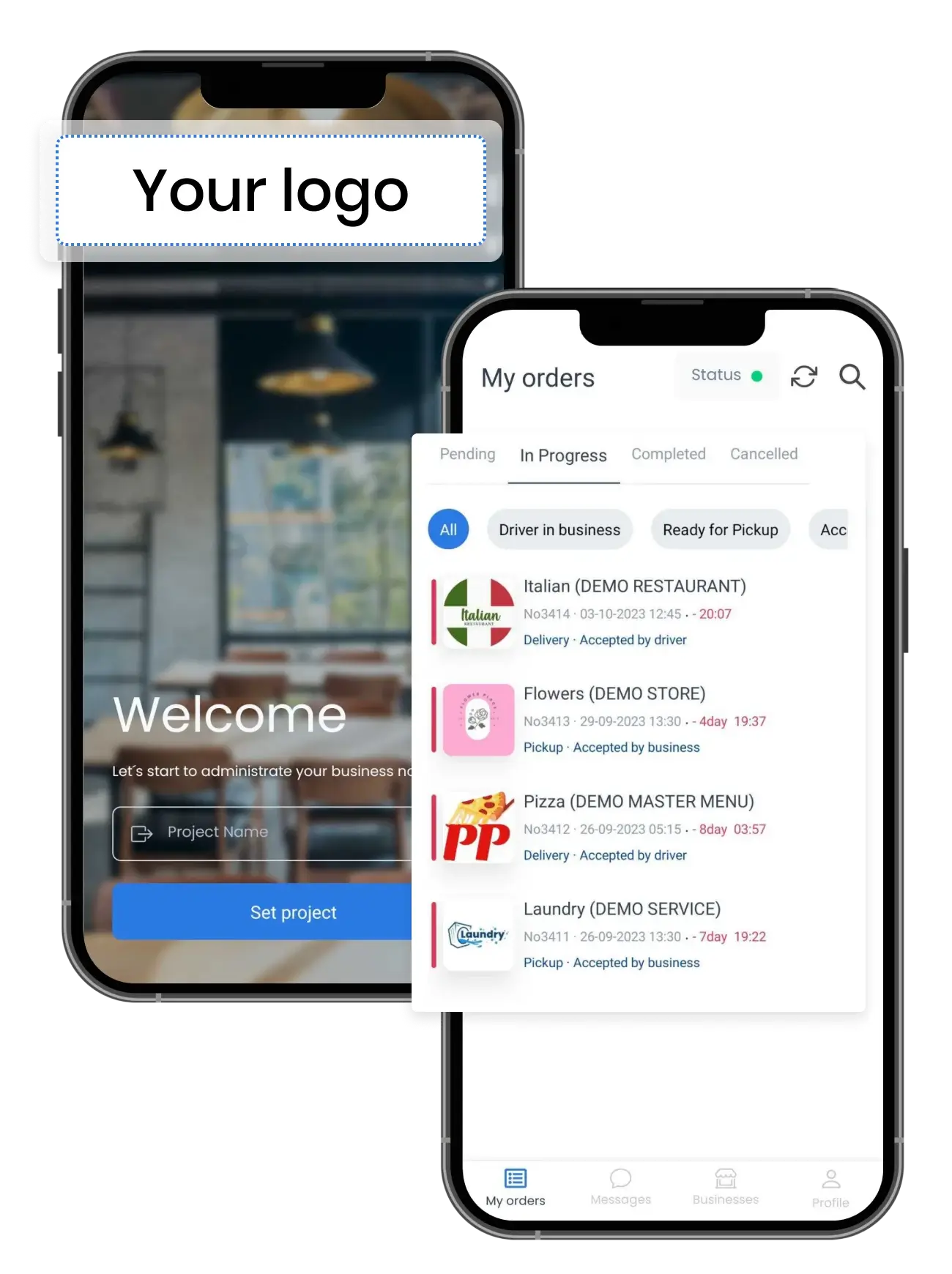
The same app can carry your logo, so the team works in a store app under your brand.
Keep the customer and the driver in the loop
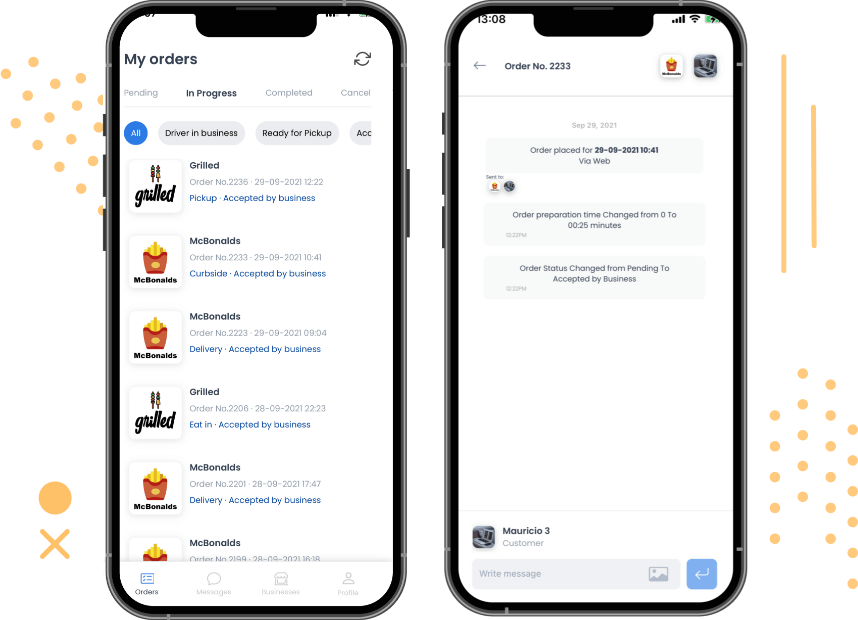
Message drivers and customers about an order in a chat-style flow the moment something changes.
A status change or a driver assignment notifies the customer, the driver, and the business owner right away. Follow the driver on a map, and print or copy the order in one tap.
Adjust products and categories as stock changes
Turn a single product or a whole category on or off from the app, so guests only see what the store can serve right now.
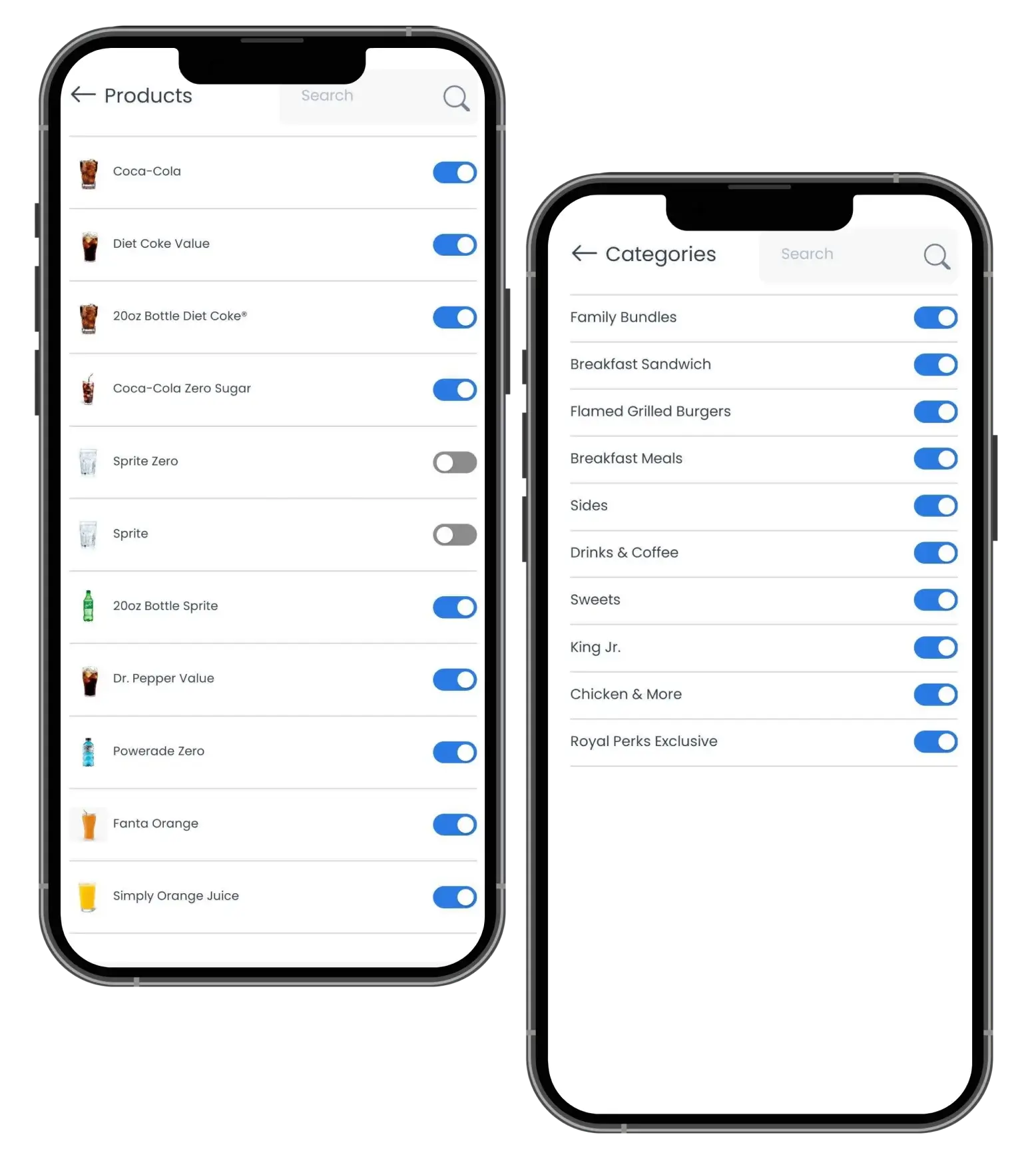
App screens shown with demo stores and menus.
On every device
Run the store from the counter or from anywhere.
Exact screens, notifications, map coverage, and device support depend on your configuration and device.
On a phone
The mobile business app, built with React, keeps order control in your pocket instead of on a back-office screen.
Full view on a tablet
A landscape view with big, readable information for a mounted screen at the counter, so nothing is missed during a rush.
Under your brand
Put your logo on the store app so teams review orders, menus, schedules, and driver assignments in an app that carries your brand.
Control from anywhere
Owners and managers can run the business remotely from the device they already use, on iOS and Android.
Locations and roles
Coordinate several locations and set the roles, access rules, and handoffs each team needs.
Every store, one switch each
See every business you manage in the app, with a switch to open or close each one and an orders list you can filter by status, right from your phone.
Order queue
Accept, track, and act on every order.
Every order moves through the same observable path, from the moment it needs a decision to the moment it is ready to go, with the full context your team needs at each step.
Where you use it: Dashboard and the Ordering Merchant app
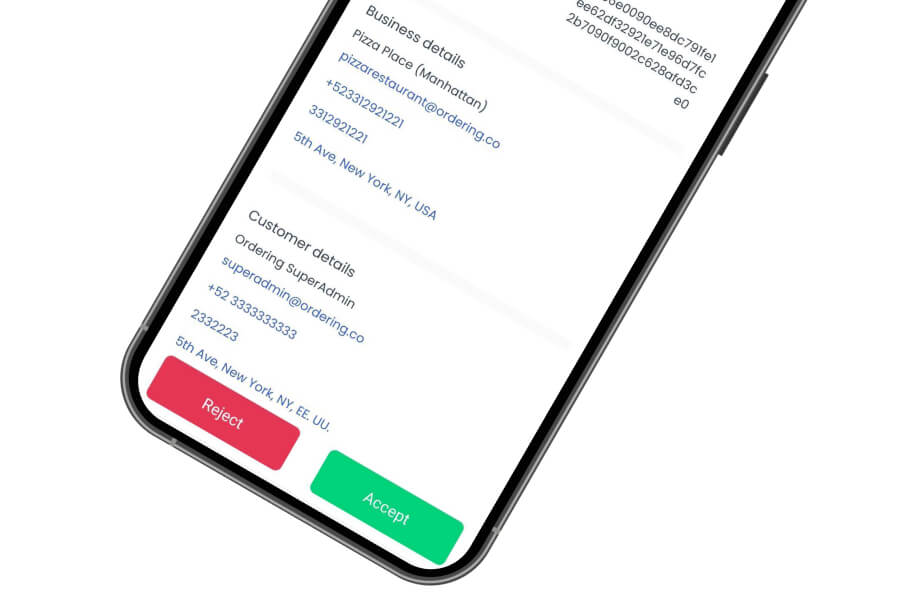
From accepted to done
- Accept or reject
- Accept an order with a preparation time, or reject it with a reason the customer can see.
- Drivers decide too
- Drivers accept or decline a delivery the same way, from their own app.
- Real-time status
- Move an order through its status in real time — the customer gets an automated notification each time it changes.
- Any location can update it
- Change the status from any store location, so multi-location teams stay coordinated on a shared order.
- Keeps working when the connection drops
- The app keeps working when the connection drops, so your team can keep managing orders through a spotty internet connection.
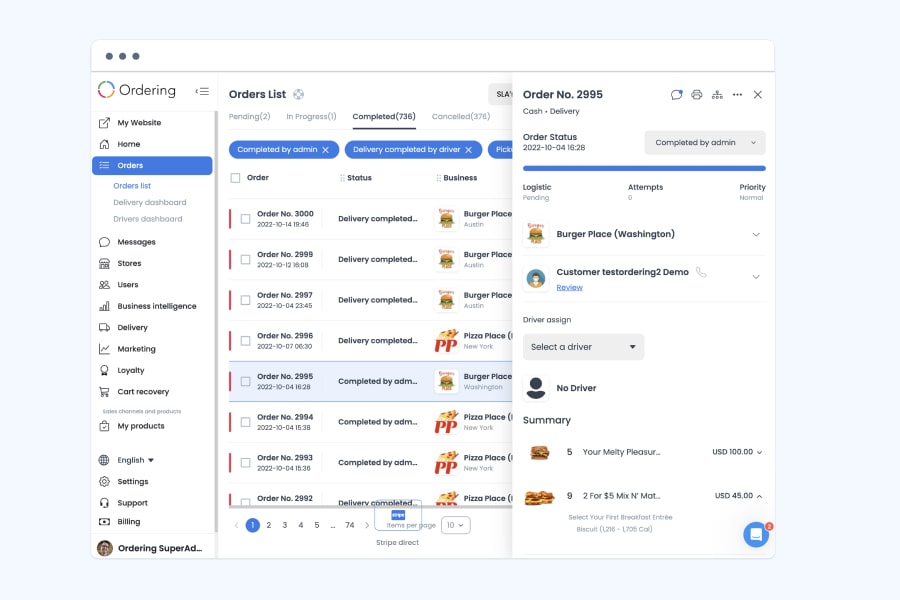
Everything about the order, in one place
- Status at a glance
- An order status control, with logistics, delivery attempts, and priority shown next to it.
- Full order context
- Itemized products and prices, the customer’s name and contact details, business details, delivery or pickup details, payment method, and any special notes, in one panel.
- Assign the driver from here
- Assign or reassign a driver straight from the order panel.
Why it matters
- Nothing sits unattendedClear accept, reject, and status steps keep the queue moving instead of piling up.
- Customers stay informed without a callAn automated notification goes out on every status change.
- Coordinated across locationsAny store can update a shared order’s status, which keeps multi-location teams working from the same information.
Find, export, and see the numbers
Filter the queue, export it, or check today’s numbers.
A long list of orders is only useful if you can narrow it to the ones that need you, and pull the numbers out when you need them elsewhere.
Where you use it: Dashboard
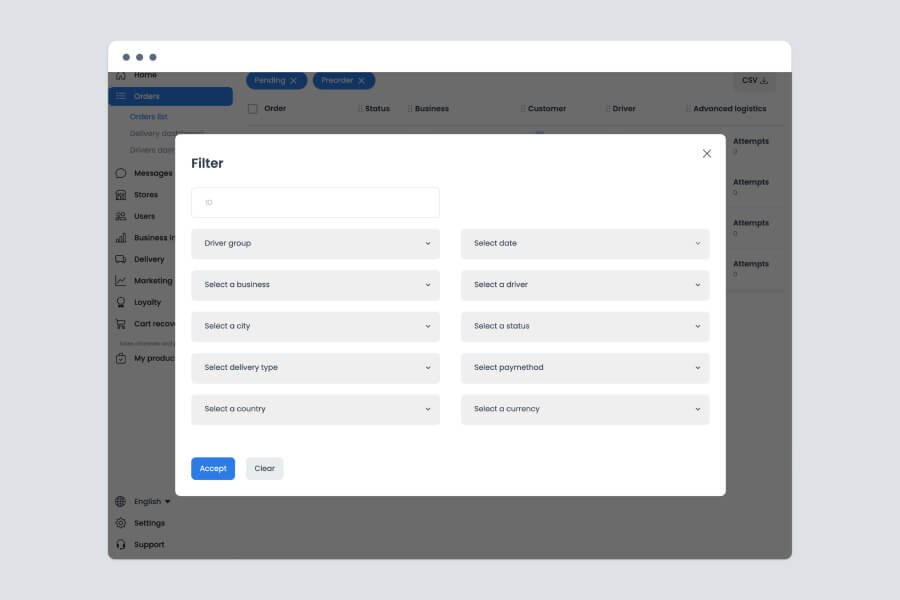
Filter criteria
- Filter by what you know
- Filter orders by driver group, business, city, delivery type, country, date, driver, status, payment method, or currency.
- Search by customer
- Search by customer name to find a specific order fast.
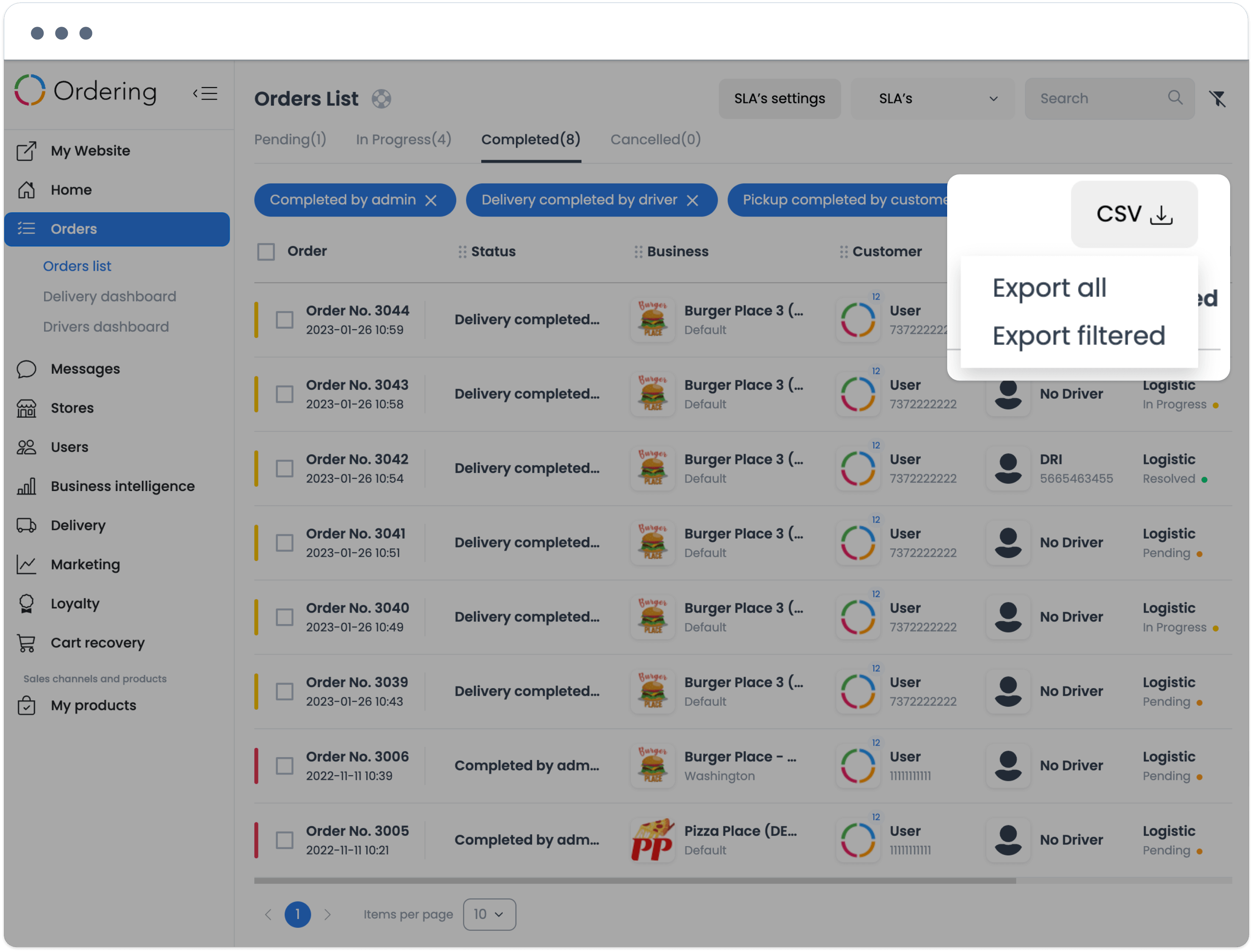
Export and today’s numbers
- Export to a spreadsheet
- Export all orders, or just the filtered ones, as a CSV — as often as you need, for accounting, inventory, or marketing systems.
- Today’s numbers on sign-in
- See this month’s sales trend, today’s order count, and today’s sales total the moment you sign in, with a link to deeper reports.
Why it matters
- Nothing gets lost in a long listFilters narrow hundreds of orders down to the ones that need attention.
- Numbers ready without manual tallyingExports and dashboard totals feed accounting, inventory, and marketing work without a manual count.
Customer and driver communication
Reach the customer or the driver without leaving the order.
Confirm a detail, resolve a question, or just keep everyone posted — without switching to a separate phone line or app.
Where you use it: Dashboard and the Ordering Merchant app
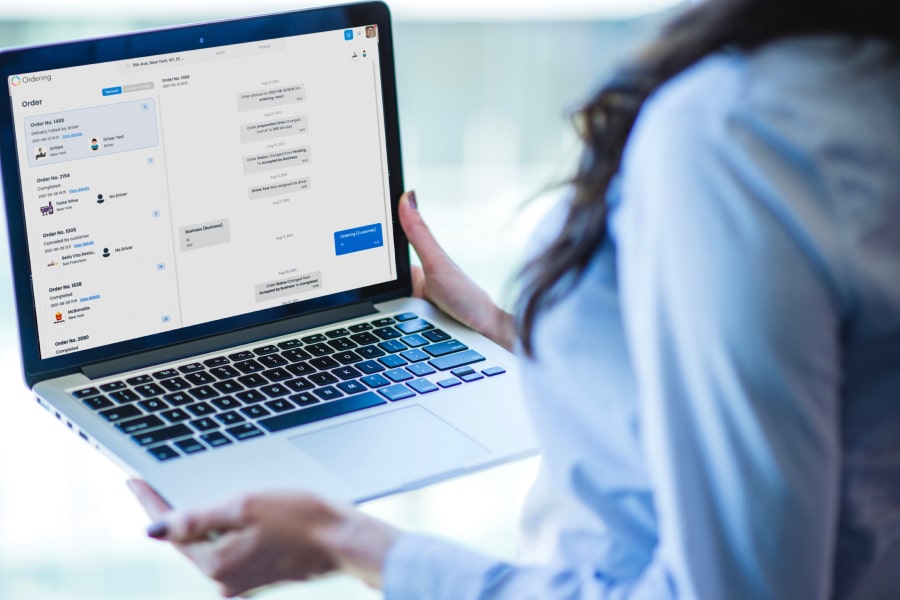
Messages, logged with the order
- One thread per order
- Automated updates — status changes, preparation time, driver assignment — sit alongside the messages your team and the customer send.
- Context before you reply
- See a customer’s order and message history to answer with the right context.
- Feedback in the same channel
- Customers can share feedback through the same channel instead of a public review.
A call when a message isn’t enough
- Call the customer
- Confirm order details or resolve a question before it causes a delay.
- Call the driver
- Share pickup and drop-off details or delivery instructions.
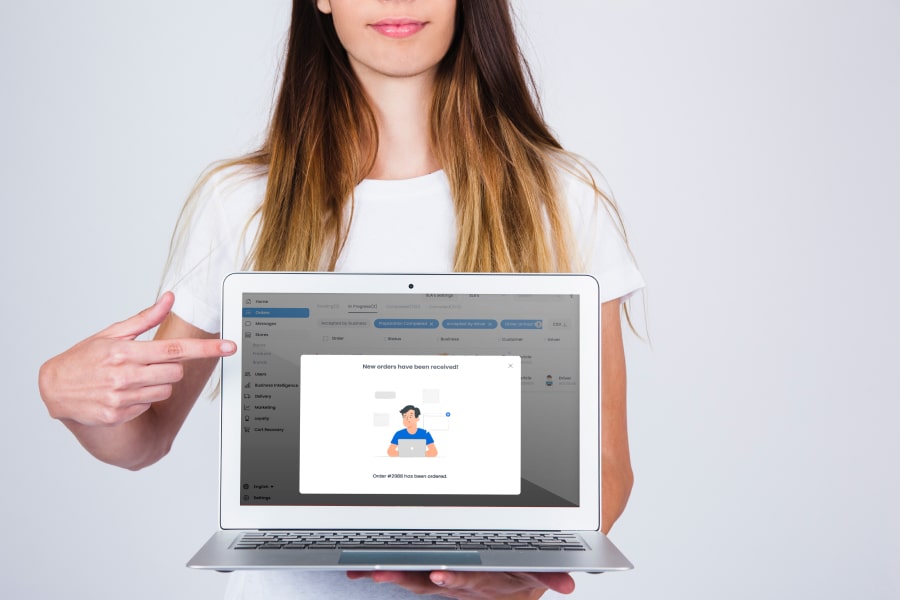
New order alerts
- On-screen alert
- An alert flags every new order the moment it arrives, so nothing waits for someone to refresh the list.
- Choose what alerts you
- Choose which events trigger a notification, so only the alerts that matter reach your team.
Why it matters
- Quicker resolutionsA message or a call clears up a question before it turns into a delay or a canceled order.
- No missed ordersAn alert reaches your team the moment an order arrives.
- A record of every conversationAutomated updates and messages stay with the order instead of scattered across calls and texts.
Printing and kitchen handoff
Print the ticket, wherever it needs to go.
A printed ticket still starts most kitchens. Print it the moment an order is accepted, and route it to wherever the team preparing it is standing.
Where you use it: Dashboard and the Ordering Merchant app
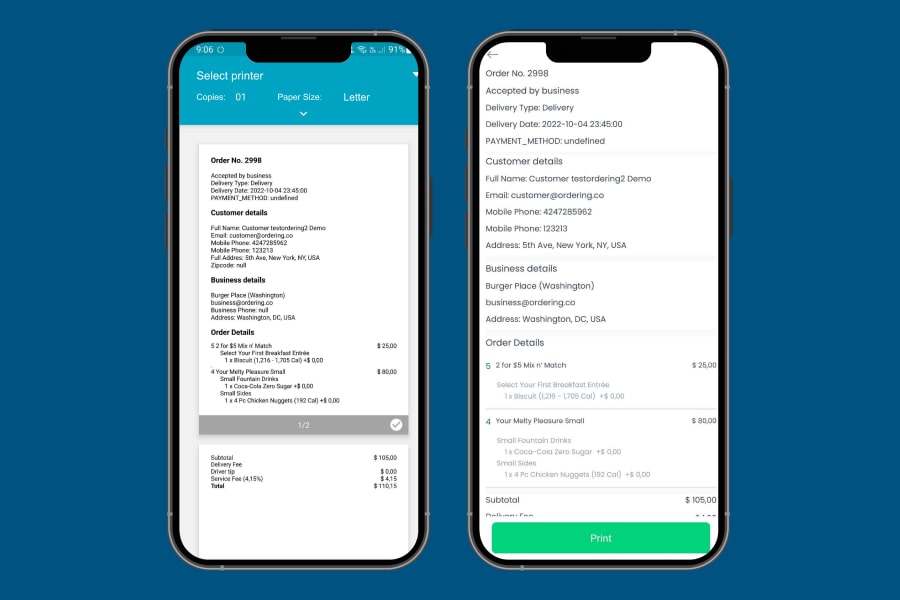
What prints, and what’s on it
- A complete ticket
- Customer details, business details, and the full itemized order — including modifiers, subtotal, delivery fee, driver tip, service fee, and total.
- Your printer, your settings
- Choose the printer, number of copies, and paper size before printing.
- A checklist for the shift
- Print a full order list as a start-of-day checklist, or a pickup and delivery list at the end of one.
Print from wherever the order needs handling
- Print remotely
- Print from the kitchen, a back office, or on the go, the moment an order is accepted or on demand.
- Any location, its own tickets
- Print from any store location, so multi-location teams stay coordinated on their own tickets.
Why it matters
- Kitchen starts on timeA ticket prints the moment the order is accepted, so prep can start right away.
- Fewer mistakes on the ticketThe full order — items, modifiers, and notes — is on the ticket, not just a summary.
- Coordinated multi-location printingEach location prints and manages its own tickets, even for a shared order.
Compatible hardware
Connect the printer the kitchen already runs.
Alongside the printing and kitchen-display workflow, Ordering Merchant works with these printer families and connection types, including a remote GPRS/SMS connection for a location without a stable internet connection.
Sunmi thermal printer
Combines a thermal printer and a barcode scanner in one device for mobile or desktop use, with quick printing, a large battery, a camera for scanning barcodes, and a 4G module.
Star TSP650II
A thermal receipt printer for traditional POS as well as mobile, tablet, and web-based POS systems, printing at 300 mm/s with 203 dpi quality, drop-in paper loading, barcode printing (including 2D), and an autocutter.
Star TSP654IISK
A liner-free thermal sticky label printer for full-service and quick-service restaurants, cafes, and takeaways, printing food and drink labels, allergy labels, order labels, and delivery bag seals.
Star TSP143III
A POS printer offered with WLAN, LAN, Bluetooth, or USB interface connection.
GT Printers
GT5000, GT5000S, GT5000S-Special, GT5000W, GT6000S, GT6000SW, and GT6000GW, with a built-in NFC reader, support for a barcode reader, and tickets in multiple languages, including English, Spanish, German, and Italian.
GPRS/SMS remote connection
For a location without a stable internet connection, a GSM-style terminal beeps to announce a new order so the store can confirm or reject it, which updates the order status. Ordering.co can also integrate your own printer model for this connection, whatever the brand.
Menu, hours and availability
The store changes what the store knows.
Store-level controls belong beside operational work. Managers can keep a location's menu, hours, availability, and order status aligned with what the store can handle during the shift.
Edit the menu
Manage products, options, and descriptions at the store level.Set hours
Opening hours and schedules for delivery, pickup and dine-in, per store.Mark availability
Take a product or an option out for the night and put it back when the prep comes in.Turn the store on or off
Set the store's order-taking status when the kitchen needs to pause or resume incoming work.Per-store users
Use location-level access to support the operating roles that work in a store.Notifications
Keep order and status updates visible to the teams handling the shift.
One infrastructure
The store is the last mile of the same order.
Ordering Merchant is designed to sit within the same operating foundation as the ordering channels and delivery workflow. That connection helps the store follow an order from intake through kitchen handoff and dispatch in one operating context.
- Web
- App
- Kiosk
- Phone
- AI agent

 Catalog · Stores · Customers · Payments · Orders
- Merchant App
- POS
- Drivers
- Loyalty & CRM
Dispatch
Your own drivers, or someone else's, from the same screen.
When a delivery order is ready, the store can continue it into its delivery workflow. A business can plan for its own drivers, a connected delivery partner, or a combination that reflects how the location operates.
- Driver App handoff
- Continue an order to the Driver App workflow for an in-house delivery operation.
- Third-party delivery
- Use the configured delivery-partner handoff for locations that rely on a courier network.
- Web, iOS and Android
- Give store teams an operational workspace across web, iOS, and Android.
- Per-store accounts
- Support store-level access for teams that work from different locations.
See the queue on your own menu.
Explore how a store team can receive an order, move it through kitchen handoff, and continue it into delivery operations.