
Customer view
Bring your ordering experience to iOS and Android.
A branded app gives customers a mobile place to browse a menu, return to past orders, and follow an order after checkout. Use the same store, catalog, and ordering decisions across the customer journey instead of planning each mobile screen in isolation.
9:41Cart · 2 itemsMenuOrdersRewardsAccount
Luna PizzaDelivery · Riverside
Order againYour usual, in two tapsReorder
PizzaPastaSaladsDrinksPepperoniMargheritaFour cheese9:41
Luna PizzaYour order is on the way. Follow it in the app.Order trackingOrder #1042 · Riverside
- Order accepted
- In the kitchen
- On the way
- Delivered
Design the mobile channel around the way customers choose a store, place an order, and return.
Ordering Apps
A mobile channel that follows your ordering model.
01
iOS and Android
Shape the customer journey for the two mobile platforms your customers use, from store selection through order follow-up.02
Your brand in the journey
Use your name, visual identity, and menu experience so the app feels like part of the same business customers visit on the web.03
The same catalog as the web
Keep store selection and menu information consistent across the mobile experience and the storefront customers already recognize.04
Built for return visits
Consider the moments after a first order: account details, order history, order status, and relevant follow-up communications.Plan the mobile experience around real customer moments.
Push notifications
A clear notification strategy can keep customers informed about order changes or relevant offers without making them reopen the app to check.Saved addresses and cards
Account details can reduce repeated entry when a customer returns, while your team defines which fields and payment methods are supported.One-tap reorder
Order history gives a returning customer a starting point for rebuilding a familiar order before they review the current menu.Live order tracking
A status view helps customers understand the stage of an order and where to look for the next update.Loyalty in the pocket
If your program includes rewards, put the balance and available reward choices where customers can find them during an order.Payment choices in context
Decide which payment methods appear in the app alongside the store, currency, and checkout rules that apply to that order.Marketplace App example
See Marketplace App in action.
Explore how a customer can find a business, choose from its menu, check out, follow an order, and come back to the app. These screens show one Marketplace App experience; your stores and operating choices shape yours.
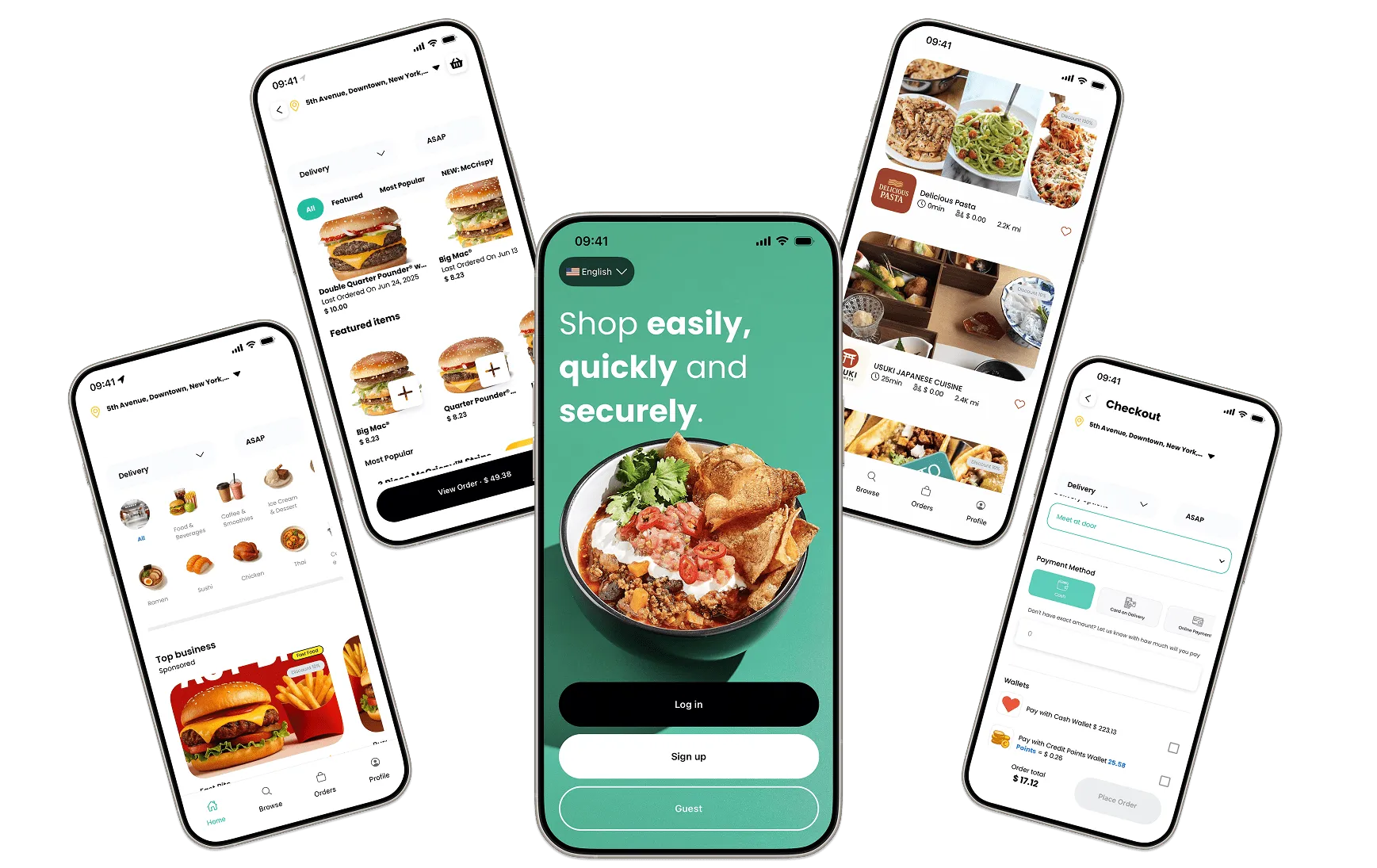
Discovery and menus
Start with the stores and menus a customer can act on.
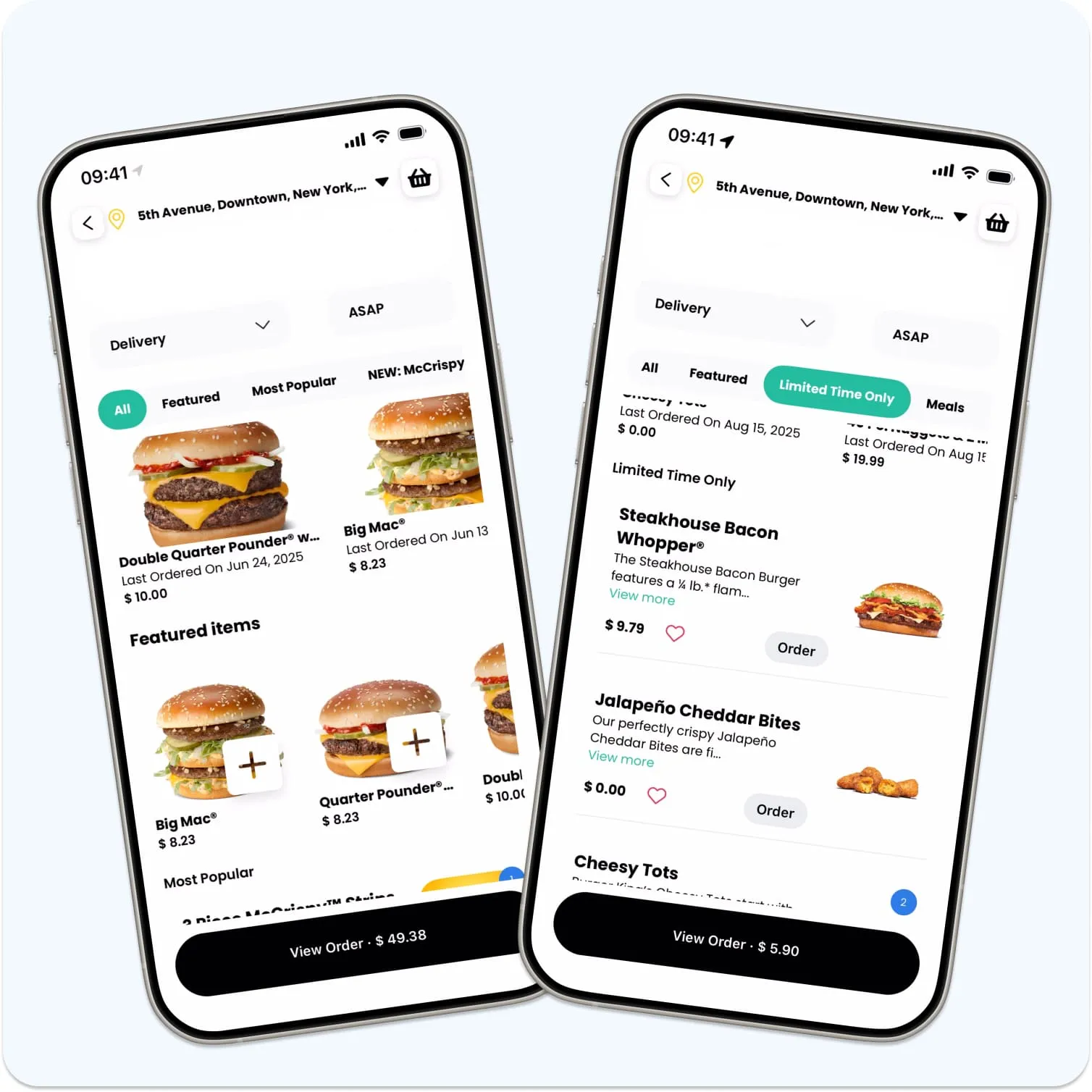
In this Marketplace App example, customers start with a delivery location, browse businesses and categories, open a menu, and keep the cart in view as they choose what to order.
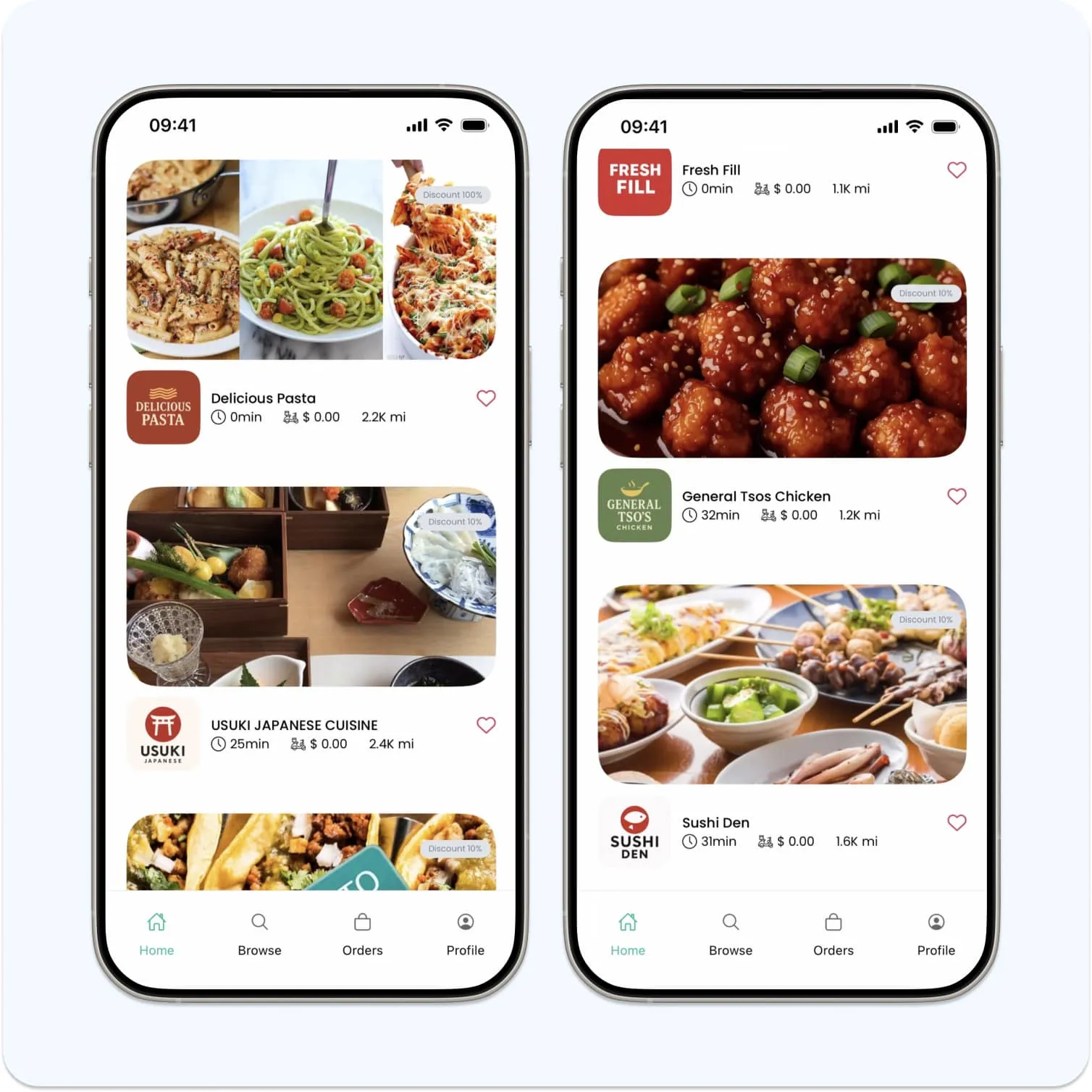
Capabilities in context
Choose the ordering details that make the journey useful.
See the customer moments in Marketplace App, then decide which additional options fit your stores, customers, and order flow.
Customer view
Menus, cart, and product choices
Customers can browse menu categories and product images while keeping the cart and order total in view.Your setup
Scheduled, delivery, or pickup orders
Decide which order types and time windows each store offers so customers see choices that fit that store.Your setup
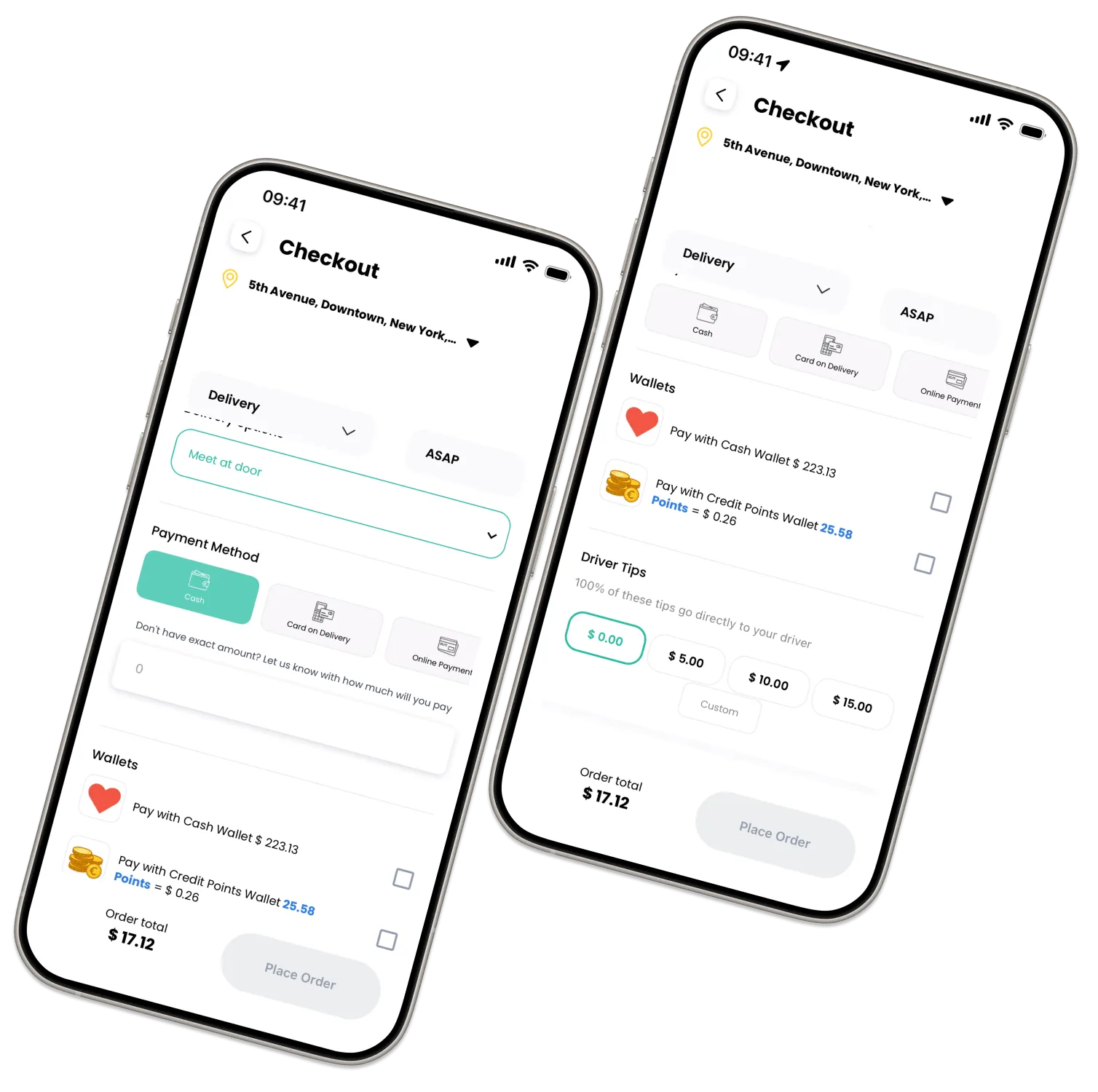
Payment, wallet, and gift card handling
Marketplace App shows payment and balance choices at checkout. Confirm which payment methods, wallets, loyalty points, and gift cards fit your operation.Customer view
Guest and returning-customer entry
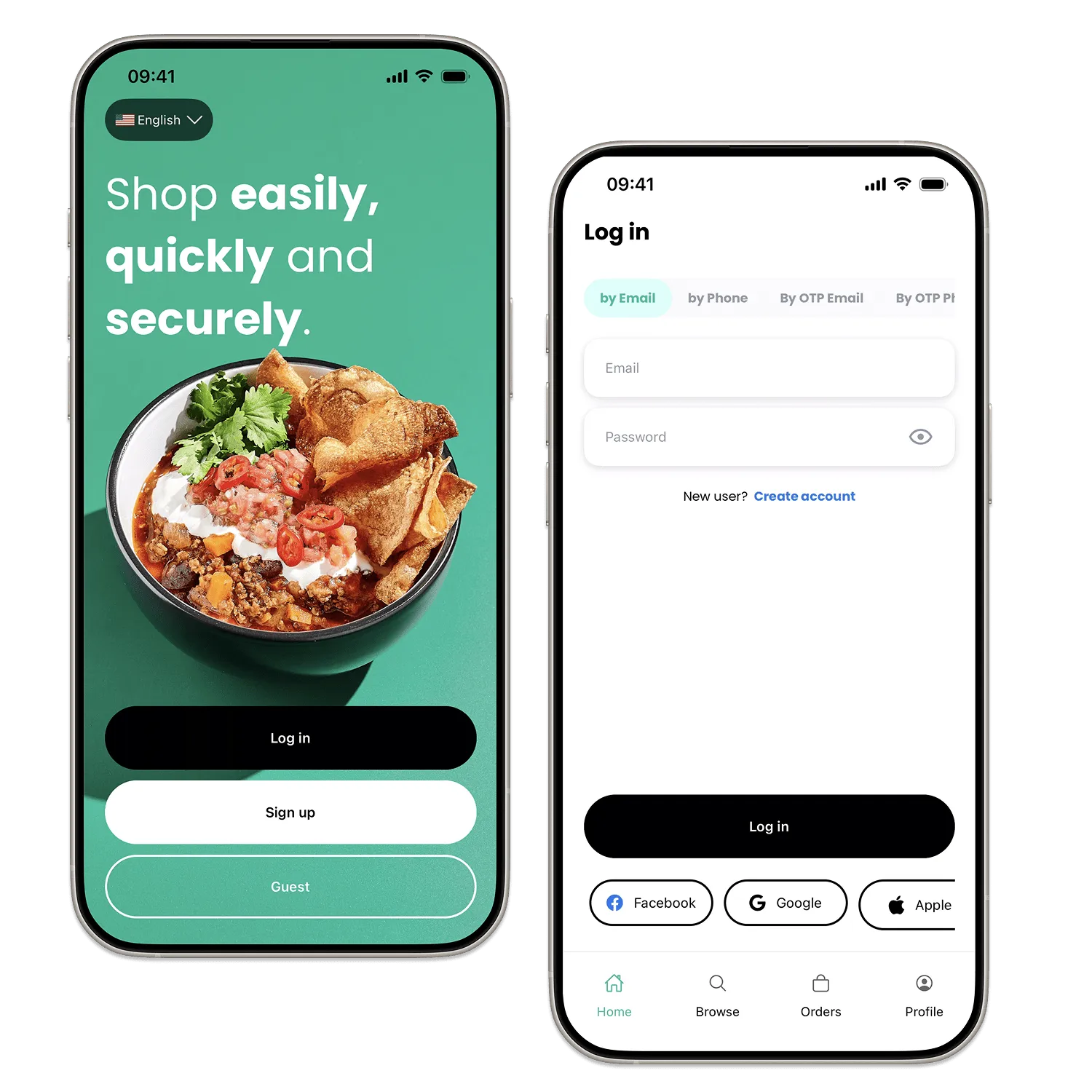
The app shows a guest path and account entry. Choose the sign-in methods and saved details, such as favorites and past orders, that suit your customers.Your setup
Upsells and cart recovery
Consider product suggestions and reminders for unfinished carts where they help customers complete an order and suit your communication plan.Your setup
Support during an order
Decide how customers reach the business, delivery team, or support during an order, and who will respond.Your setup
Vendor-controlled marketplace content
For a multi-business marketplace, decide how each business updates its menu, availability, and promotions before customers see them in the app.Checkout and tracking
Keep the order choices and next update in context.
Marketplace App brings order choices together at checkout and shows customers where to follow an order afterward. Configure payment, delivery, and status updates around the way your operation works.
- Delivery or pickup choices shown with the order.
- Payment and balance choices presented in the checkout context.
- Order progress shown after checkout in Marketplace App.
Return, promotions, and rewards
Give a customer useful reasons to come back.
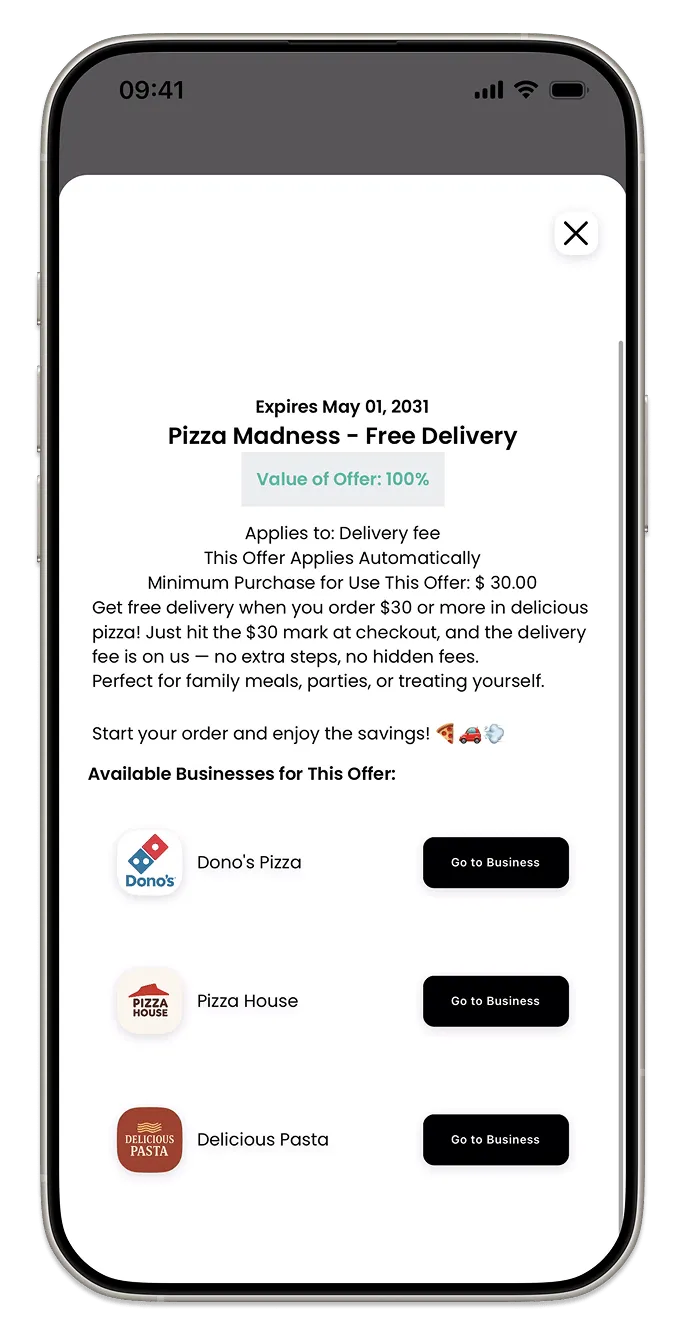
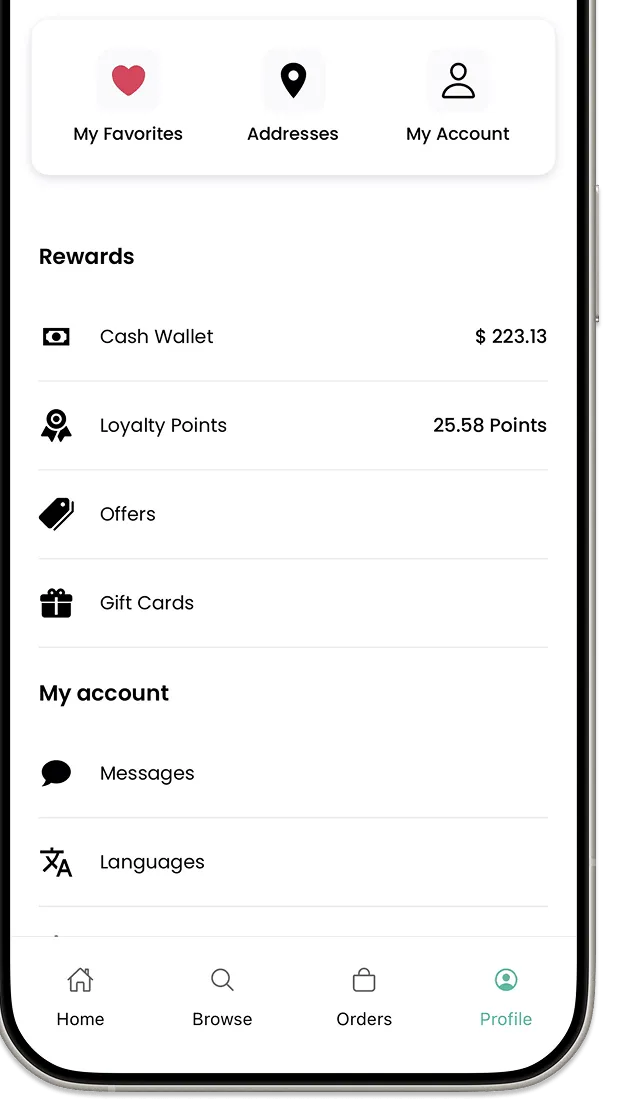
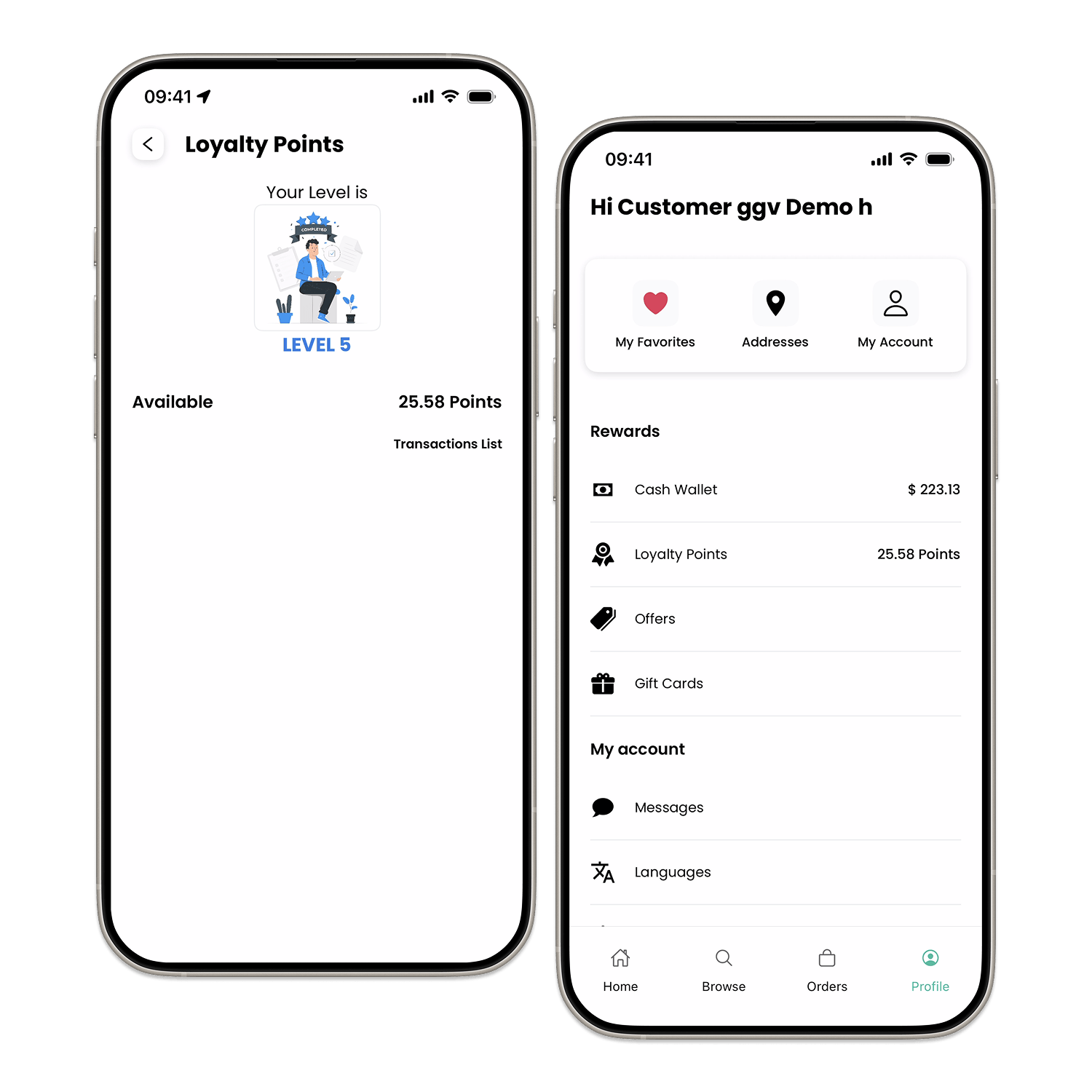
Marketplace App shows guest and account entry, offer details, and an account area with rewards and saved choices. Decide which of these moments belong in your customer journey.
Questions about the example
Plan the app around your business.
How does the app connect to my stores and catalog?
Start with the stores and menus you operate. Decide which customers each store serves, what they can order, and how menu and availability updates reach the app. The connection depends on your setup.
What should we decide before launch?
Confirm your stores and catalog, order and delivery options, payment methods, customer sign-in, app-store accounts, and who handles an order after checkout.
Where can I explore more features?
Use All features above to explore more options, then choose the ones that fit the app you want to launch.
White label
Make the mobile experience recognizably yours.
A branded ordering app should carry the identity customers recognize from your storefront: the name, visual language, menu presentation, and service expectations. Establish the publishing, account, and app-store responsibilities with your team before launch.
- Store listing preparationPrepare the name, artwork, screenshots, description, and account ownership needed for the app-store listing your team intends to publish.
- Your identityCarry the visual system customers know through the menu, account, order status, and communications they receive.
- Release responsibilitiesClarify who owns app-store access, release approvals, content updates, and ongoing product changes before development starts.
- Your customers' languageThe app is available in more than 25 languages, so customers can order in the one they use.
App Store · Google PlayLuna PizzaPublished by Luna PizzaGetFood & DrinkiOS and AndroidYour developer accountMenuCheckoutTracking
For your team
Run the business from a phone when you are away from the desk.
A mobile view into the operation lets your team check on the business without waiting to sit down at a computer.
Where you use it: Mobile browser or the Business App
What your team can do on the go
- Manage orders
- View and act on incoming orders from a mobile device, not just a desk.
- Update the menu
- Make menu changes from a phone when something needs to change quickly.
- Check sales reports
- Review how the business is doing without waiting to get back to a computer.
- Message customers
- Respond to customer messages from a mobile device.
- Stay aligned across locations
- Give a team spread across locations or shifts the same information, so decisions do not wait on one person at one desk.
Why it matters
- Faster responses when it mattersA team that can act from a phone responds to orders and customers faster, wherever they are.
- Coordination across locationsShared, up-to-date information helps a multi-location or multi-shift team stay coordinated.
For your customers
Apps that respond to the touch and stay up to date.
Small details in the customer app make ordering feel responsive, and every customer runs the version you released.
Where you use it: Customer apps for iOS and Android
Haptic feedback
- Feel each step
- A light vibration confirms actions such as selecting a product, adding it to the cart, and completing the order.
- Order alerts you can feel
- The app can vibrate when the order is ready for pickup or has been delivered, so customers do not need to keep checking the screen.
Forced updates
- Require the latest version
- After an important release, customers are asked to update the app before they keep ordering, with a direct link to the App Store or Google Play.
- Fixes and security reach everyone
- Bug fixes, security patches, and new features reach every customer instead of staying behind on older versions.
Why it matters
- A more engaging appTouch feedback makes the ordering flow feel responsive and clear.
- One version to supportWith every customer on the current version, your team supports a single, up-to-date app.
One infrastructure
Connect the app to the ordering decisions customers already make.
The app experience needs the same practical context as every ordering channel: a selected store, an available menu, the right checkout choices, and a clear destination for the resulting order. Map those connections before you introduce a new mobile surface.
- Web
- App
- Kiosk
- Phone
- AI agent

 Catalog · Stores · Customers · Payments · Orders
- Merchant App
- POS
- Drivers
- Loyalty & CRM
Launch responsibilities
Plan the release path before the app reaches a customer.
A mobile launch has responsibilities beyond interface design: store accounts, required listing materials, review timing, release ownership, and the operating changes that affect an order after it is placed.
- Account ownership
- Name the people who control the Apple and Google developer accounts, approvals, and renewal details for the intended release.
- Release cadence
- Agree how menu, payment, policy, and operating changes are checked before an app release reaches customers.
- Connected systems
- Document the systems that need to receive or supply order information, then validate the connection design for your implementation.
- Delivery scope
- Confirm the agreed product scope, technical responsibilities, and rights for the specific engagement before treating any capability as part of a release.
Put your brand on the home screen.
Bring your mobile ordering goals, store model, and release ownership to a working session so you can map the experience before development begins.