
Give in-store guests a clear self-ordering path.
Ordering Kiosk guides guests through a touch-first order in the dining room. They can choose dine-in or takeout, make the configured payment step, and receive the order or pickup detail your store uses while the order moves into the kitchen handoff.
- Green bowlAdd
- Chipotle bowlAdd
- Street cornAdd
- HorchataAdd
Ordering Kiosk
Design the in-store order flow around how your team serves guests.
One catalog, one price list
The kiosk uses the menu, options, and pricing rules prepared for the store, so guests make choices from the same order structure your team operates.Eat in or take out
Guests choose dine-in or takeout at the start, and that choice carries through the order journey.A payment step that fits the store
The kiosk can present the configured terminal, QR, or gateway payment flow selected for the location.Straight to the kitchen
The confirmed order can carry an order number and preparation details into the systems your team uses to make the food.Build the decisions a guest needs into the kiosk journey.
Guided self-ordering
Categories, products, modifiers, and prompts give guests a touch-first path through the order.Eat in and take out
The guest’s fulfillment choice carries into the receipt, preparation, and pickup experience.Card and QR payment
Use the configured card-terminal, QR, or gateway flow that fits how guests pay at this location.Order numbers and pickup
Use an order-number and pickup approach that matches the store’s service model.Kitchen and POS handoff
Route the confirmed order to the kitchen, printer, and POS systems included in the store’s setup.Your brand on the screen
Use the store’s brand and content guidelines to make the kiosk part of the in-store experience.From the screen to the kitchen
What happens after the customer taps pay.
A kiosk flow ends with a clear operational handoff: confirmation, order number, preparation details, and payment status move from the guest screen to the team preparing the order.
- 01The customer confirms and paysThe guest confirms the items, fulfillment choice, and configured payment step.
- 02The order gets a numberThe experience presents the order number or pickup detail that the store has chosen.
- 03Operations receive the order contextThe team receives the order information required to review, prepare, and fulfill the guest’s request.
- 04Preparation systems receive the handoffRoute the information to the kitchen, printer, and POS systems included in the store’s setup.
On the screen
What guests see, and what you keep current.
The kiosk opens on your brand and follows the guest from the first tap to a menu you can change at any time.
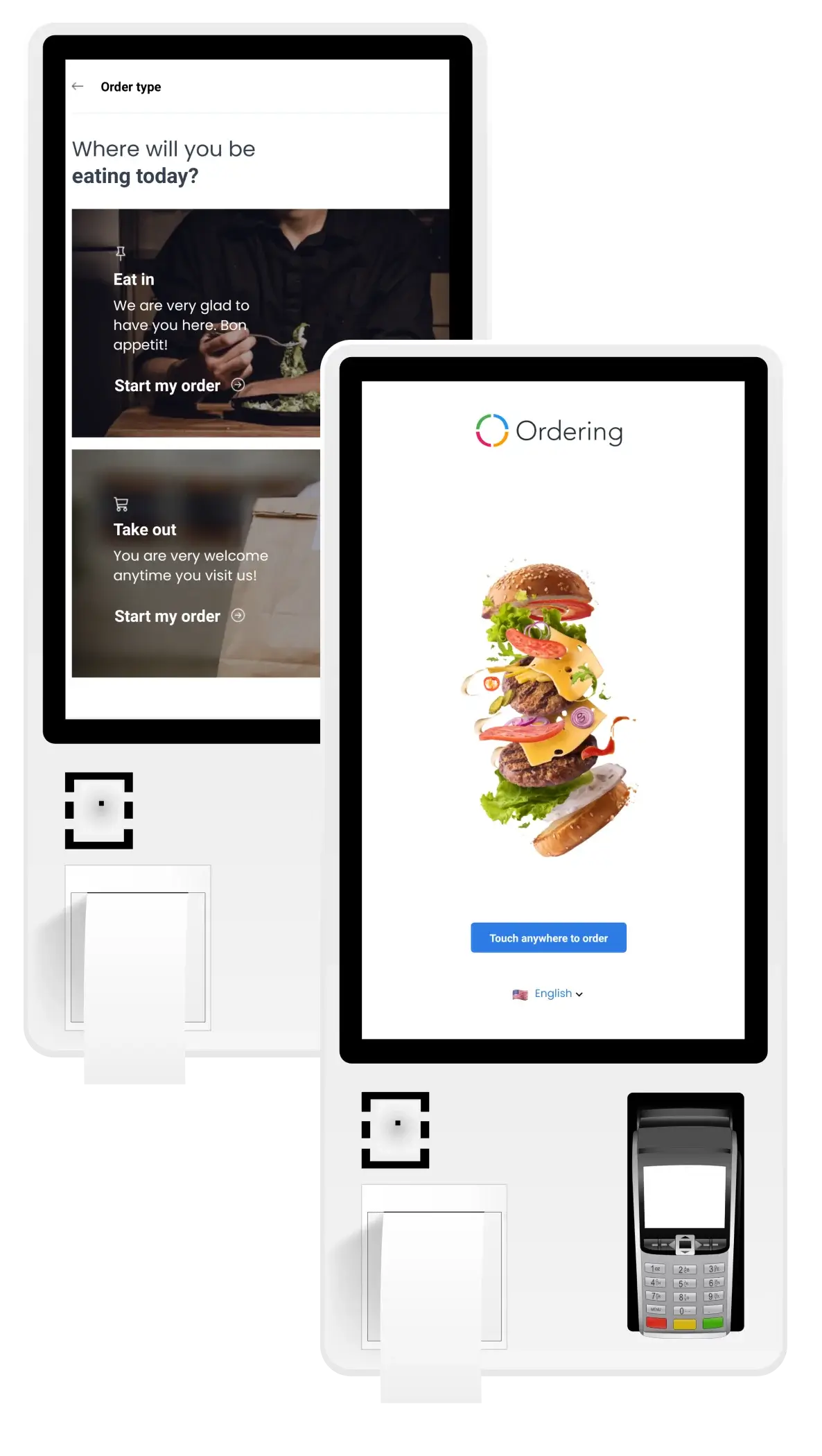
Start on your brand, then choose eat in or take out
Guests touch the screen to start on a welcome page that carries your brand, then pick eat in or take out.
The kiosk asks up front, so the rest of the order matches how the guest plans to eat.
Browse a menu you keep current
Add new items, remove outdated ones, and put the spotlight on your most popular or highest-margin selections in real time, without reprinting anything.
Guests explore more of the menu as they order, with room for the promotions and complementary items you choose to show.
Kiosk screens shown with a demo store and menu.
In the dining room
What a self-ordering kiosk changes for guests and staff.
Hardware and payment integrations depend on your plan and setup. App Store and Google Play publishing is available on every plan.
Running more than one kiosk? Kiosk Manager
Efficient ordering
Guests browse the menu, customize the order, and pay directly at the kiosk.
Shorter lines
Guests order without waiting at the counter, which frees staff for the moments that need them.
Customization
Guests personalize the order to their own preferences, at their own pace.
Upselling and promotions
The kiosk can show promotions and complementary items alongside the menu.
Order accuracy
Guests enter their own choices, which reduces manual order entry.
Data insights
Kiosk activity feeds data on customer preferences and order trends.
The same brand as a customer app
On every plan, the branded ordering experience can also ship as a customer app. Test it yourself before it goes live, then publish it to the App Store and Google Play on your own by following the step-by-step documentation. If you need a hand with the submission, request support from the Ordering.co team.
One infrastructure
Keep the kiosk connected to the way the store operates.
Plan the kiosk alongside the catalog, customer information, fulfillment options, and operational systems that support the rest of the ordering experience.
- Web
- App
- Kiosk
- Phone
- AI agent

 Catalog · Stores · Customers · Payments · Orders
- Merchant App
- POS
- Kitchen display
- Loyalty & CRM
Your hardware, your brand
Match the kiosk setup to the store.
Before launch, align the guest flow with the hardware, payment method, printer, kitchen handoff, and brand treatment that the location needs.
- Standard tablets
- Confirm the tablet, stand, and operating mode the location will use.
- Kiosk hardware
- Confirm the kiosk enclosure, printer, payment device, and accessibility needs for the physical setting.
- Brand customization
- Prepare the logo, color, imagery, and idle-state treatment for the store experience.
- Per-store setup
- Map the menu, hours, fulfillment choices, and devices that apply to each location.
Plan a self-ordering journey for a representative store.
Bring a menu, service model, and kitchen handoff scenario. We can walk through the guest decisions and setup choices the kiosk journey needs.