
Delivery you configure, not a service you rent.
Ordering Delivery brings delivery zones, rules, and driver availability into one operating workflow. Teams can plan for an in-house fleet, a connected delivery partner, or a hybrid model, while keeping delivery work connected to the order.
- Fee rule
- By distance
- Free over
- Basket threshold
- Hours
- Store hours
- Assign by
- Distance, load and shift
- Batching
- Nearby orders
- Fallback
- Partner network
- Marco R.Zone A · motorbikeOnline
- Ana L.Zone A · carOn a delivery
- Luis P.All zones · bikeOff shift
Ordering Delivery
Four settings run the whole last mile.
Zones and fees
Define delivery coverage and delivery rules for each store, so teams can plan for the areas and hours they serve.Dispatch rules
Use assignment and fallback rules to direct delivery work to the fleet or partner workflow that fits the order.Driver App
Your drivers get the pickup, the route, the customer and the proof of delivery on iOS and Android.Live tracking
Keep delivery status connected to the order workflow as it moves from the store to the delivery operation.What you can set, per store and per zone.
Delivery zones
Define delivery areas for a store and associate each area with the delivery rules the operation needs.Fees and minimums
Manage delivery fee and minimum-order rules as part of the delivery configuration.Schedules and preorders
Coordinate store schedules and preparation timing with the delivery workflow.Payouts and cash
Keep delivery operations connected to the driver workflow and the order record.Performance
Review delivery activity in the operating context of the driver, store, and delivery area.Dispatch rules
From the queue to the doorstep, without a dispatcher on the phone.
Dispatch turns the store's ready delivery order into a delivery task. The workflow brings zone, delivery-rule, and availability decisions together before work moves to a driver or partner handoff.
The delivery model is configured around the store's coverage, operating hours, and available fulfillment path.
- 01Order enters the queueA delivery order reaches the operating workflow with the store and order context needed for the next step.
- 02Zone and fee are resolvedDelivery coverage and store-level rules determine how the operation evaluates the order for fulfillment.
- 03Auto-assignAssignment can use the operation's driver availability and dispatch rules to direct work into an in-house fleet workflow.
- 04Fallback to a networkA configured partner handoff can support the circumstances in which a store uses a courier network.
- 05The customer tracks liveDelivery progress remains associated with the order as it passes through the chosen fulfillment workflow.
Delivery dashboards
Four views of the same delivery operation.
Each dashboard puts a different part of delivery in front of the people who run it, from the order list and the area map to the whole fleet moving live.
Delivery Dashboard: orders and the delivery-area map
A central place to view delivery orders: status (pending, in progress, or completed), delivery address, estimated delivery time, and any special instructions.
A map of the delivery area helps route drivers and plan delivery times alongside the order list. When a customer changes the address or adds items, update the order, assign it to a specific driver, or change its delivery status, then track it in real time.
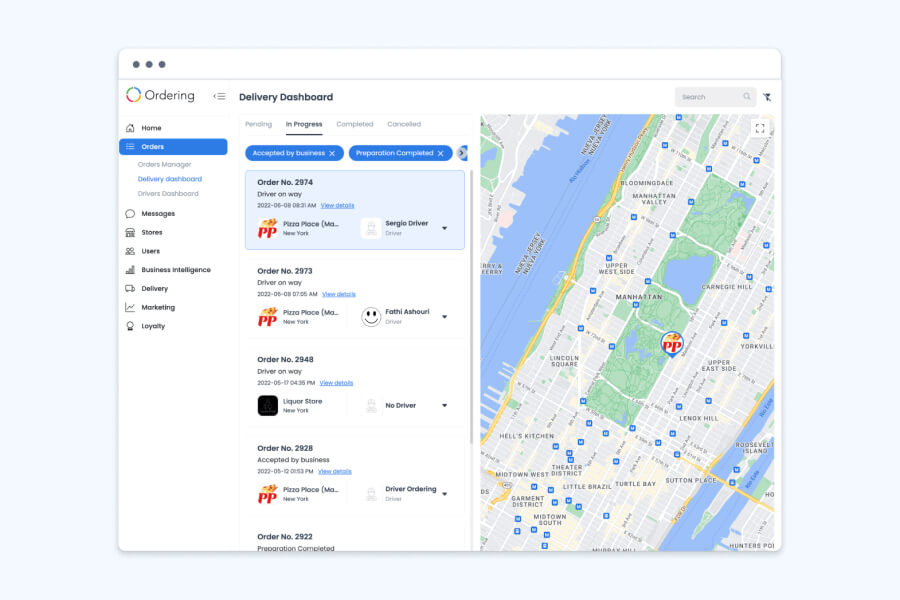
Orders Delivery Dashboard: every order from pending to delivered
Track order status, delivery routes, and alerts from one interface, then review the performance and feedback data your team collects along the way.
Orders arrive from the storefronts connected to your account; orders out for delivery show their status, location, and ETA; completed orders carry their performance and feedback data forward. It is a monitoring and review surface: it does not replace the delivery services, drivers, or routing providers your operation already uses.
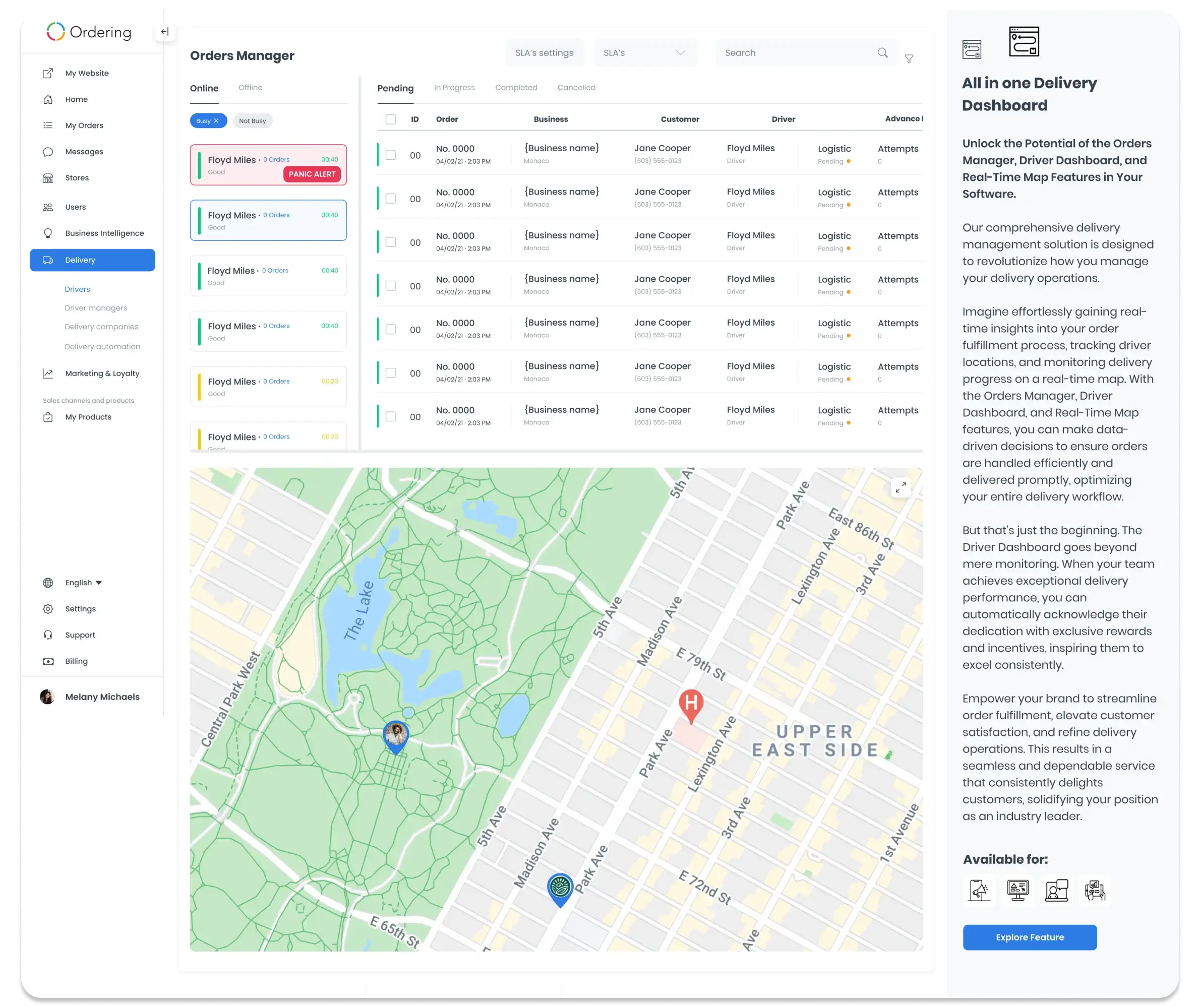
All-in-one Delivery Dashboard: orders, drivers, and the map on one screen
The Orders Manager (create, edit, and track delivery orders), the Driver Dashboard (monitor drivers and delivery vehicles), and the Real-Time Map (delivery locations and status on a live map) work together, so the team coordinates without switching views. Each tool can also be used on its own.
With orders, drivers, and the map in view together, dispatchers and drivers can stay in sync where communication is enabled, and customer feedback sits next to the delivery data it relates to.
Drivers Delivery Dashboard: the whole fleet, live
Track every driver in your fleet, including third-party drivers, from a single dashboard to keep deliveries on schedule.
See fleet availability, assign orders manually or with automated assignment, and follow each driver’s live location, so you know how the delivery workflow is performing before the day is over.
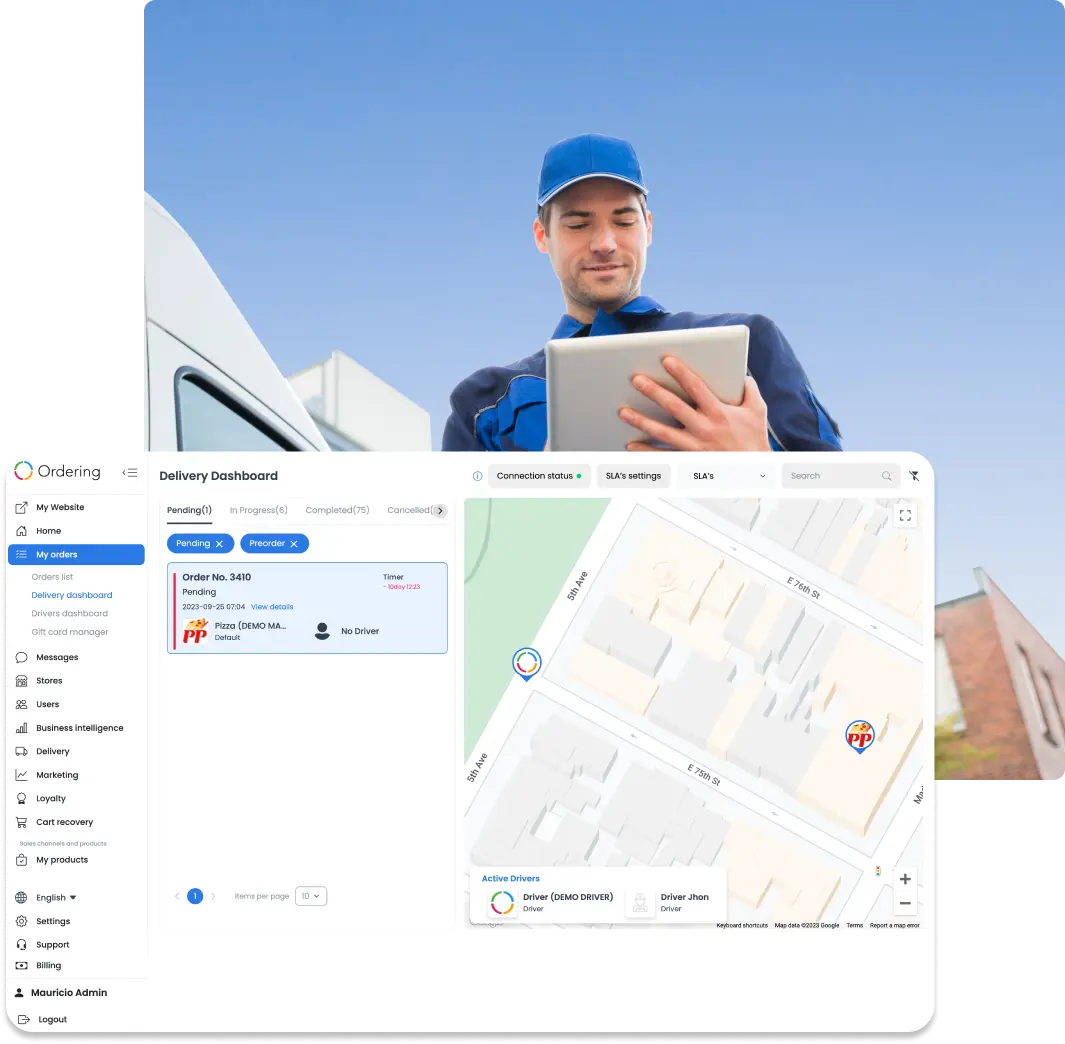
Dashboard screens shown with demo stores and orders.
Tracking, alerts, and proof
What the delivery dashboards help your team see and do.
Available fields, map coverage, metrics, alerts, assignment options, and integrations depend on the products, configuration, and delivery services enabled for your operation.
Real-time tracking
See each delivery vehicle’s current location and the estimated arrival time for every order. Drivers get real-time GPS to navigate accurately, avoid traffic, find delivery locations, and stay on schedule.
Order status overview
A summary of order status (pending, in transit, delivered, or delayed) on the dashboard.
Order management
Create, edit, and manage delivery orders, including order details, driver or vehicle assignment, and delivery priority.
Route optimization
Route tools consider traffic, delivery windows, and order priorities to help managers and drivers find efficient paths, aiming to save time and fuel.
Alerts and notifications
Configure alerts for critical events, such as a delayed delivery or a canceled order.
Delivery instructions
Show drivers detailed instructions, including special customer requests, delivery windows, and handling requirements for the items.
Proof of delivery
Drivers confirm each delivery with a PIN code, a photo, a video, or the customer’s signature, which supports transparency and reduces disputes.
Status changes checked by location
Settings keep a driver from marking an order as picked up unless they are at the store, or as delivered unless they are at the customer’s address. You set the distance in meters that counts as being there.
Communication tools
Where enabled, dispatchers, drivers, and customers communicate directly through the dashboard.
Performance metrics
Indicators such as delivery success or completion rate, average delivery time, delivery cost per order, driver performance, and customer satisfaction ratings, where enabled.
Customer feedback
Customer comments and ratings can appear on the dashboard, next to the delivery data they relate to, to review satisfaction and areas to improve.
Before you configure
Questions to settle with your delivery and support teams.
Alerts, performance metrics, and feedback display are configurable and not enabled by default for every setup.
Which events should trigger an alert, and who should receive it?
Which performance metrics does your team need to review, and how often?
Should customer feedback be visible on the dashboard or handled elsewhere?
Which delivery types need manual assignment?
How close must drivers be to the store and to the customer to change an order’s status?
Which communication tools should drivers have?
Delivery options
Let customers choose a contactless handoff.
Some customers would rather not exchange the order hand to hand. Contactless delivery gives them that choice at checkout, without changing how the driver reaches them.
Where you use it: Checkout and the Driver App
How it works
- Chosen at checkout
- A contactless option is available for customers to select when they place their order.
- Driver and customer stay in touch
- The driver messages the customer to coordinate the drop-off instead of handing the order over in person.
- The order still gets confirmed
- The delivery is still completed and confirmed through the same proof-of-delivery options as any other order.
Why it matters
- Comfort for customers who want distanceCustomers who prefer not to interact directly with the driver still get their order delivered and confirmed.
- One option, every storeContactless delivery is a checkout choice, so any store on the platform can offer it.
Coverage
Own fleet, partner network, or both.
Choose the delivery model that reflects how each store is staffed. The same operating foundation can connect direct ordering work to an in-house fleet workflow, a partner workflow, or a combination of both.
Decide the coverage, operating hours, and fulfillment path for each store as part of delivery planning.
Own fleet
Operate an in-house fleet through the Driver App and the delivery rules that match each store.Hybrid
Plan for an in-house fleet and a connected delivery partner as complementary fulfillment paths.Partner network only
Use a connected delivery-partner workflow for stores that do not operate their own fleet.
One infrastructure
Delivery is a stage of the order, not a separate system.
Ordering Delivery connects delivery work to the ordering and store workflow. That shared context helps teams carry an order from store preparation into the delivery path they have configured.
- Web
- App
- Kiosk
- Phone
- AI agent

 Catalog · Stores · Customers · Payments · Orders
- Merchant App
- POS
- Drivers
- Loyalty & CRM
Control
Every rule of your delivery is a setting, not a request.
Delivery configuration is organized around the operating decisions a store needs to make: coverage, delivery rules, assignment, and the fulfillment path for each order.
- Rules per store
- Plan coverage and delivery behavior at the store level.
- Manual override
- Keep an operational path for a manager when a delivery needs an explicit assignment decision.
- Zones per store
- Use delivery areas to reflect the local coverage each location can support.
- Partner fallback
- Use the configured delivery-partner path when the operation calls for courier support.
Set up a zone and dispatch an order.
Explore how delivery coverage, driver availability, and the fulfillment path can be organized around your stores.