
Plan a web ordering journey around your operation.
Ordering Web is the place to discuss the storefront, menu and order flow your customers should use, plus the operations and connections that must support it.
Start with the order journey, then map the work behind it.
- Storefront
- Menu
- Order flow
- Fulfillment
Ordering Web
Design the storefront around a real order journey.
Customer journey
Start with the menu, service choices and order steps customers need to understand before they place an order.Brand and domain
Discuss the brand expression, domain setup and responsibilities for your website.Operational readiness
Identify the hosting, availability and support expectations that need an explicit project agreement.Implementation approach
Choose the appropriate configuration or implementation path after confirming the customer journey and technical requirements.Clarify the storefront decisions before implementation.
Menu structure
Define the categories, products and choices customers must see to place the right order.Checkout scope
Confirm the payment, account and checkout requirements that apply to the selected market and project.Service choices
Map the fulfillment choices customers need, including the store, timing and handoff that each one requires.Location model
Identify how customers find the correct store and which location rules need to be supported.Order communication
Decide which status, service and follow-up communications belong in the customer journey.Public information
Plan the storefront pages and local information customers need before they start an order.See Ordering Web in action
See the marketplace journey customers move through.
Start with a business, choose from its menu, review the cart, and return to the order detail. The views below show these moments across the web experience.
Discover
Find businesses that fit the customer's location.
Customers can set a delivery address, explore categories and filters, or use a map to move from a broad marketplace to a business listing.
Your setupChoose the location, categories, filters, and businesses that belong in your marketplace.
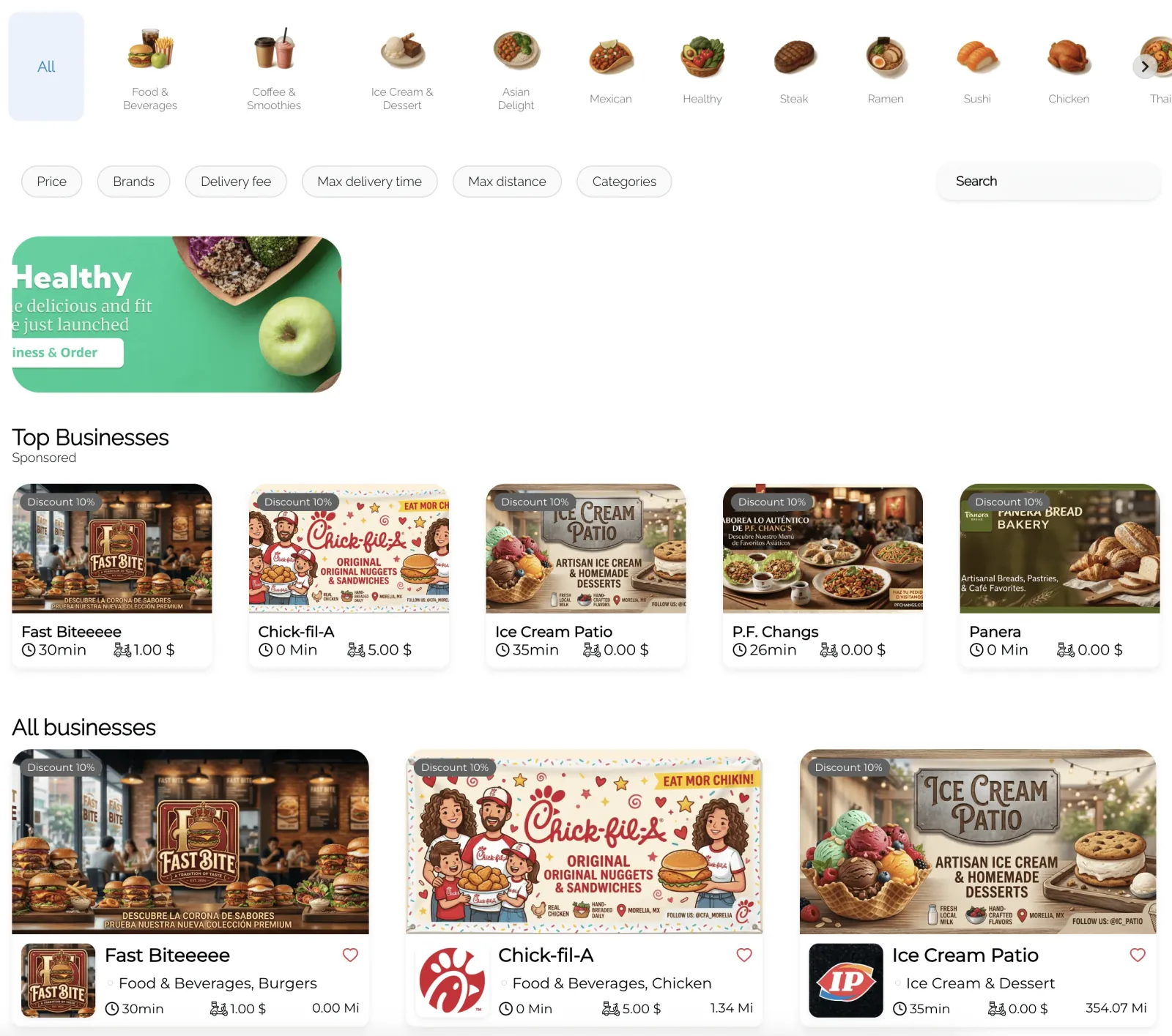
Find a business through categories, filters, and listings. View full image See 3 more web views
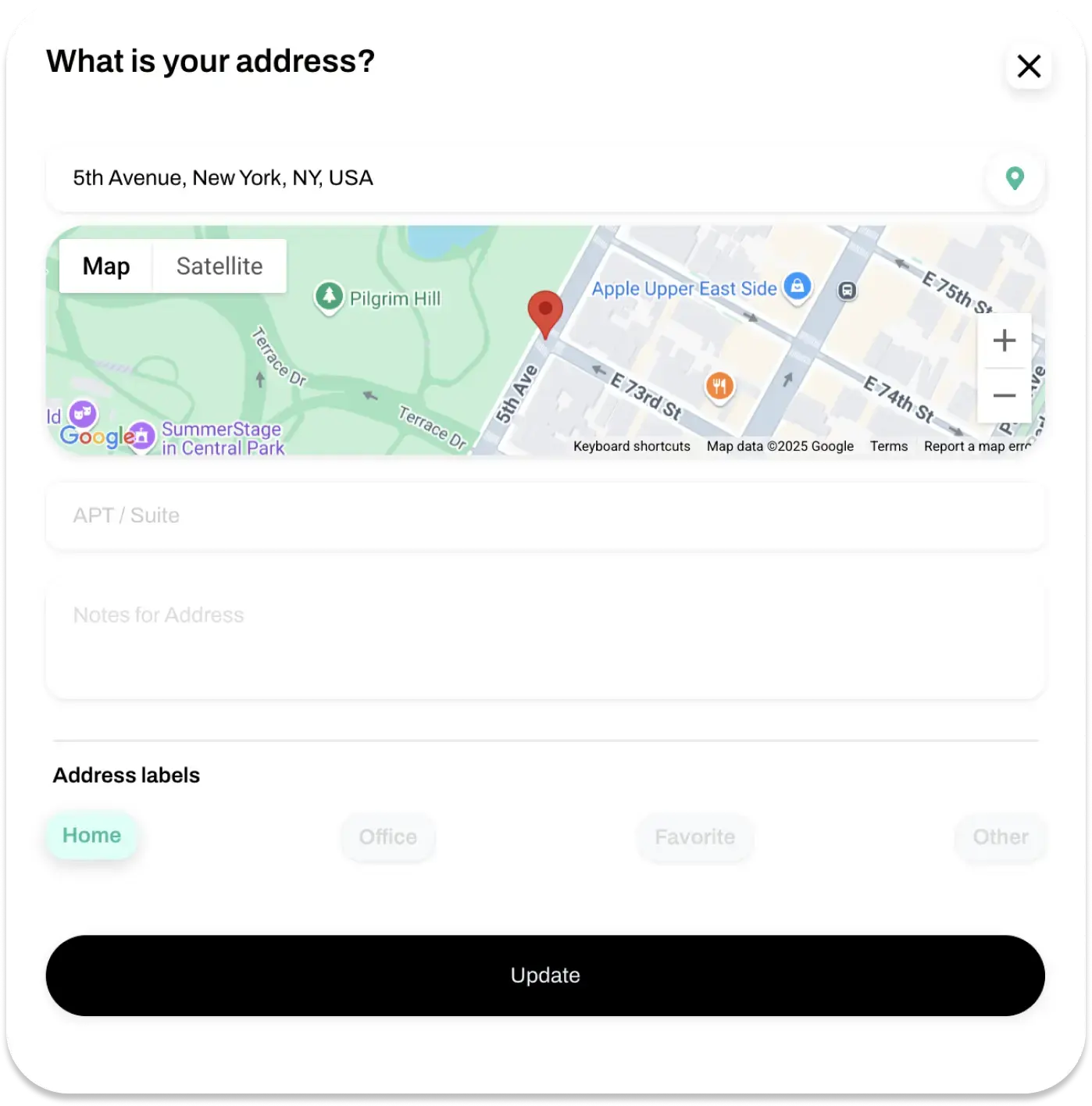
Set a delivery address before exploring nearby businesses. View full image 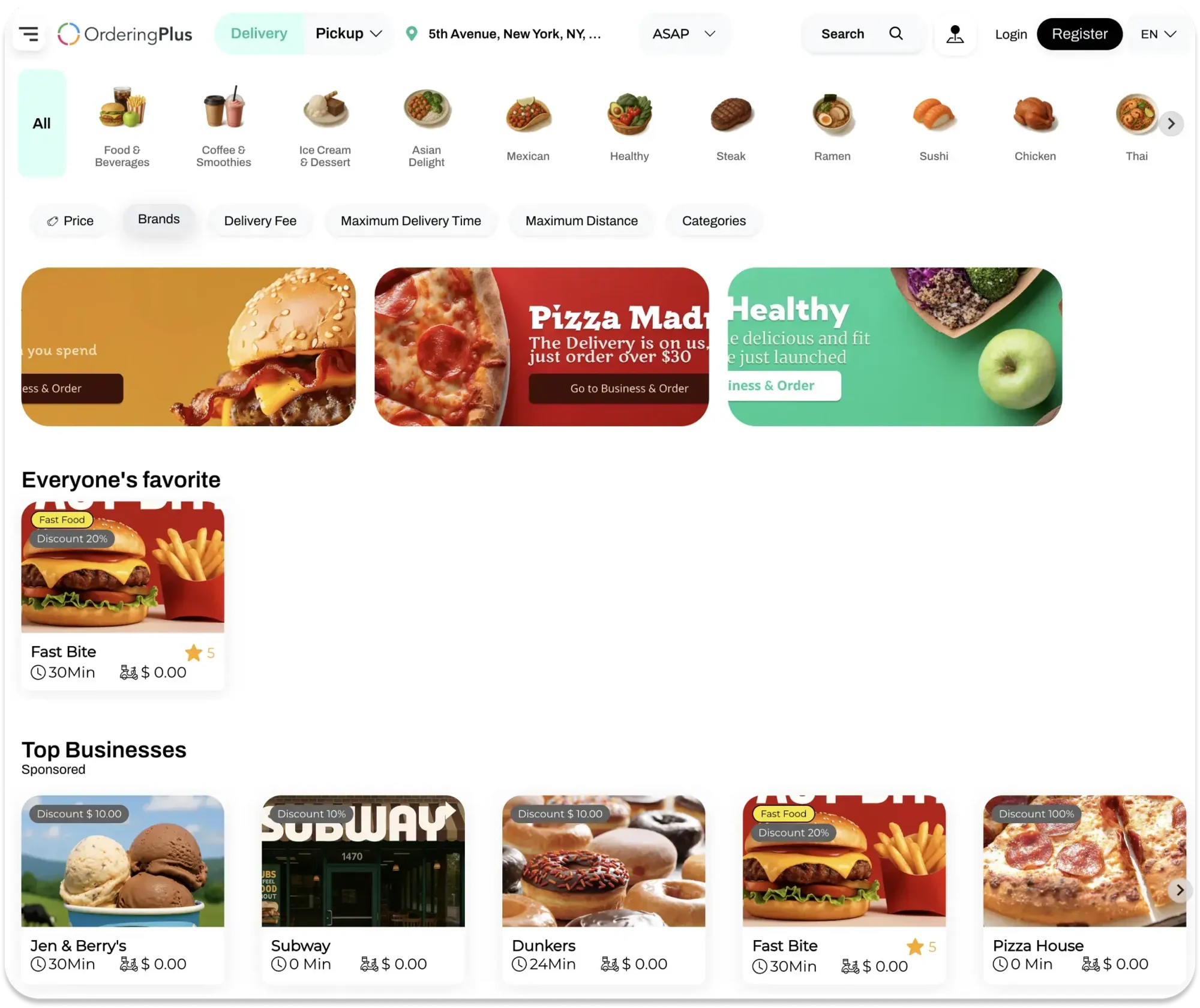
Compare businesses with categories and delivery details in view. View full image 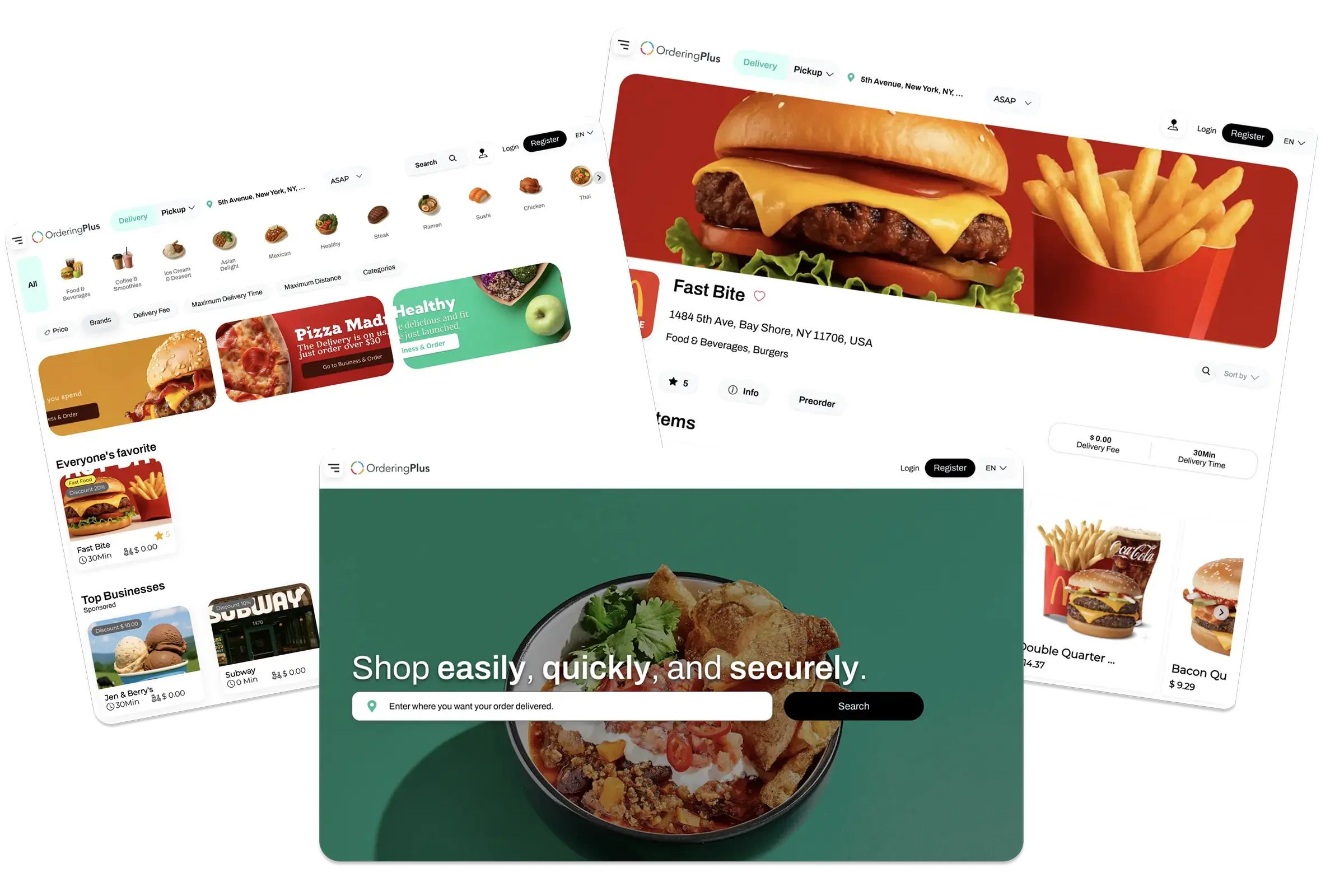
Browse businesses, open a menu, and begin an order on the web. View full image Choose
Turn a business listing into a menu choice.
A business page brings together menu categories, product images, prices, and item options. Customers can review an item before adding it to the cart.
Your setupDefine the menu, options, upsells, and relevant offers each business can show.
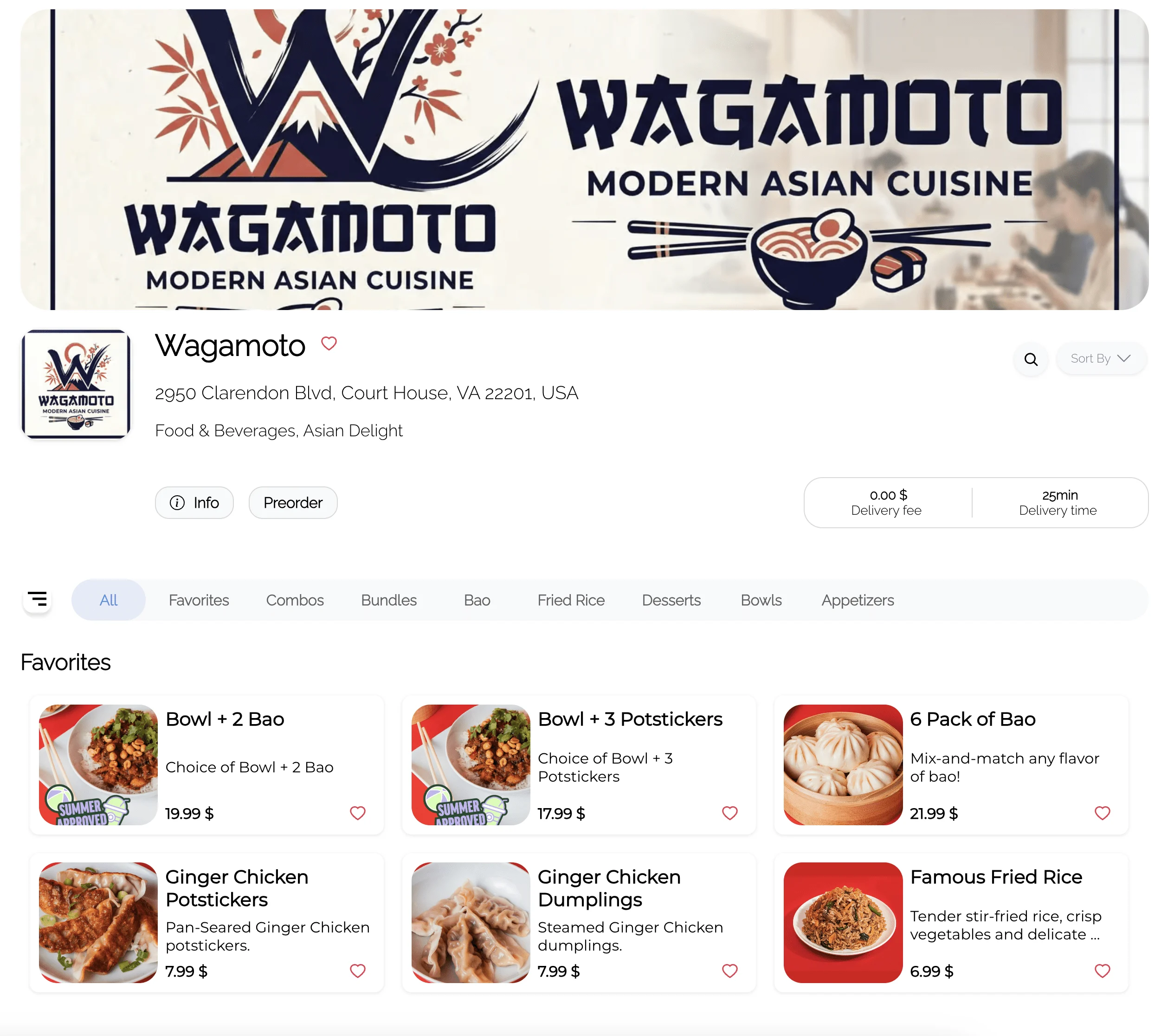
Open a business page to browse its menu. View full image See 4 more web views
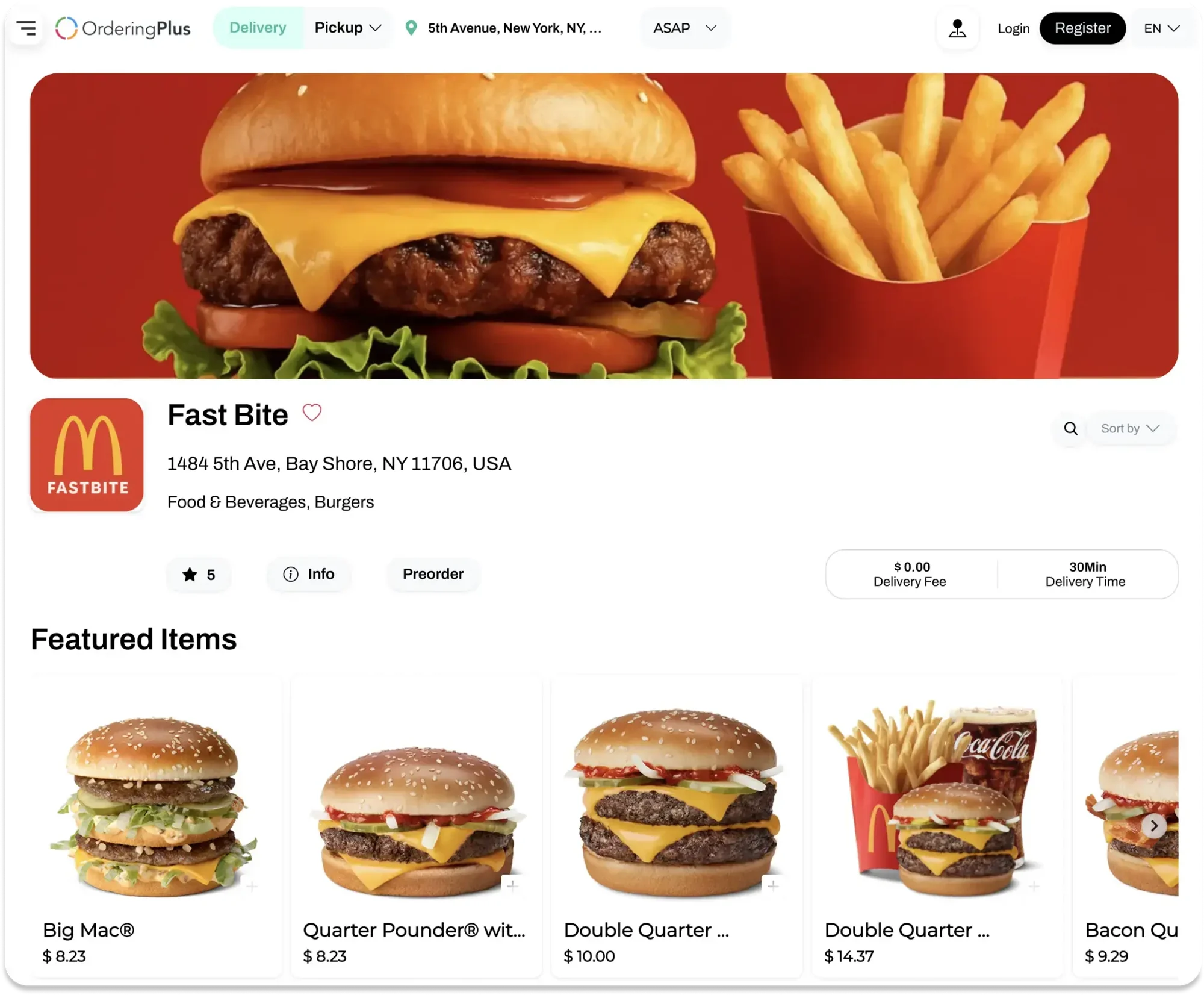
See featured menu items and prices together. View full image 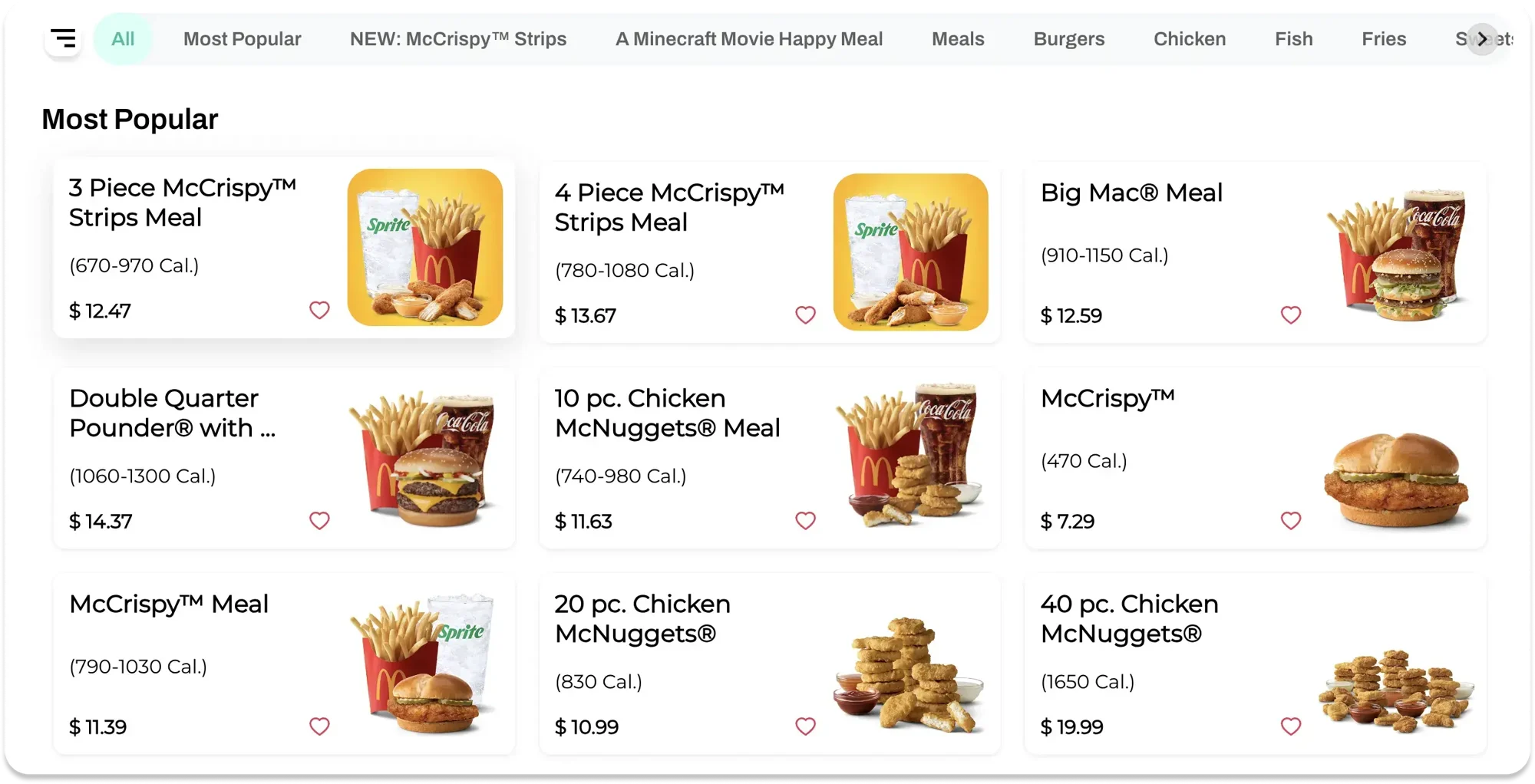
Move between menu categories to find an item. View full image 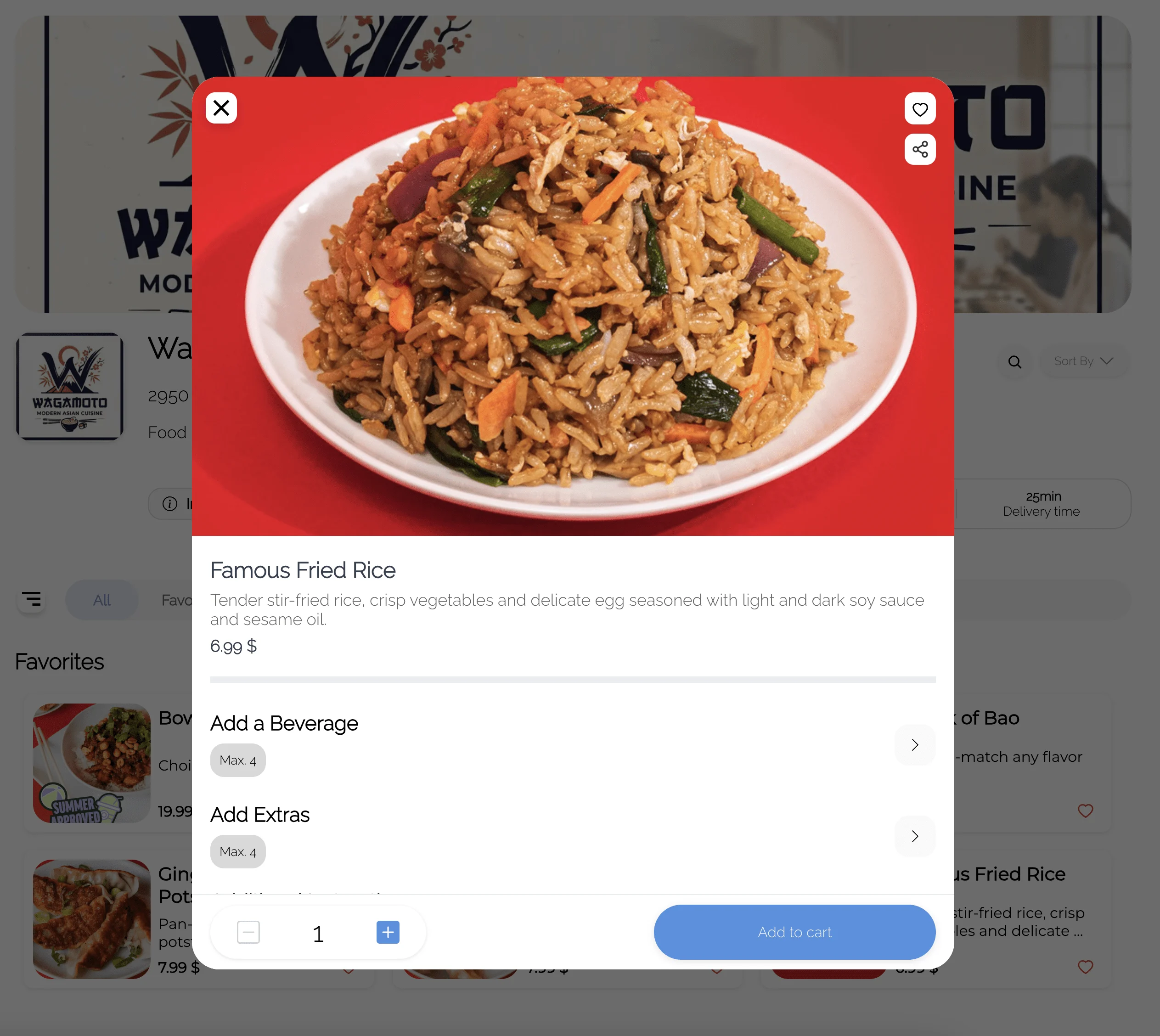
Review product options before adding an item. View full image 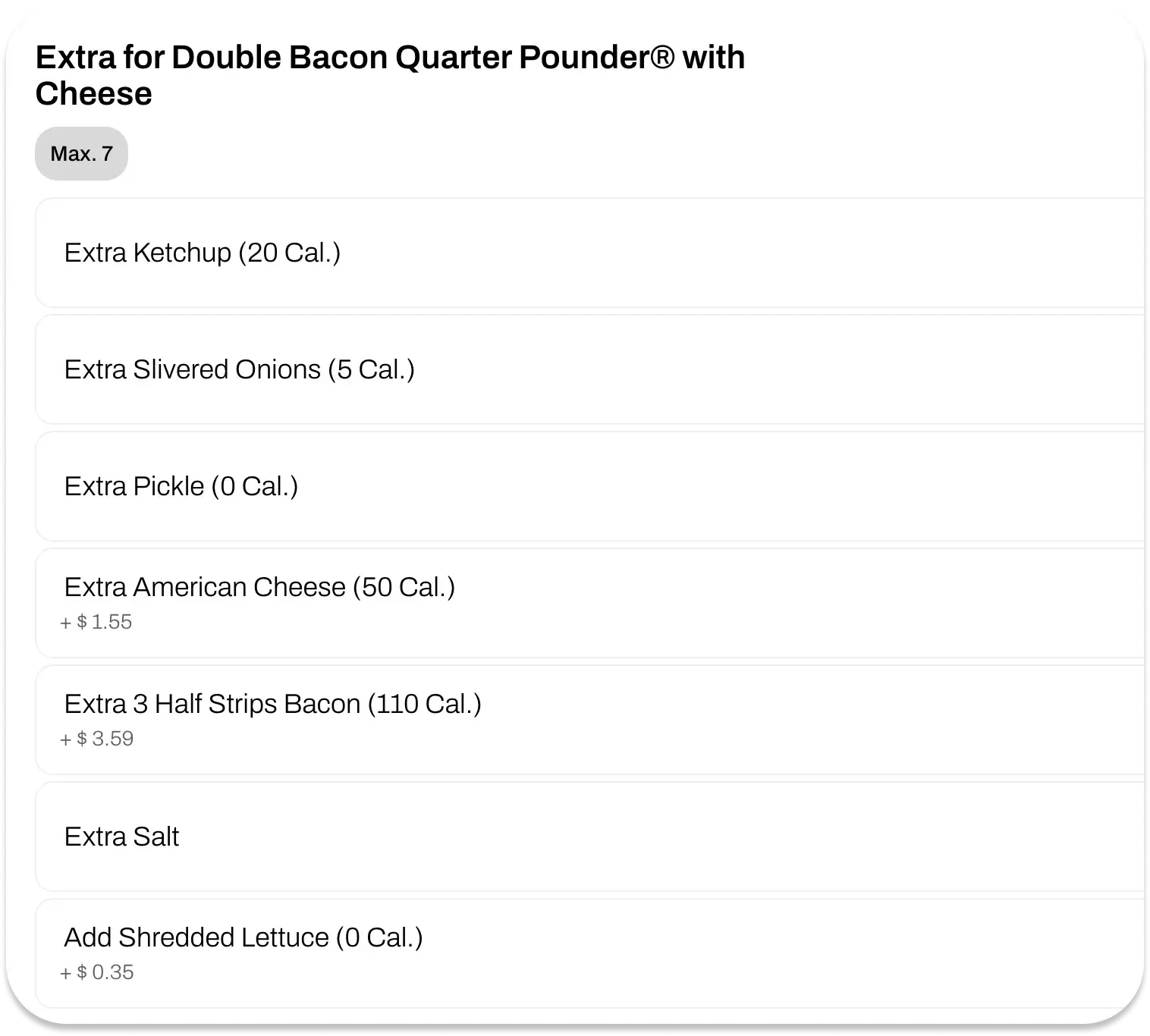
Choose item extras before adding to the cart. View full image Place
Keep the cart and checkout choices clear.
Customers can review items, choose delivery or pickup where offered, enter order details, and see the payment choices and total available for that order.
Your setupConfirm fulfillment, payment, fees, offers, and loyalty choices for your project.
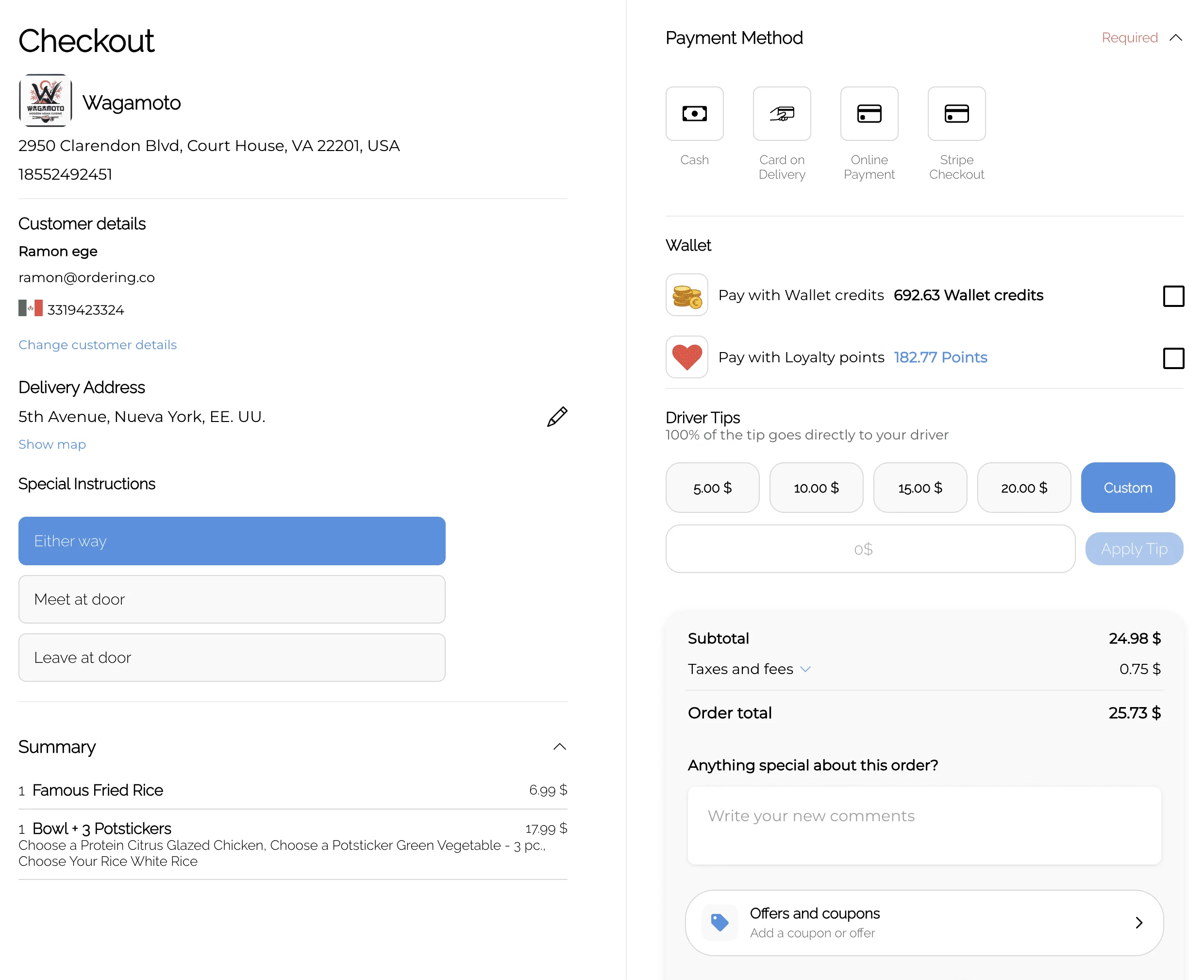
Review delivery details, payment, and the total before ordering. View full image See 3 more web views
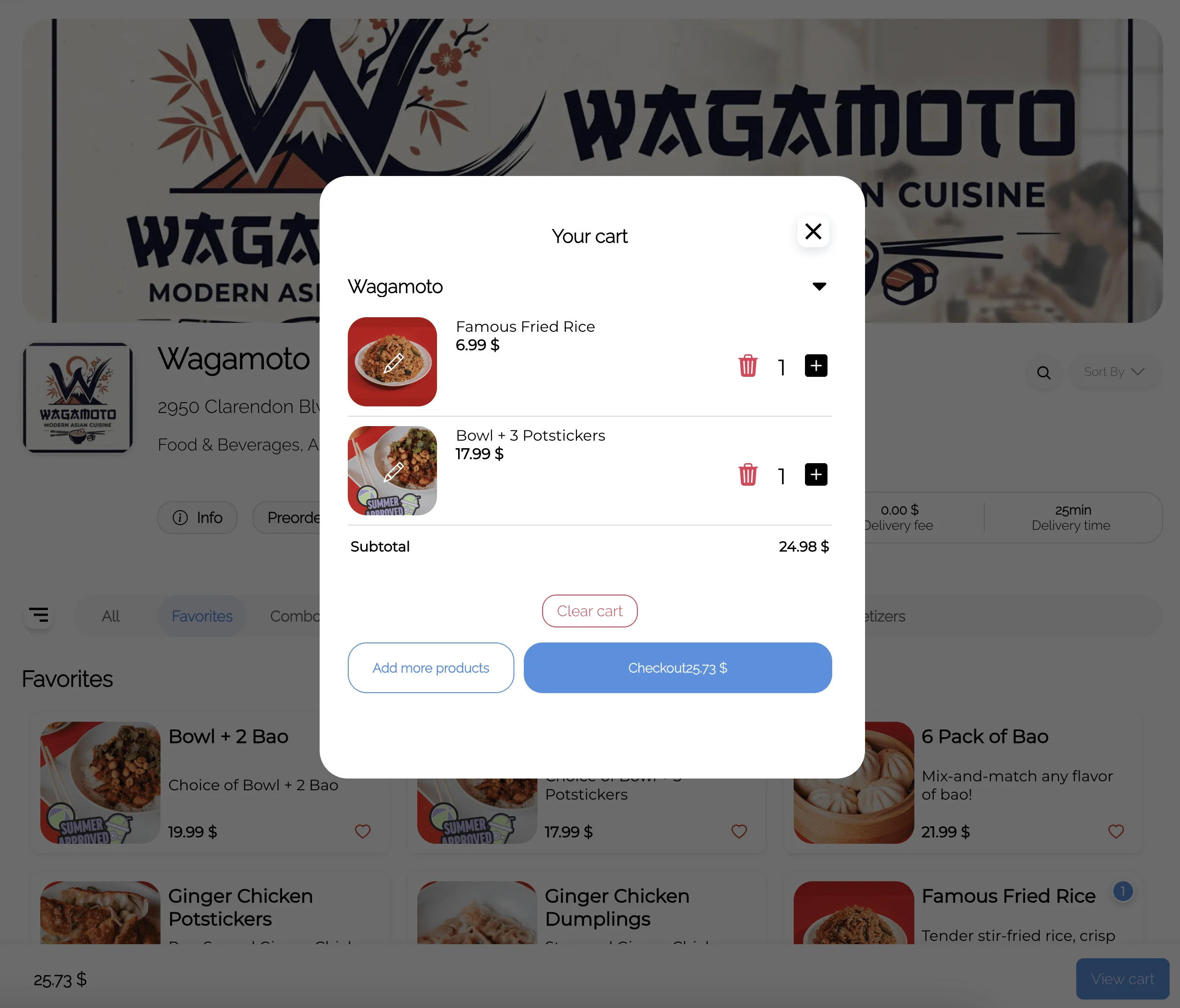
Edit quantities and review the cart subtotal. View full image 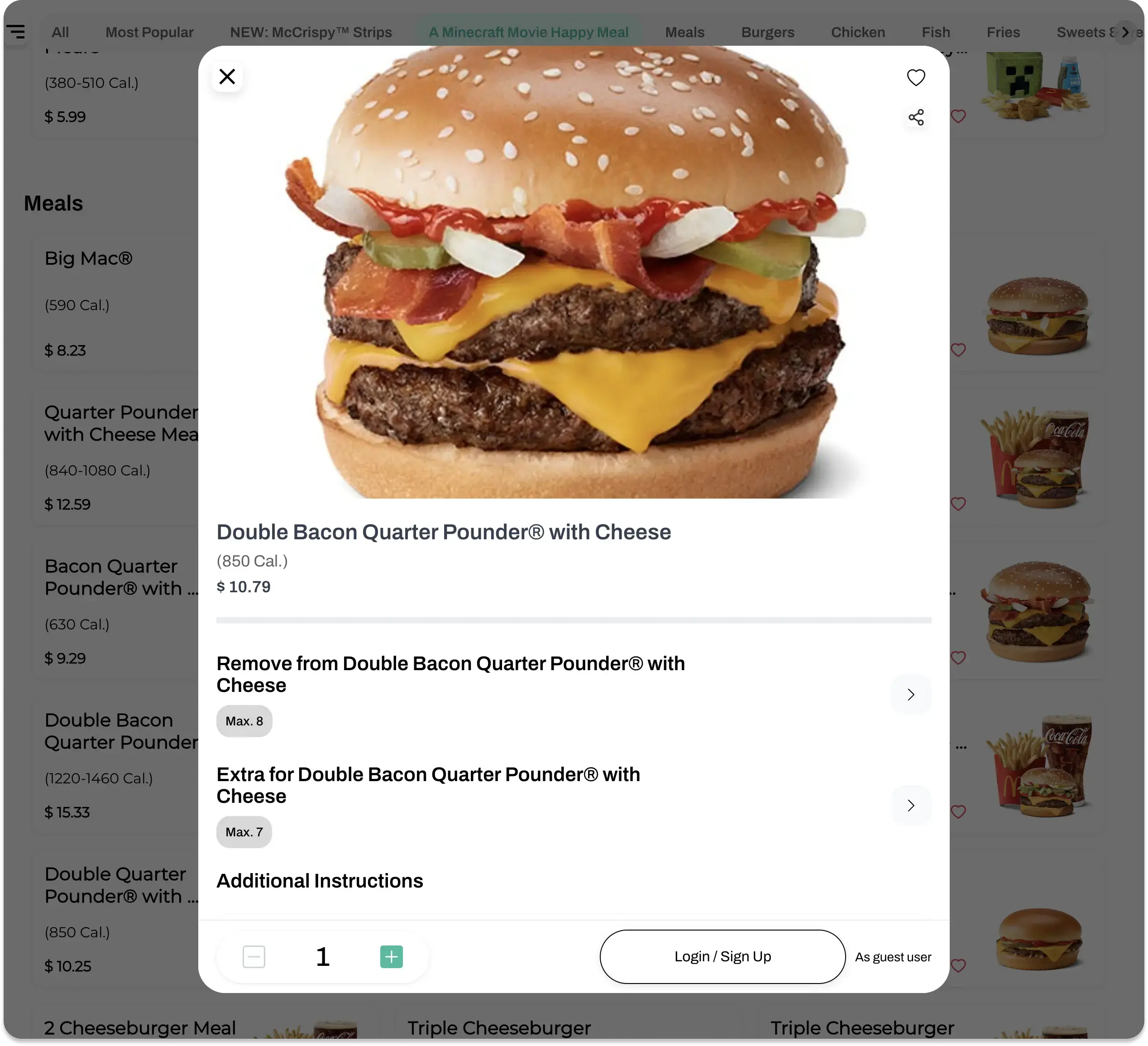
Keep customer information and fulfillment choices together. View full image 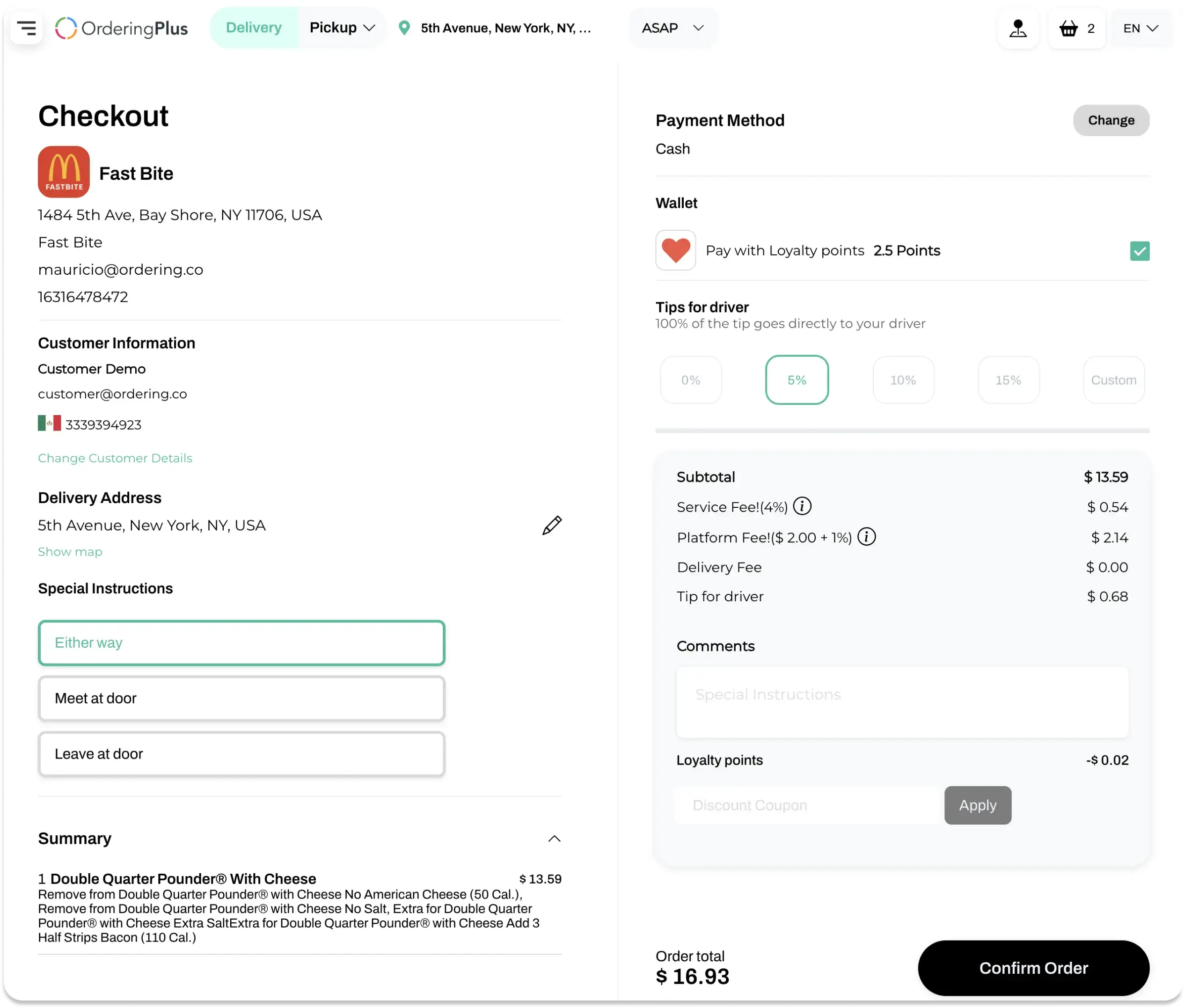
Review the payment and loyalty choices available for the order. View full image Follow up
Give every order a place to return to.
Order details show the items and status. The web experience also shows a rating prompt and a way to start another order.
Your setupChoose the status updates and return visit actions your customers should see.
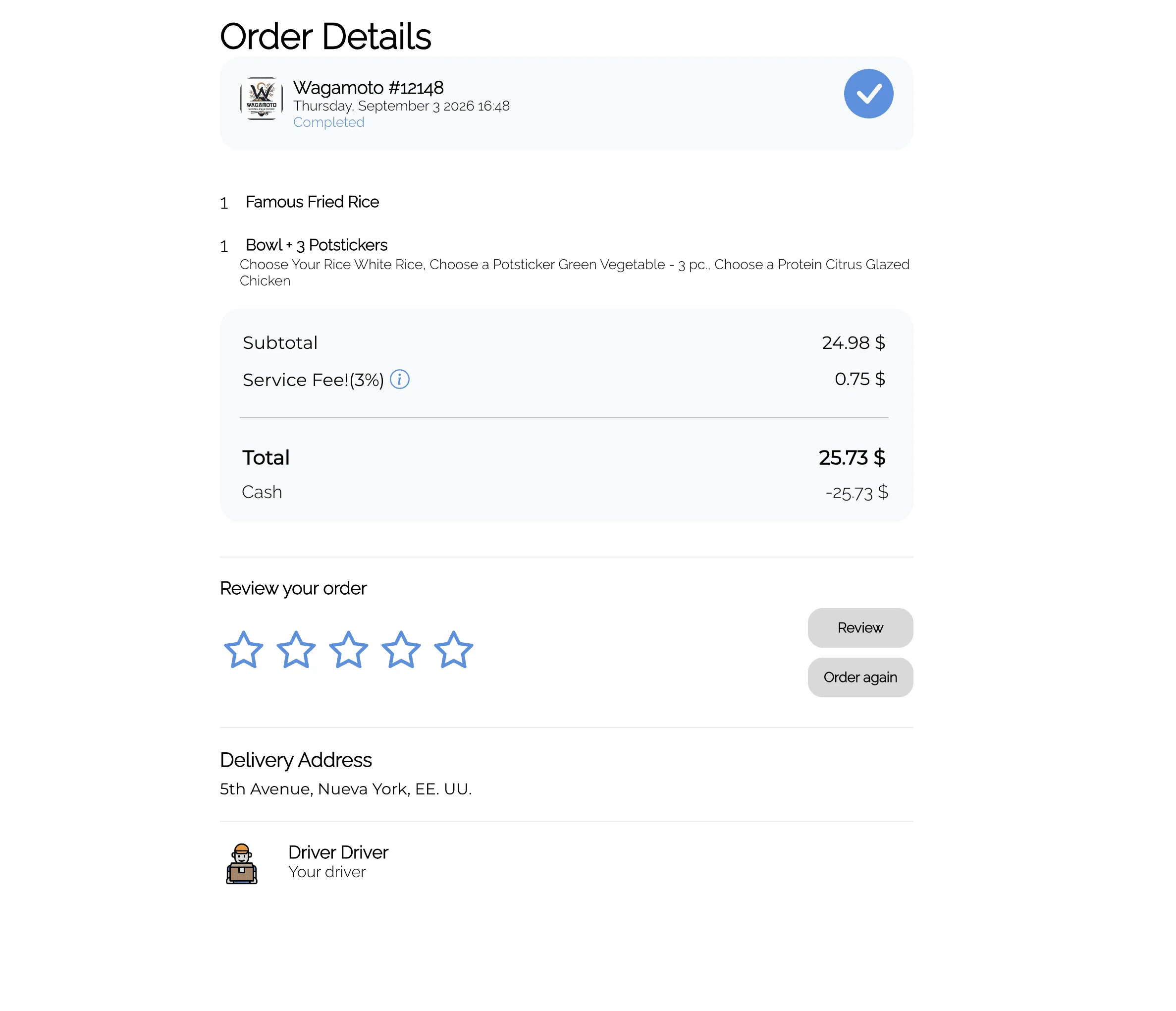
Check items, order status, and delivery information after checkout. View full image See 2 more web views
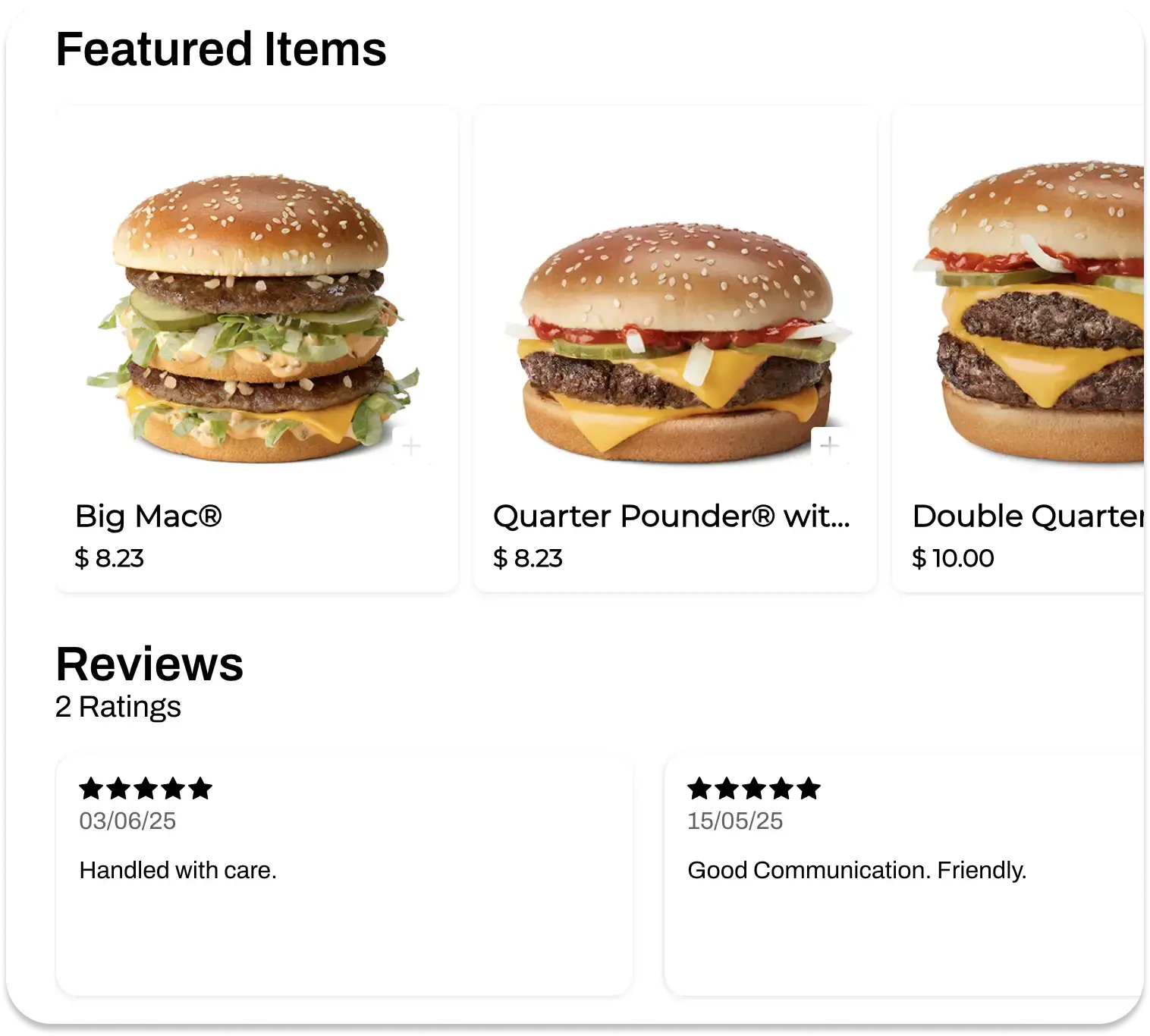
See ratings alongside featured menu items. View full image 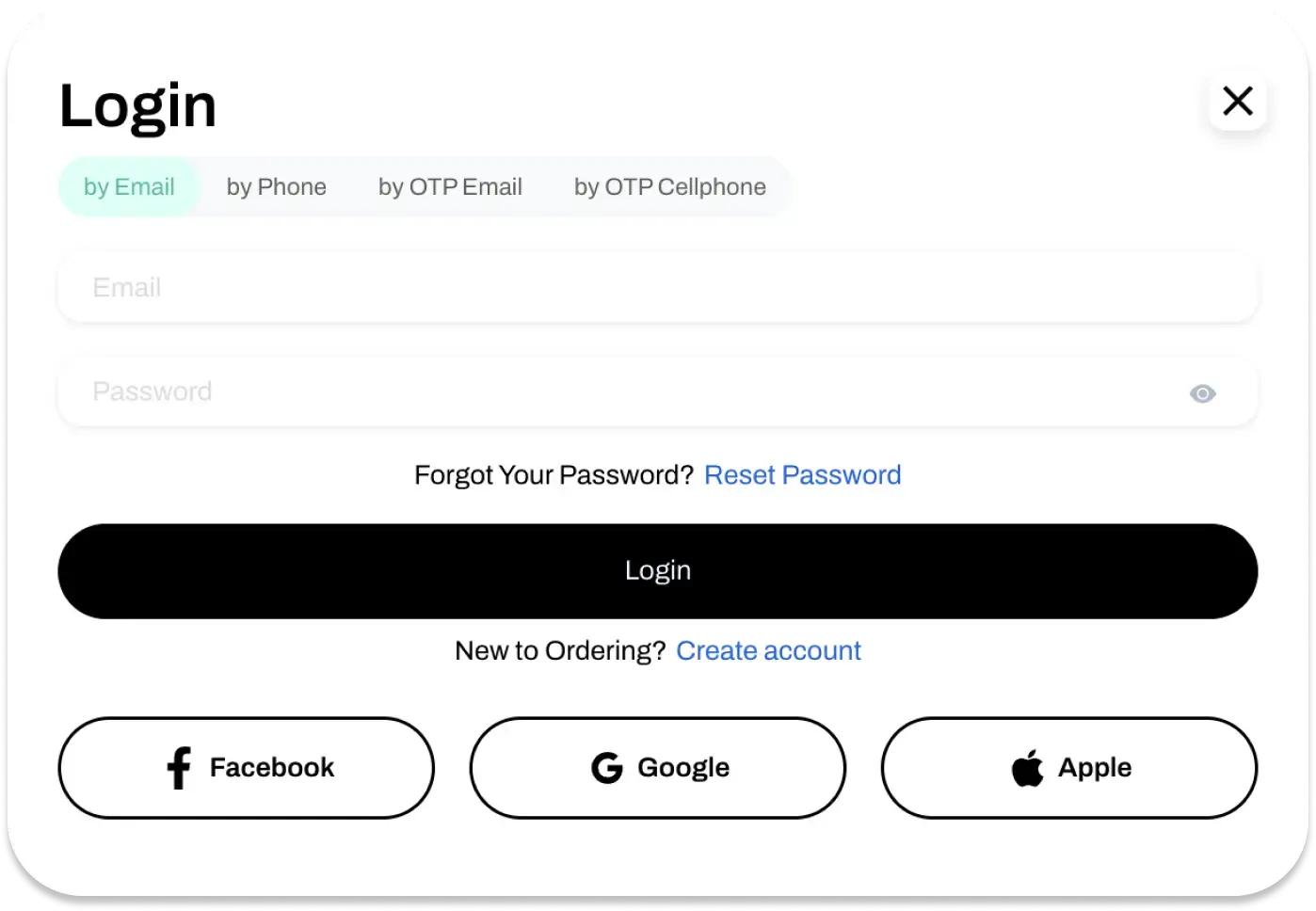
Give returning customers a way to sign in. View full image
Ordering Widget
Decide where ordering belongs in your web experience.
When an existing website is part of the customer journey, use the project conversation to choose the placement and flow that should lead into ordering.
Before you launch
Try changes on a staging site before customers see them.
A staging version of your ordering website is a separate copy of the live site, used to test changes before they reach customers.
Where you use it: Your project setup, alongside the live storefront
What a staging site is for
- A separate test copy
- Changes to the menu, design, or ordering flow are made on a staging site first, without affecting what customers see on the live site.
- Test the full order flow
- Walk through browsing, checkout, and payment on staging to confirm everything works before it goes live.
- Try it with a small group first
- Share the staging site with a small group of people, so issues surface before every customer sees the change.
- Train your team before launch
- Staff can practice on the staging site before customers start using the real one.
Why it matters
- Fewer surprises at launchBugs and issues get caught on staging instead of in front of customers.
- A team ready on day oneStaff who have already practiced on staging can support customers as soon as the site goes live.
Cart and checkout
Customers review everything before they pay.
Customers browse the menu, pick items, and finish the order from one screen, with a cart they can change until the last step.
Where you use it: Ordering Web and customer apps
One screen to order
- Browse, select, and order in one place
- Customers move through menu categories, add items to the cart, and see the running total without leaving the ordering screen.
- An ordering screen in your brand
- The look and feel of the ordering screen follows your brand, and you adjust it to what your customers need.
Review before finishing
- Edit the cart at checkout
- On the review step customers add or remove items, change quantities, and apply discounts or coupons.
- Confirm payment details
- Customers review and confirm their payment information before the order is placed, an extra check before they pay.
- A short, clear checkout
- Checkout asks only for what the order needs, with delivery or pickup and payment options customers recognize.
- The payment methods you choose
- Cards, debit cards, PayPal, Stripe, and any third-party payment gateway you connect, from providers available around the world.
Why it matters
- Fewer order mistakesA last review of items and payment details catches errors before the order reaches the store.
Search visibility
Pages and images that search engines understand.
SEO settings let you describe your platform, stores, products, and images the way you want them to appear in search results.
Where you use it: Dashboard, for Ordering Web
What you can set
- Meta descriptions for pages
- Write the title and description that search results show for your platform, products, and categories.
- Descriptions for images
- Add a description to each image so search engines understand what it shows.
- SEO tools for your website
- Further SEO settings help your ordering website reach customers searching for what you sell.
Why it matters
- More customers from searchClear descriptions help the right customers find and choose your website in search results.
Built-in help
Answers inside the ordering experience.
A help section inside your ordering channels gives customers and your team a place to find answers without leaving the site.
Where you use it: Ordering Web and customer apps; content edited from the Dashboard
What the help section includes
- FAQs customers can search
- Customers search frequently asked questions to solve common issues on their own.
- Guides and tutorial videos
- Step-by-step guides and videos show how to order and use your channels.
- Contact details
- When an answer is not there, customers find how to reach your team.
- Help for your team
- Your staff finds guides on features and answers to technical questions in the same place.
Why it matters
- Fewer repeat questionsCustomers resolve common questions themselves, so your team spends less time on them.
One infrastructure
Map the storefront to the work behind an order.
Use the planning map to identify the menu, store, fulfillment and system connections that must be reviewed with the selected customer journey.
- Web
- App
- Kiosk
- Phone
- AI agent

 Selected ordering channels and operations
- Merchant App
- POS
- Drivers
- Loyalty & CRM
Project decisions
Agree the implementation path before launch.
The project should record the storefront design, content ownership, integrations and technical responsibilities that its chosen ordering journey requires.
- Brand expression
- Clarify the brand assets, pages and content ownership required for the storefront.
- Content needs
- Identify the public information customers need before they reach the menu.
- Technical connections
- Identify which system connections or implementation decisions must be evaluated with technical owners.
- Delivery responsibilities
- Confirm the hosting, implementation and support responsibilities included in your plan.
Plan your storefront around the operation.
Use a demo to review the customer journey and confirm the website, domain, payment, integration and fulfillment scope relevant to your project.