

Configure your business exactly the way you run it.
From the Dashboard, set up your store details, choose which fees you charge, set the limits that shape how orders run, and decide how your platform emails customers and your team, all in one settings area.
Business settings
What you can do
Store settings
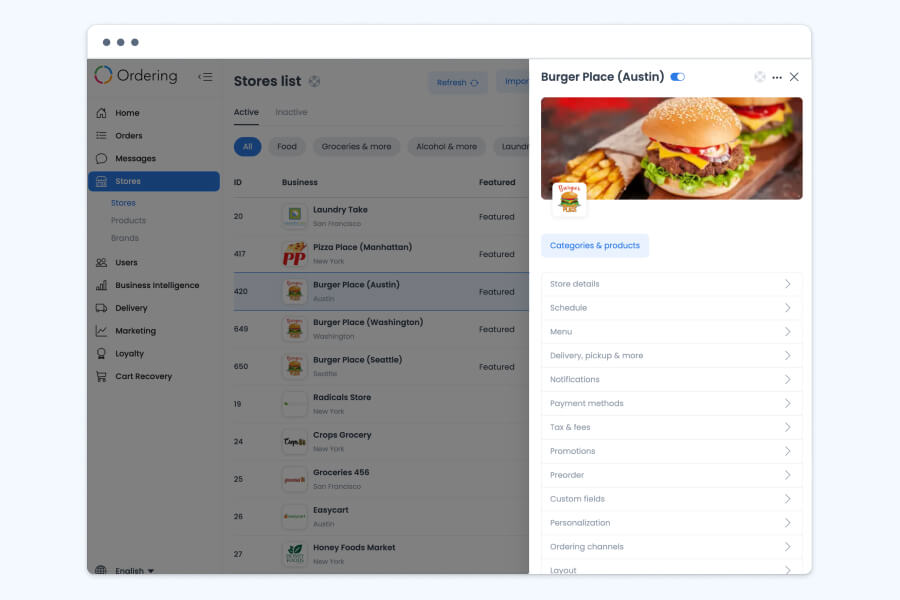
Configure each store's details, schedule, menu, payment methods, taxes and fees, and layout from one settings panel.
Sign-up settings
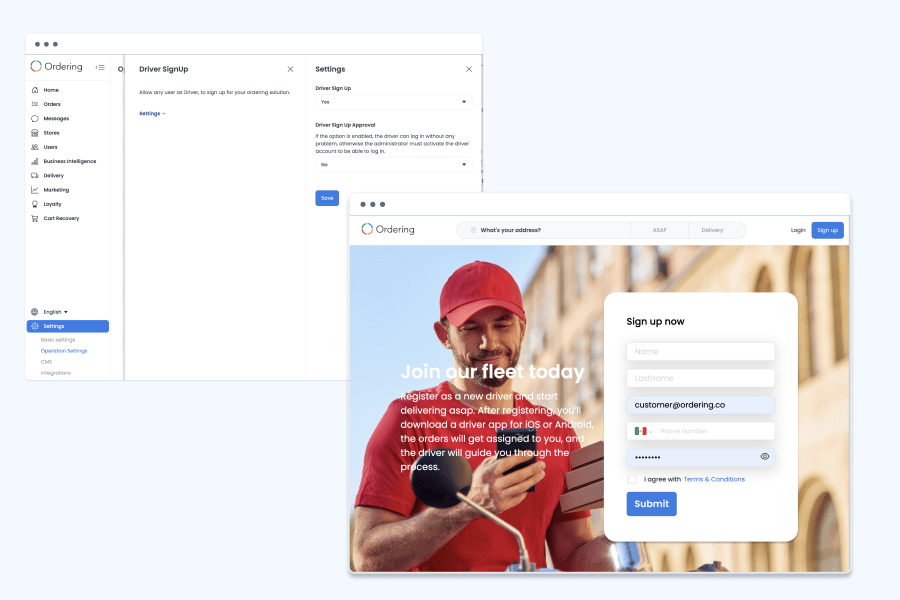
Set up your business account, and decide whether drivers can register themselves or need your approval.
Operation settings
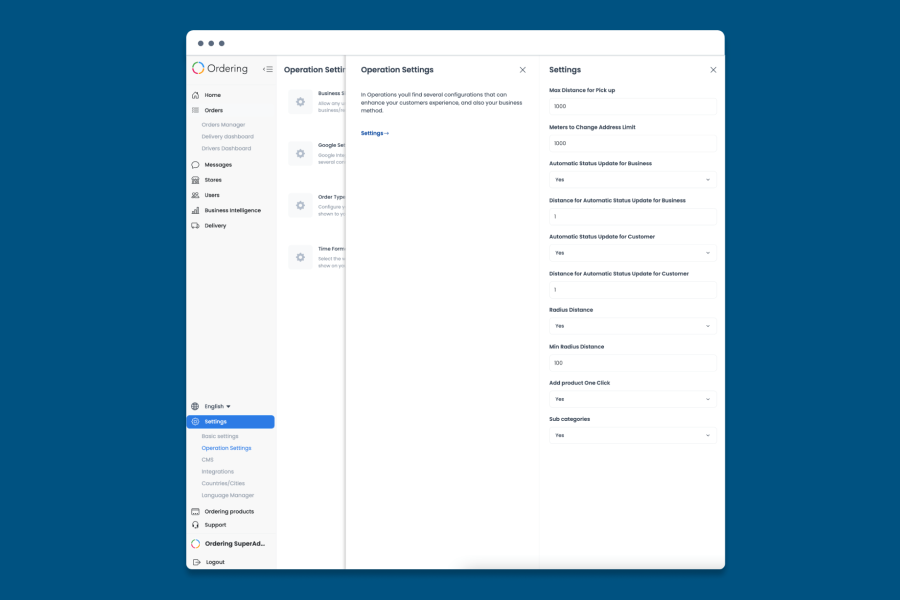
Set pickup and status-update distance thresholds, and other limits that shape how orders run.
Address changes
Let customers fix a delivery address after placing an order, within the distance you allow.
Email settings
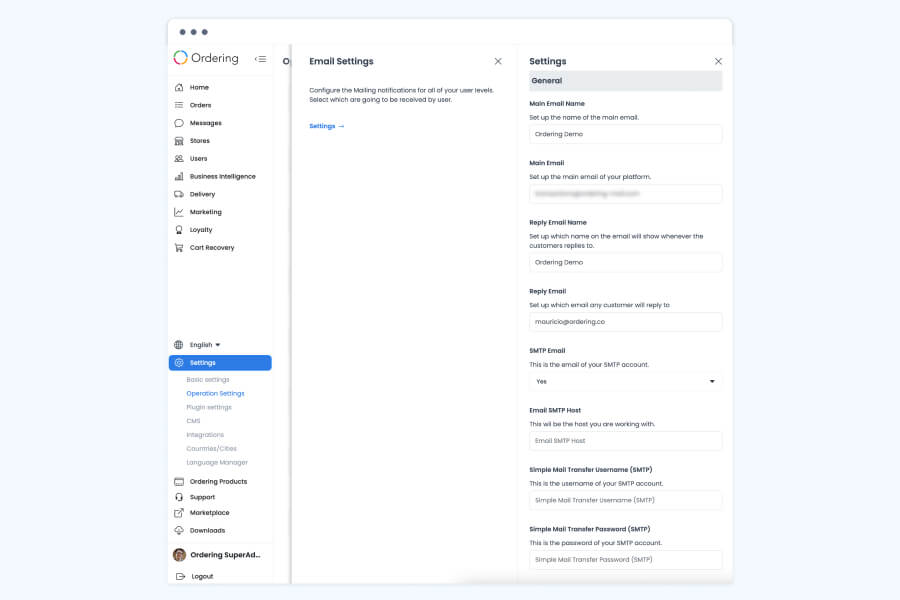
Brand the sender and reply-to identity of your order emails, and connect your own SMTP account.
Fees
Set delivery, pickup, and processing fees, and change them whenever your business needs to.
Dashboard
Every setting your store needs, in one place
Each store keeps its own settings panel in the Dashboard, so you configure exactly how that store looks, sells, and operates without touching any other store.
- Store details: name, address, contact info, and everything customers see about the store
- Schedule: opening hours and service windows
- Menu: categories, products, and pricing
- Delivery, pickup & more: which order types the store offers and how each one works
- Notifications: which order and account emails go out
- Payment methods: which ways customers can pay
- Tax & fees: the taxes and fees applied to orders
- Promotions: coupons and discounts
- Preorder: how far ahead customers can schedule an order
- Custom fields: extra information you collect at checkout
- Personalization and layout: how the store page is arranged and presented
- Ordering channels: which channels the store sells through
Dashboard
Control who can sign up and how
Set up your own business account, and decide how new drivers join your operation.
- Set up your business account with your name, contact details, menu, and payment options in a guided process
- Once set up, manage your menu, inventory, and delivery or pickup options from the Business Settings dashboard
- View reports on sales and customer activity from the same dashboard
- Turn driver sign-up on or off, so drivers can apply directly through your ordering site
- Choose whether a new driver's account activates immediately or waits for your approval
Dashboard
Operation settings that keep orders on track
Operation settings hold the distance and status rules that keep pickup, delivery, and order updates running the way your business needs.
- Max distance for pickup: how far customers can be from a store to place a pickup order
- Meters to change address limit: how far a customer can move the delivery address after placing an order
- Automatic status update for your business and for customers, each with its own distance threshold, so order status updates as the driver gets close
- Radius distance and minimum radius distance: distance rules that apply across your operation
- Add product one click: let customers add a product to their cart in a single tap
- Sub categories: turn subcategories on for your menu structure
Dashboard, website, and customer app
Let customers fix a delivery address after they order
A customer isn't always certain of the destination when they place an order, whether they're heading to work or just unsure of the exact address. The address-change limit lets them fix it after the order is placed, without starting over.
- Customers can update their delivery address on the website or app after the order is placed
- You set how far the new address can be from the original, in meters, before it needs a new order
- The updated address reaches the assigned driver automatically
- Useful when a customer is heading to a different address, such as work, or wasn't sure of the exact address when ordering
Dashboard
Emails that read as yours
Order emails carry your identity, from the sender name down to which mailbox a reply lands in.
- Set the sender name and the sending email address
- Set the reply-to name and the address customers' replies go to
- Connect your own SMTP account, with its host, username, and password, or keep the platform default
- Choose which notifications go to each user level
- Automatic emails go out as an order is placed, prepared, and ready for pickup or delivery
- Messages can include details like the customer's name and the order total automatically
Dashboard, checkout
Set the fees your orders carry
Set the fees that apply to online orders, and change them as your business needs shift.
- Set a delivery fee, a pickup fee, or a processing fee
- Vary fees by order type, or by time of day such as peak hours
- Add, remove, or change a fee whenever you need to
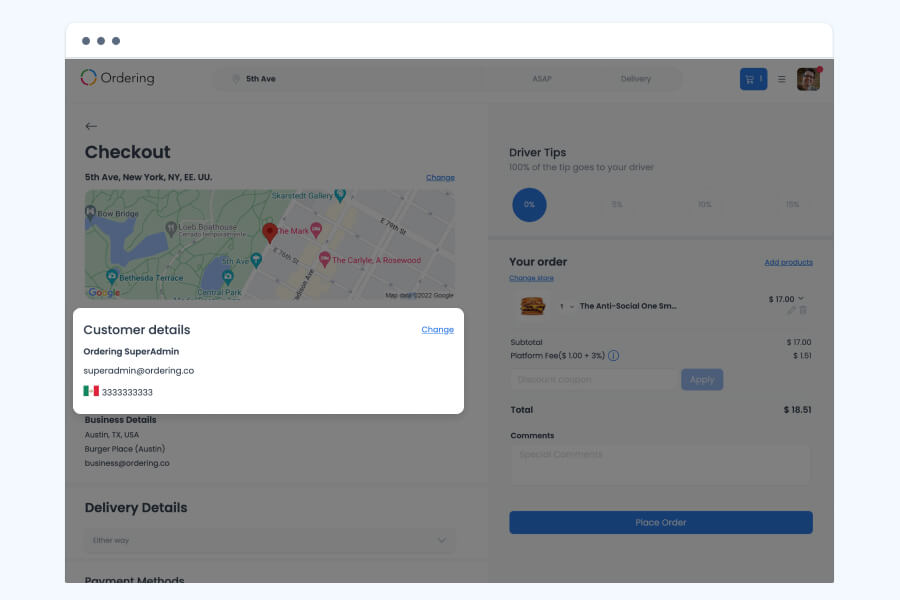
- Fees appear alongside the order subtotal at checkout, so customers see the total before they pay
Good to know
- Which settings appear can depend on your plan and how your business is set up.
- Operation limits, fees, and email settings apply per store, so multi-store businesses set them store by store.
Related
See all featuresSee how it fits your operation.
Start a free trial, or walk through your setup with the Ordering.co team.