

Help every order find the right door.
Customers save the addresses they use, pick the right one at checkout, and set a default so it is ready before they ask. From the dashboard, you decide which address details are required and which countries and cities customers can choose from.
Customer address management
What you can do
Save a new address
Customers add a delivery address with a map pin and a few fields, then save it to their account.
Saved places for next time
Every saved address appears in a list customers pick from at checkout, with edit and delete controls.
Choose the address for each order
Customers pick which saved address, or a new one, an order goes to, right from checkout.
A default delivery location
Customers set a preferred location that pre-fills at the start of a new order.
Address fields you control
Turn address notes, an internal number, and a zip code on or off, and mark each as required, from the dashboard.
Address verification
A built-in check compares the entered address against a database of known addresses before checkout continues, catching a typo before it becomes a missed delivery.
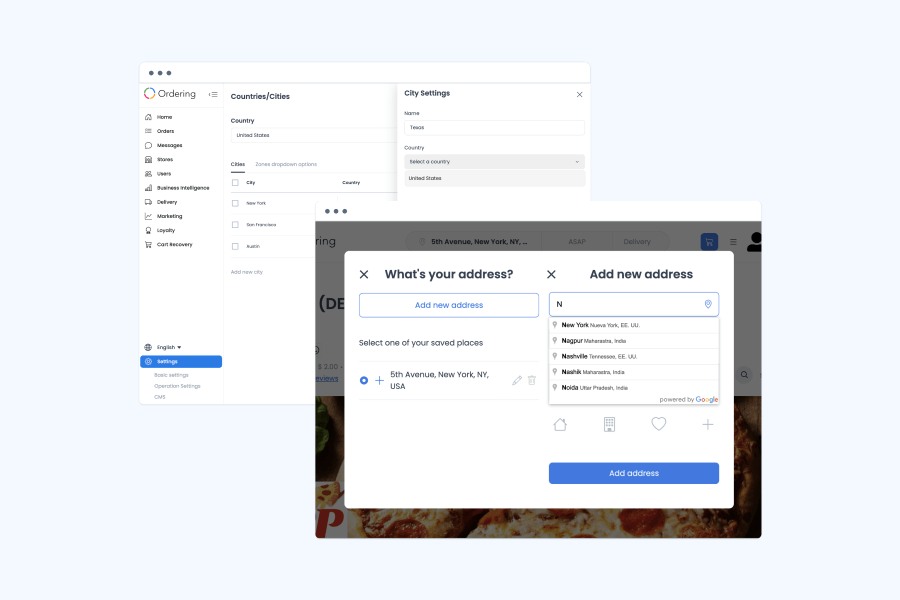
Country and city autocomplete
Typing a few letters suggests matching countries and cities, so customers do not scroll a long list.
Countries and cities you manage
Add the countries and cities customers can choose from, with zone drop-down options for each city, from the dashboard.
Website and customer app
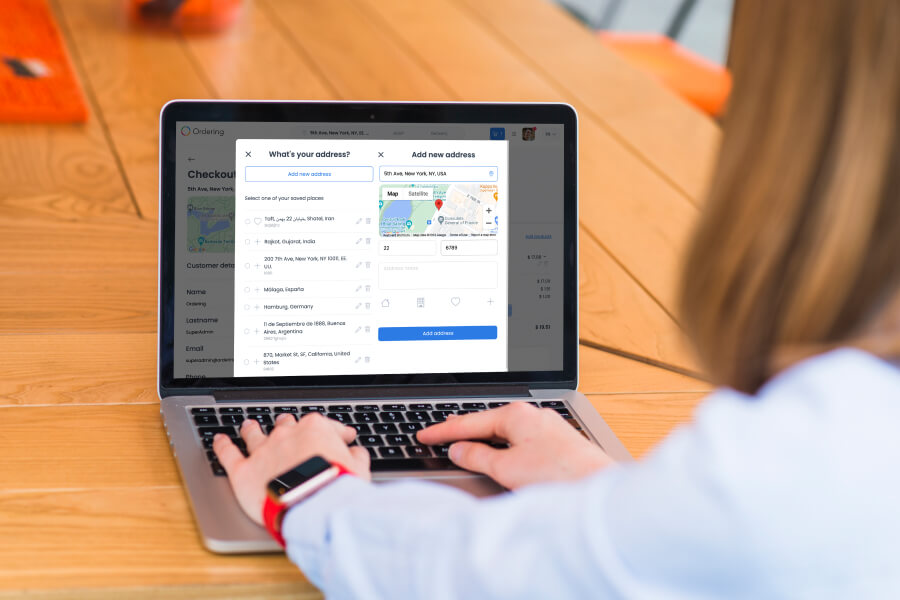
Add and save a delivery address
Adding an address takes a map pin and a few fields, and it is ready to reuse the next time the customer orders.
- Add a new address from checkout or from account settings
- Drop a pin on the map or type the address
- Save it so it appears in the saved list next time
- Edit or delete a saved address at any time from account settings
Website and customer app
Choose from your saved places
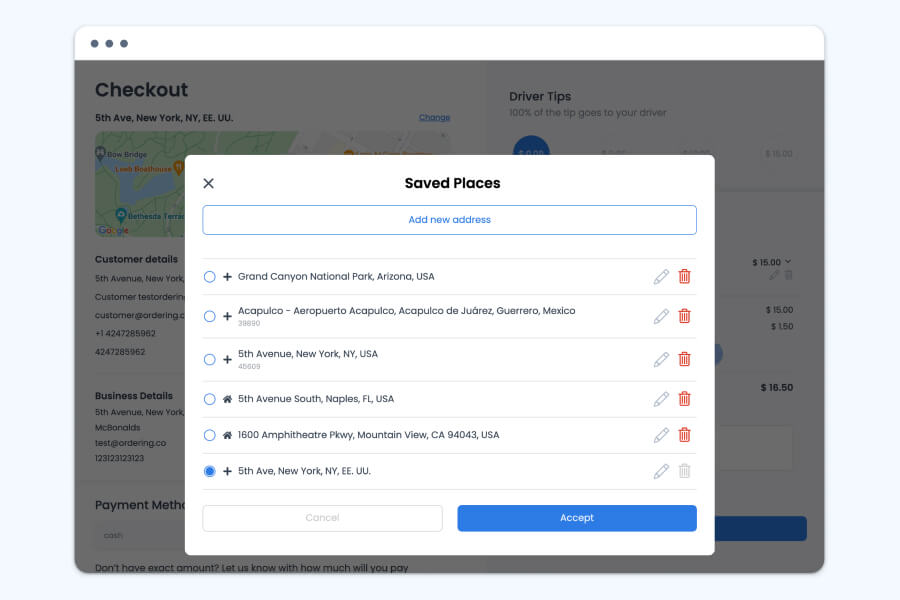
Saved Places keeps every address a customer has used in one list, so checkout is a selection, not a form to fill out again.
- Every saved address appears in a Saved Places list at checkout
- Pick one from the list instead of typing it again
- Add a new address from the same list
- Edit or delete any saved address
Website and customer app
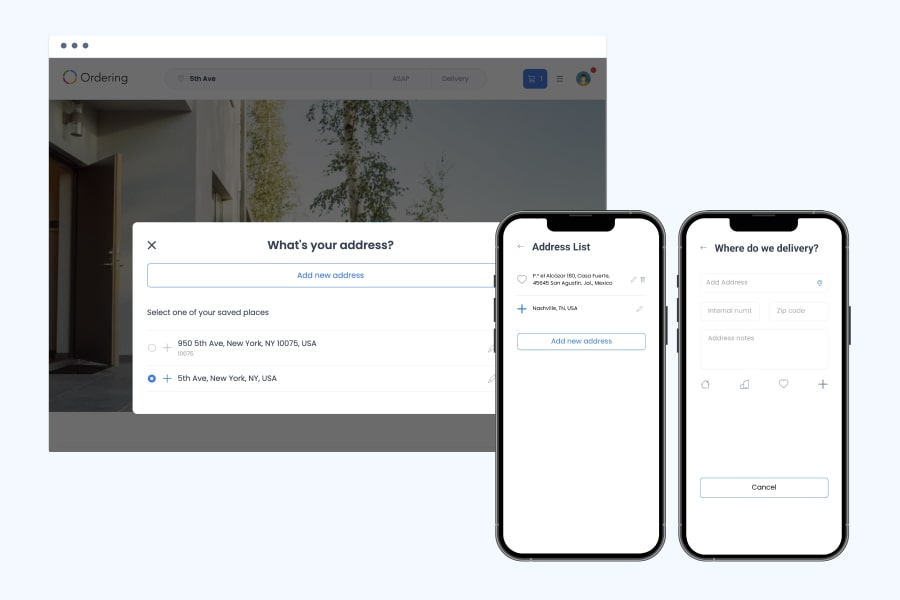
Pick the right address for this order
Customers choose the delivery or pickup address for an order, and a default location saves them from entering it again on the next one.
- Choose the delivery or pickup address for an order at checkout
- Useful for an order sent to an office or a different address than usual
- Set a default location that pre-fills so it does not need to be entered again
- Update the default location any time from account settings
Dashboard
Set the address details each order needs
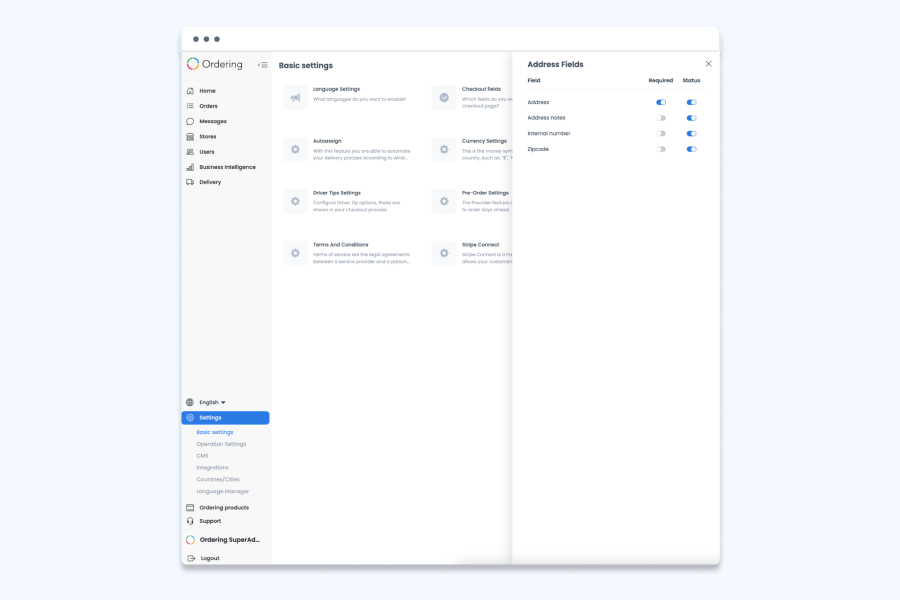
Address Fields settings decide which details an address asks for, so delivery instructions arrive with the order instead of in a follow-up message.
- Turn address notes, an internal number, and a zip code on or off
- Mark any of these fields as required before checkout can continue
- Applies to every address a customer adds on your platform
- A built-in address verification check matches the entered address against a database of known addresses, so orders are delivered to a real, correct location
Dashboard and checkout
Autocomplete for countries and cities
Country and city autocomplete speeds up address entry, and the dashboard controls which countries and cities are on offer.
- Typing a few letters of a country or city suggests matching results as the customer types
- Add the countries and cities your business operates in from the dashboard
- Set zone drop-down options for each city
How it works
From address to accurate delivery.
- 01Add the address
Drop a pin or type the address, add any details your settings ask for, and save it.
- 02Pick it at checkout
Choose a saved address, or the default location, in one tap.
- 03Update anytime
Edit or delete a saved address from account settings whenever it changes.
Good to know
- Which address fields are required, and which countries and cities appear, follow your dashboard settings.
Related
See all featuresSee how it fits your operation.
Start a free trial, or walk through your setup with the Ordering.co team.