Fleet management

One manager, a clear view of every driver.

Drivers Manager brings driver assignment, live tracking, dispatch, performance analytics, driver schedules, and driver tips into a single admin view for your fleet.

Assignment, tracking, dispatch, analytics, scheduling, and tip features depend on the plan, configuration, and integrations enabled for your account. For current plan availability, review Ordering.co pricing.

Drivers Manager fleet overview illustration

Highlights of Drivers Manager

See what one manager can track at a glance.

Use tracking, dispatch, analytics, delivery experience, and driver schedules to define the fleet view your operation needs.

01Driver tracking and management icon

Enhanced Driver Tracking and Management

It provides GPS-based location tracking, enabling you to monitor driver routes, estimated arrival times, and work hours.
02Dispatching and routing icon

Optimized Dispatching and Routing

It optimizes route planning by considering traffic, delivery windows, and driver availability, leading to faster deliveries and reduced fuel costs.
03Driver performance analytics icon

Driver Performance Analytics

Monitor the actions of your drivers in real time, use the available data to inform decisions, and work toward better performance over time.

04Delivery experience icon

Improved Delivery Experience

With this feature, you can give customers accurate ETAs, real-time tracking, and notifications for a more predictable delivery experience.
05Driver schedules and availability icon

Driver Schedules and Availability

Set schedule windows for your drivers and use settings to activate or deactivate them automatically. When an automatic deactivation is due, a driver can still complete the last order already assigned.
Drivers Manager illustration
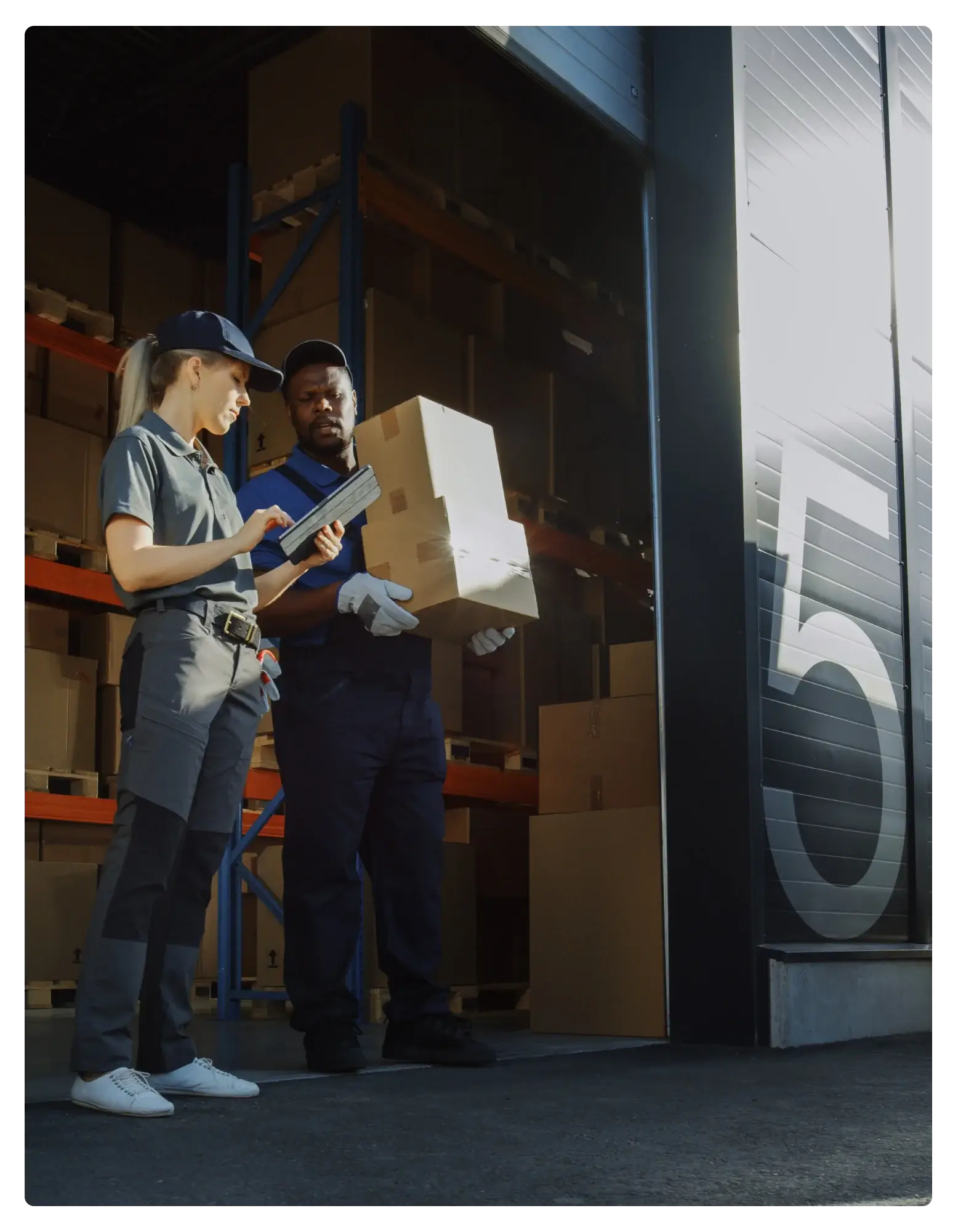
Illustrative delivery team preparing a shipment.

The fleet view

Keep fleet activity visible without switching screens.

A driver manager view can bring tracking, dispatch, and performance signals together, so decisions about routes and assignments do not wait on a separate report.

Delivery efficiency iconReview driver activity, route performance, and delivery exceptions to focus the team on the work that needs attention.
  • Ownership — who reviews dispatch and tracking day to day?
  • Coverage — which delivery types or regions need distinct handling?
  • Review signals — which performance metrics matter to your team?

Driver assignment

Send every order to the right driver.

Pick the driver yourself when you know who should take the job, or let assignment settings do it as orders arrive. Either way, the driver knows the moment an order is theirs.

Where you use it: Dashboard and Business App
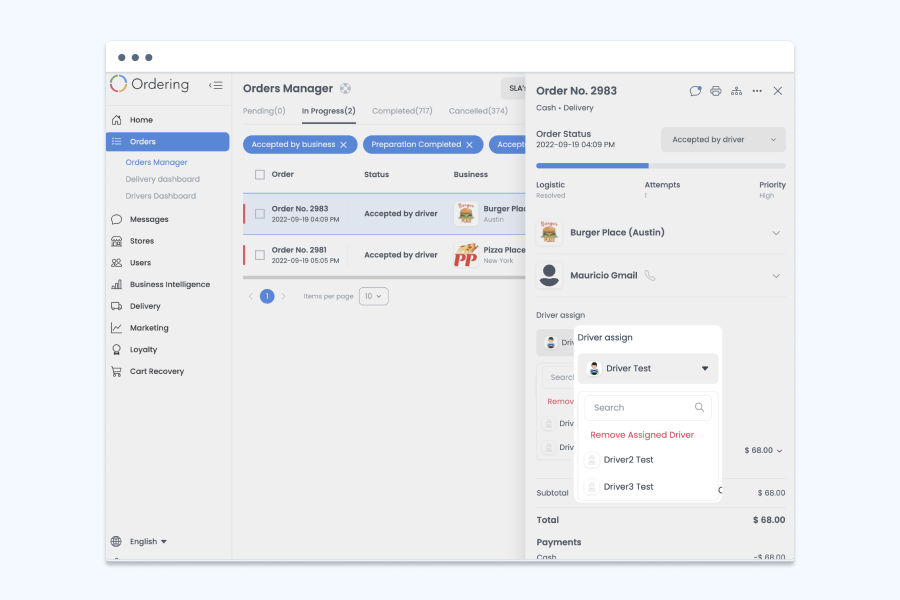
Orders Manager in the Dashboard with a delivery order open and the driver assign menu listing the available drivers

Choose the driver yourself

Select the driver on the order
Open an order in the Dashboard or the Business App and choose its driver from the list of your drivers.
Match the driver to the job
Weigh location, availability, and skill level, or choose a driver you trust who has served that customer well before.
Accept or decline
The assigned driver gets a notification and accepts or declines the job, so you know right away whether to pick someone else.
Reassign or remove
Remove the assigned driver or hand the order to another one, for example when the first driver is running late.
Driver information at hand
See each driver’s delivery times and customer ratings to recognize who gives excellent service and who could use more training or coaching.
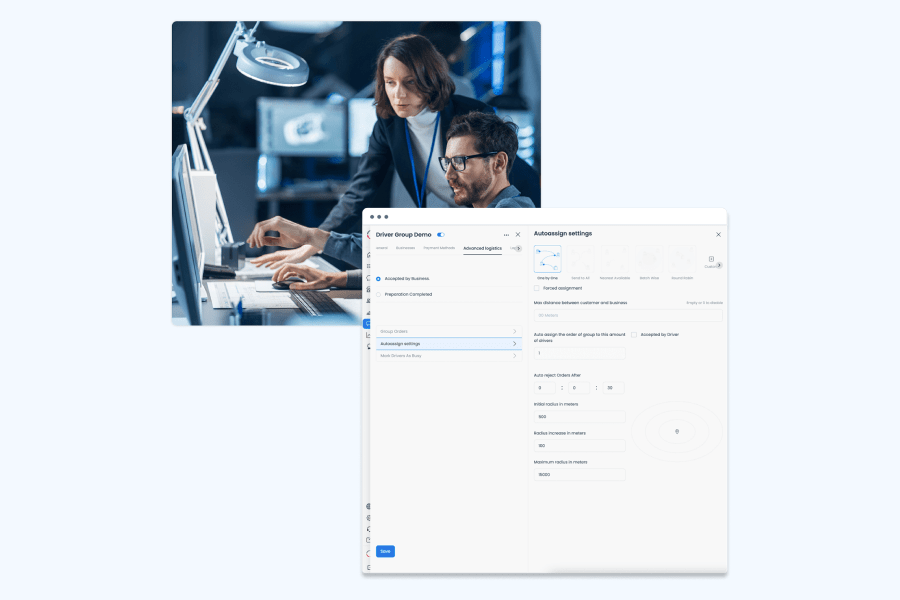
Autoassign settings for a driver group in the Dashboard, with assignment methods, maximum distance, and search radius fields

Let assignment settings decide

Driver zones
Set up zones so each order goes to the drivers closest to the customer, which saves time and shortens delivery.
Availability and location
Assign orders to the drivers available at a given time or nearest to the customer.
Automatic assignment
Define the rules once and orders are assigned automatically as they come in.
Several drivers on one order
Assign more than one driver to a single order when the delivery calls for it.
Live location in every decision
Each driver’s real-time location is tracked, so assignments rest on where drivers actually are.

Why it matters

  • Routes that use time wellAssigning quickly lets you plan efficient routes and spend less time and fewer resources on each delivery.
  • The right driver for each customerOrders arrive on time with qualified drivers you selected, which builds customer satisfaction and loyalty.
  • Safer deliveriesChoosing the driver suited to each job helps orders arrive safely as well as efficiently.
  • Drivers who stayDrivers who consistently serve customers well earn more deliveries and more income, which helps you retain them.

Live tracking

Follow every delivery as it happens.

Each driver’s GPS location reaches the Dashboard in real time, so your team sees where drivers are and how long they need to arrive, and answers questions without chasing anyone.

Where you use it: Dashboard, on any device with an internet connection
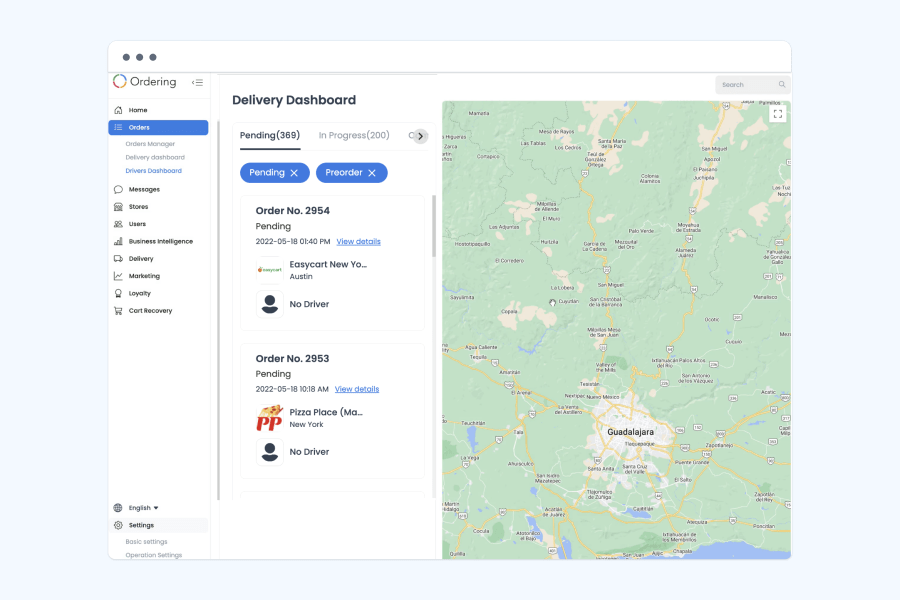
Delivery Dashboard listing pending orders and their assigned drivers beside a live map

For your team

Active drivers on one map
Log in to the Dashboard to see every active driver on a live map, and zoom in or out for the level of detail you need.
Who is doing what
Check each driver’s name, the order they are working on, and their estimated arrival time.
Progress in real time
Follow each driver’s location and movement toward the destination as the delivery advances.
Act on delays
Spot a driver running late, then reassign the order or tell the customer about the delay.
Messages to drivers
Send messages and instructions to drivers on the road to coordinate deliveries and share updates.
Many drivers, many locations
Manage several drivers at once, including fleets that serve multiple locations of a restaurant group or franchise.
Faster answers to customers
When a customer asks about a delivery or reports an issue, find the driver and get the information to resolve it.
From anywhere
Monitor drivers and orders from any device with an internet connection, at any time.

For your customers

More accurate estimates
Real-time location gives customers delivery estimates they can rely on.
Order status as it changes
Customers follow their order’s progress and receive real-time notifications about its status.
A direct line to the driver
Customers can contact the driver directly with questions or concerns.

Why it matters

  • Efficient routesKnowing where drivers are lets you plan routes and keep deliveries moving with less wasted time.
  • Customers kept informedAccurate estimates and status updates make the wait predictable, which encourages repeat orders.
  • Drivers kept safeSeeing every driver’s location lets you check on them and address problems promptly, including in unfamiliar areas.
  • Orders that arrive rightVisible progress helps each order reach the customer on time and in good condition.

Availability and schedules

Plan coverage around who is actually available.

See which drivers are working and which are not, set the windows each driver works, and let availability switch on and off on schedule.

Where you use it: Dashboard
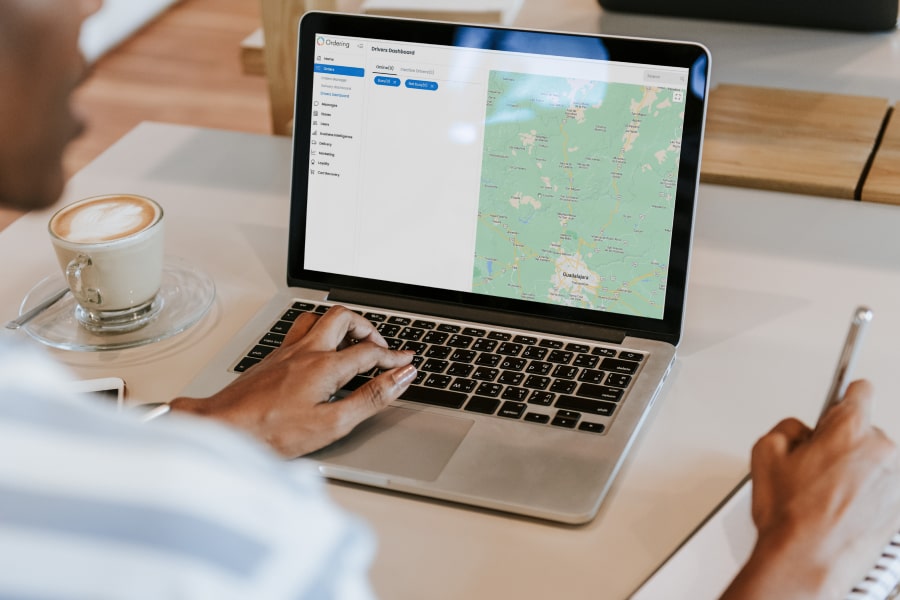
Operator reviewing the Drivers Dashboard on a laptop, with online and inactive driver tabs beside a driver map

Schedules

Schedule windows
Set the windows in which each driver works.
Automatic activation and deactivation
Settings activate or deactivate drivers automatically according to their schedule.
The last order gets finished
When an automatic deactivation is due, a driver can still complete the last order already assigned.
Schedules drivers can act on
Share delivery schedules and routes clearly and on time, so drivers have the information they need.

Inactive drivers

See who is not working
View the list of drivers who are inactive or not working on any order.
Details for each driver
Open any driver to see their name, location, and availability.
Filters
Sort the list by location, availability, and other factors to find the drivers you need.
Coverage gaps ahead
Spot drivers who will be unavailable for an extended period and plan how to fill the gap.

Why it matters

  • Every driver put to useActive and inactive views show where drivers are needed, so no one sits idle while orders wait.
  • On-time deliveriesSchedules built on distance, time, and availability keep orders delivered efficiently and on time.
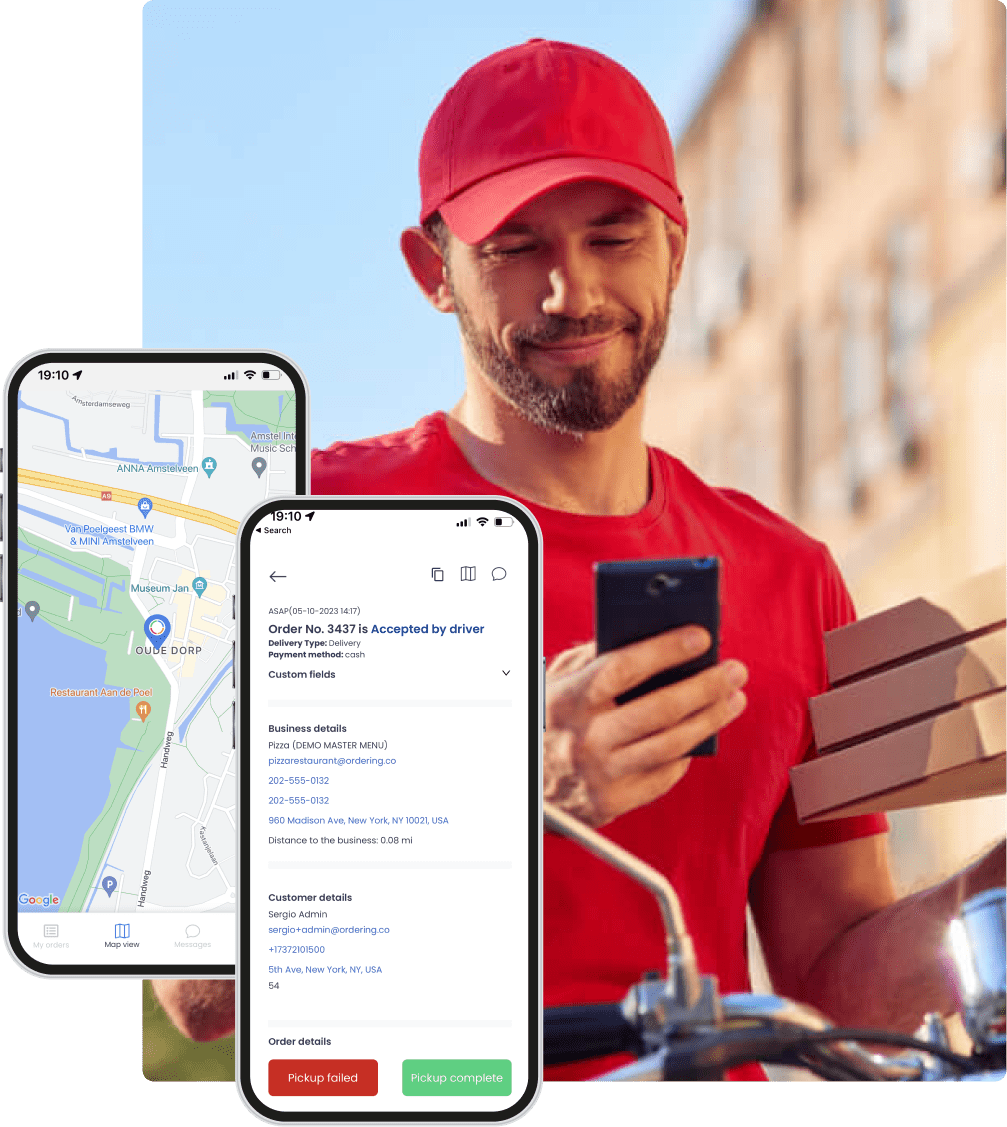
Driver app screens with a delivery map and order details on a driver's phone

On the driver's side

Give each driver what they need to close a delivery.

Driver accounts, order assignment, notifications, and tracking options work together for the drivers in your fleet, according to the configuration you select. Each order follows one observable flow: assign it to the right driver workflow, let the driver update its progress from the mobile flow, verify the delivery with the required proof, and review the activity in the reports your setup makes available.

On the phone, the driver gets the assignment, the order and customer context, route information, status updates, communication options, and the proof options selected for the operation.

  • Delivery verification — drivers confirm each delivery with a PIN code, a photo, a video, or the customer’s signature, and settings can require them to be at the store to mark an order as picked up and at the customer’s address to mark it delivered, within the distance in meters you set.
  • Instant notifications — customer notifications, delivery status, ETA updates, and delay messages, according to the workflows and services enabled for your implementation.
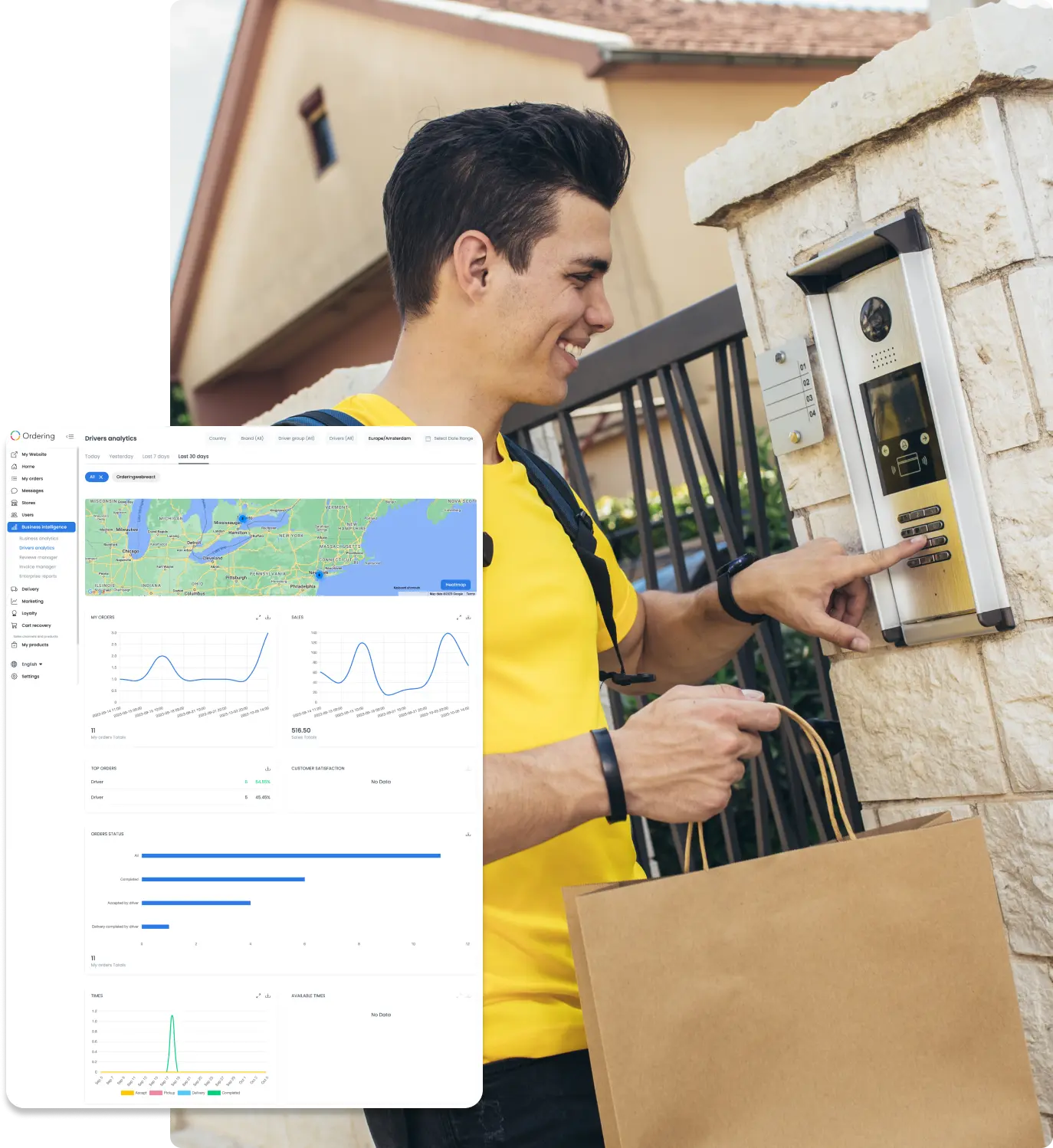
  • Driver performance metrics — review driver activity and delivery outcomes, with the metrics, time ranges, filters, and data sources your team needs.
  • Mobile devices — mobile workflows support delivery updates and communication when the applicable services are enabled.
  • Customer feedback and ratings — collect customer feedback and rate drivers.
  • Choice and route awareness — drivers accept or decline orders according to their availability, see each order’s status to plan the route and spend less time waiting, and share their location for added safety in unfamiliar areas.

For example, as drivers complete their deliveries, they add evidence of delivery to fulfill each order. Before you configure it, decide which updates should reach customers, which proof is required to complete an order, and which activity operators must review.
Explore the Driver App

Driver performance report with a delivery map and activity charts

Driver tips

Let customers thank their driver at checkout.

Driver tip settings add a tip choice to your checkout, so customers can recognize a good delivery in a tap and drivers are fairly paid for their work.

Where you use it: Dashboard settings and your checkout
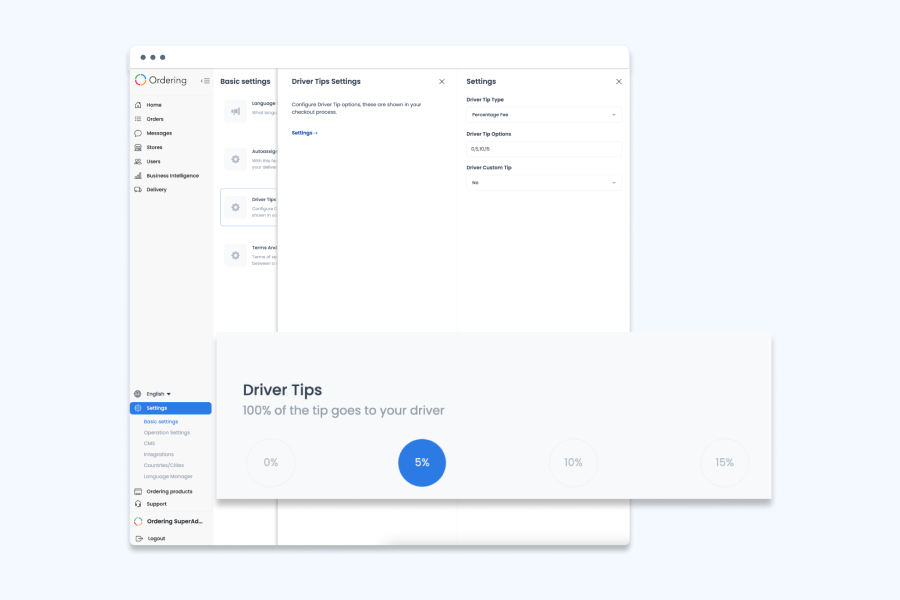
Driver Tips Settings in the Dashboard with tip type, tip options, and custom tip fields, above the percentage tip selector shown at checkout

How tips work

A tip at checkout
Customers leave a tip for their delivery driver on the checkout page while they place the order.
Preset options
Offer set amounts, such as $1, $5, or $10, or percentages of the order.
Your tip settings
Choose the tip type, list the options customers see, and decide whether customers can enter a custom tip.
Always optional
Customers can choose not to leave a tip.

Why it matters

  • Appreciation made easyCustomers get a simple way to show appreciation for a driver’s effort and service.
  • Drivers fairly paidTips add to what drivers earn, and satisfied drivers give customers better service.
Delivery fleet illustration

Built for active fleets

Give fleet oversight a daily owner.

Delivery operations use a driver manager to oversee their fleet and keep orders moving throughout the day. Use it to review performance and refine how your team assigns and tracks deliveries.

Talk to Ordering.co

Put fleet oversight in one manager's hands.

Tell us how your team dispatches, tracks, and reviews driver performance today.