

01
Apple Developer
Create the identity configuration.
- Register an App ID with Sign in with Apple.
- Create a Services ID for the website or app login.
- Add the domain and the correct return URL.
- Generate and securely download a Sign in with Apple key.
Sign in with Apple
Add Sign in with Apple to your Ordering.co website and Customer App. Your team creates the identifiers and key in Apple Developer, then connects them in Ordering.co Social login options.
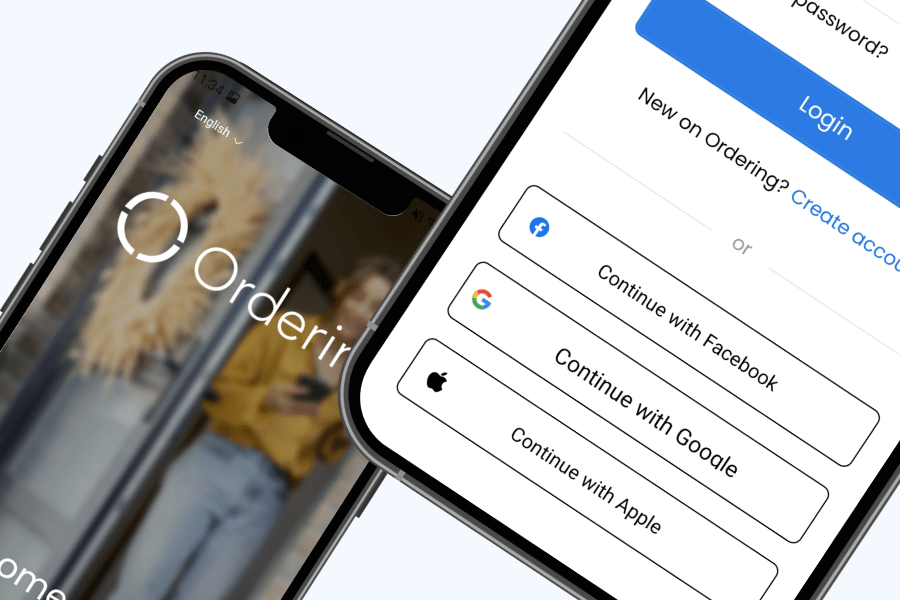
The customer experience
The customer sees Apple beside the other account options you enable. The configured Apple callback connects that authentication step back to your ordering experience.
Customers select Continue with Apple from the sign-in options in your ordering experience.
Apple handles the account authentication before returning the customer through the configured callback.
The customer returns to the website or Customer App and continues with the account connected to that sign-in.
Two connected workspaces
The identifiers must describe the same app, website, and return path in both systems. This is what allows Apple to return the customer to the correct ordering experience.
Apple Developer
Ordering.co Dashboard
Credential map
Keep the private key secret. Apple permits a Sign in with Apple key file to be downloaded once, so store it in an approved secure location.
Before launch
The setup succeeds only when Apple Developer and Ordering.co use the same identifiers and approved return path.
Review Apple’s web requirements/login/apple/callback; franchise websites use /searchlogin/apple/callback.Align the Apple identifiers, Ordering.co settings, and customer surfaces before launch.