

This article explains the time format setting as it worked when it was first published. Availability, configuration, and plan scope may have changed since, so check the current product and support documentation before you rely on it.
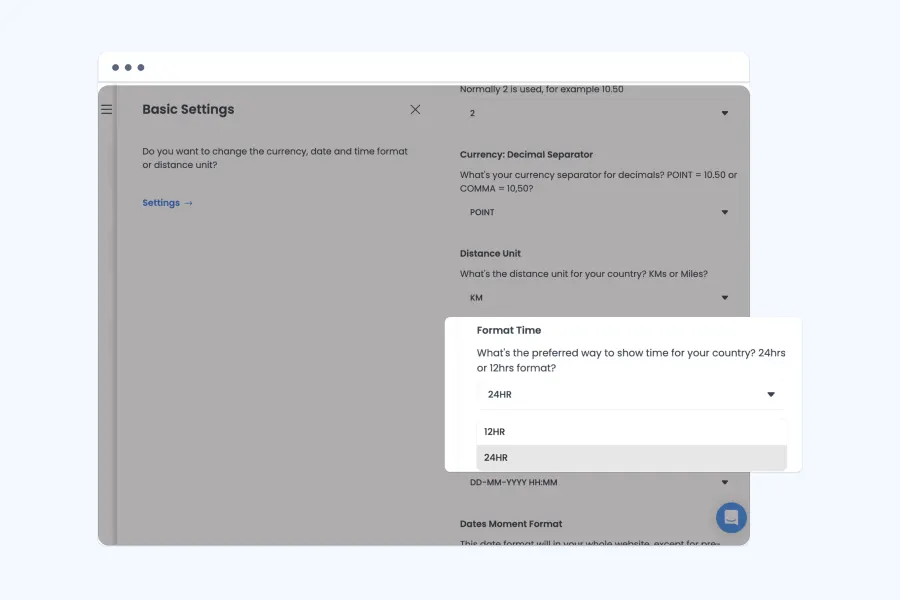
Why time format matters
A 12-hour display uses AM and PM; a 24-hour display represents the same time from 00:00 to 23:59. Clear presentation helps customers and operators interpret scheduled pickup and delivery times consistently.
Keep the full workflow consistent
Customer selection, confirmation, merchant queue, receipt, dispatch, notification, reporting, and support should represent the same underlying timestamp. Changing display format must not change the stored instant or timezone.
Avoid ambiguous communication
- Show timezone when locations or users span regions
- Use explicit dates with scheduled orders
- Keep AM/PM visible in 12-hour format
- Test locale and daylight-saving transitions
- Verify exports and integrations interpret timestamps correctly
Current-product check
Before using this as setup guidance, confirm where the setting is controlled, which surfaces inherit it, and whether customer and operator preferences can differ in the current configuration.